Introduction
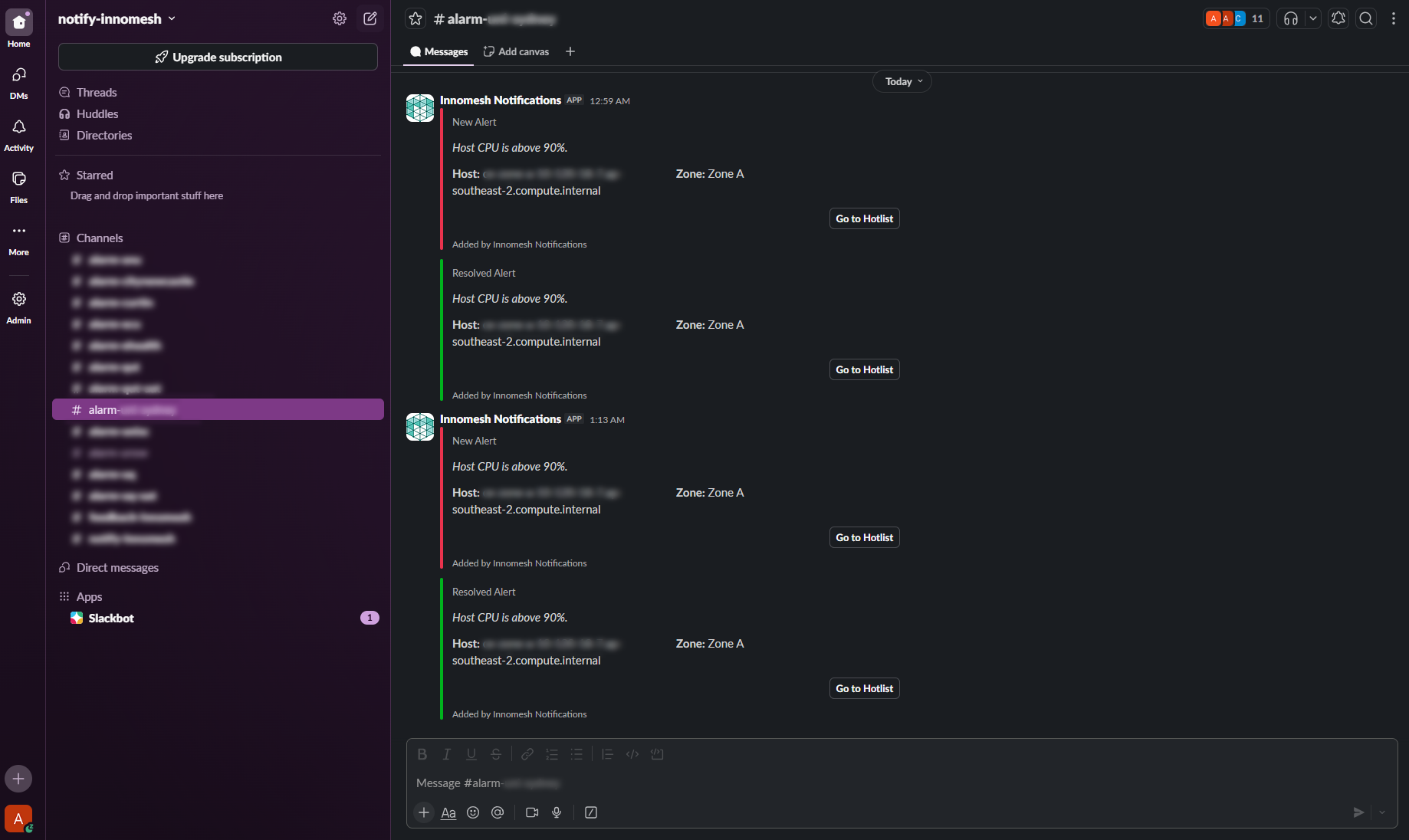
Innomesh can push alert notifications to Slack channels, enabling operational users to receive real-time notifications when issues occur. This guide outlines the client-side setup required for Innomate to enable this feature.
Overview
Innomesh sends alert notifications to Slack via incoming webhooks. Separate webhooks are created for different notification types — typically one channel for alarm notifications and another for general platform notifications — allowing your team to manage alert visibility and routing within Slack.
Setup Steps
Step 1: Create the Innomesh Notifications App
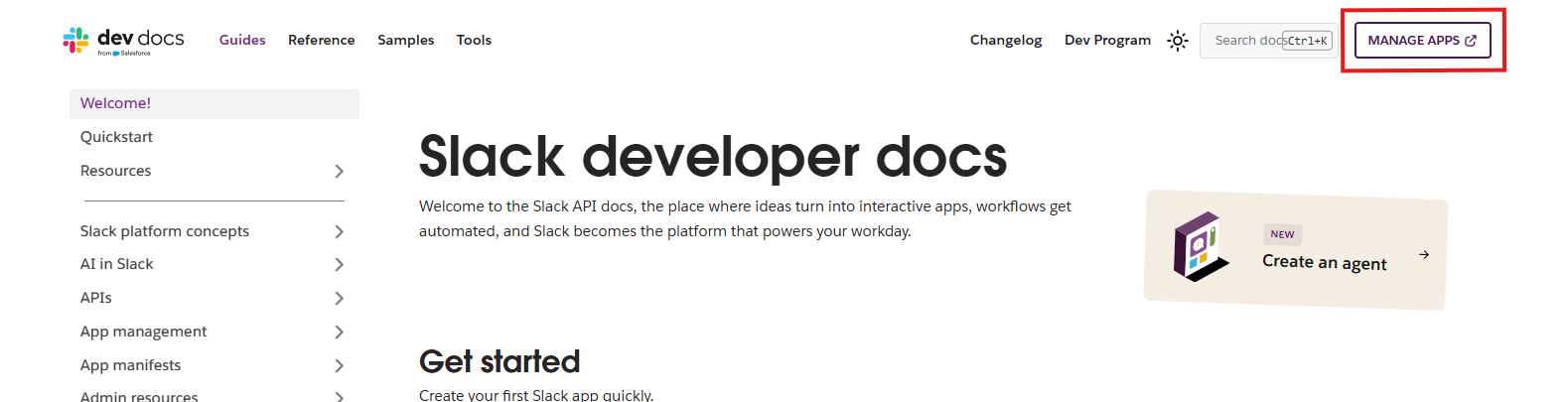
Navigate to api.slack.com and click Manage Apps in the top-right corner.
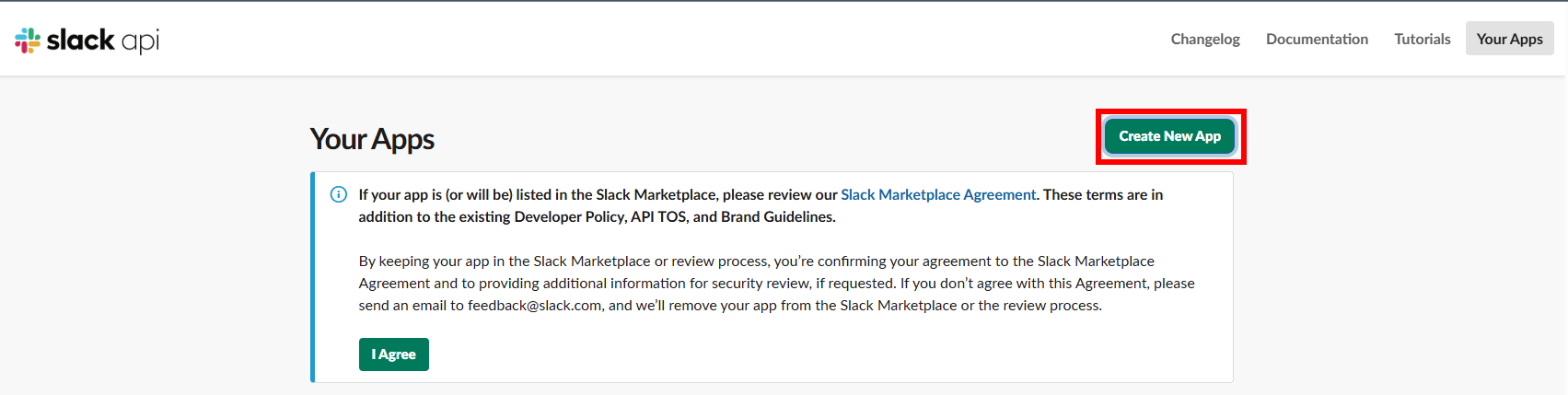
Click Create New App in the top-right corner.
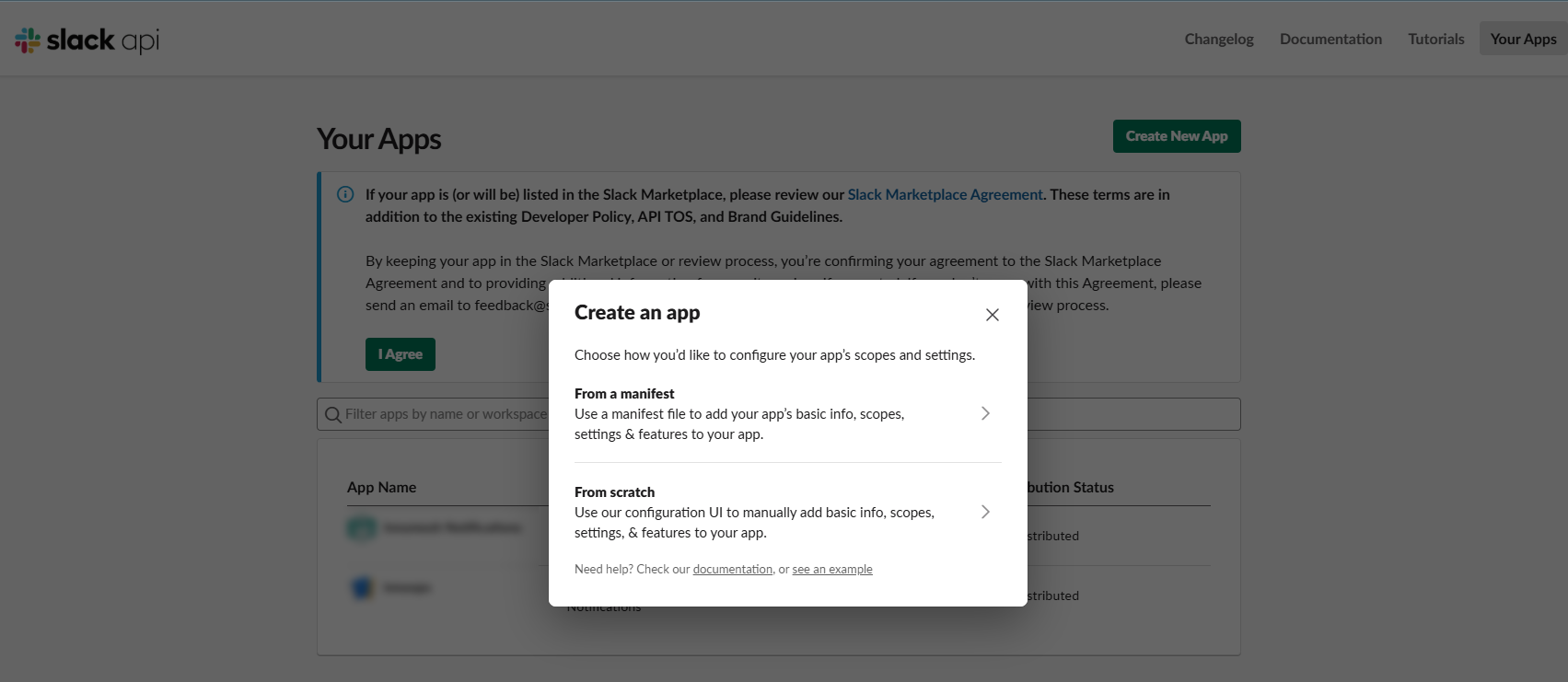
Select From scratch.
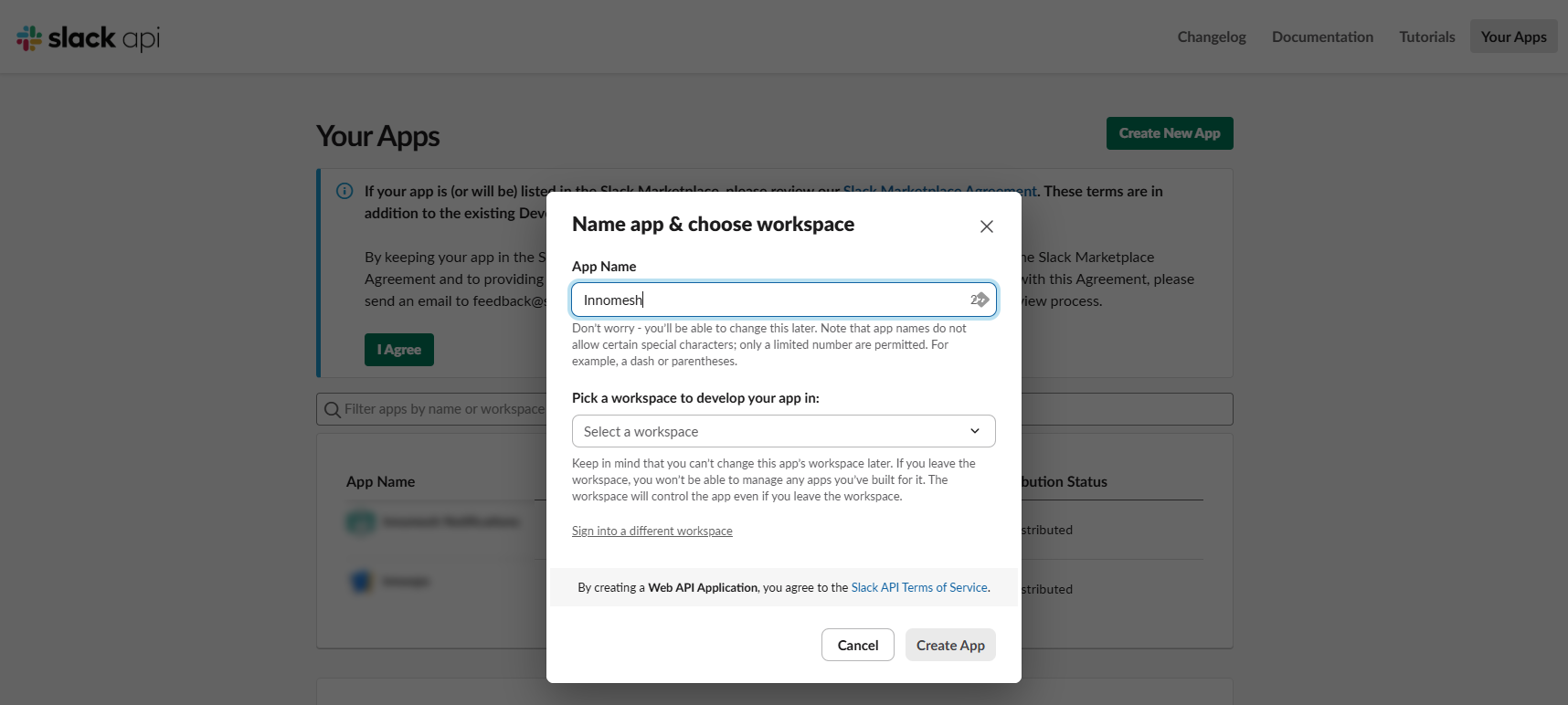
Enter a name for the app (e.g., Innomesh Notifications), select the workspace to associate it with, and click Create App.
Step 2: Add the Innomesh Notifications App to Your Channel
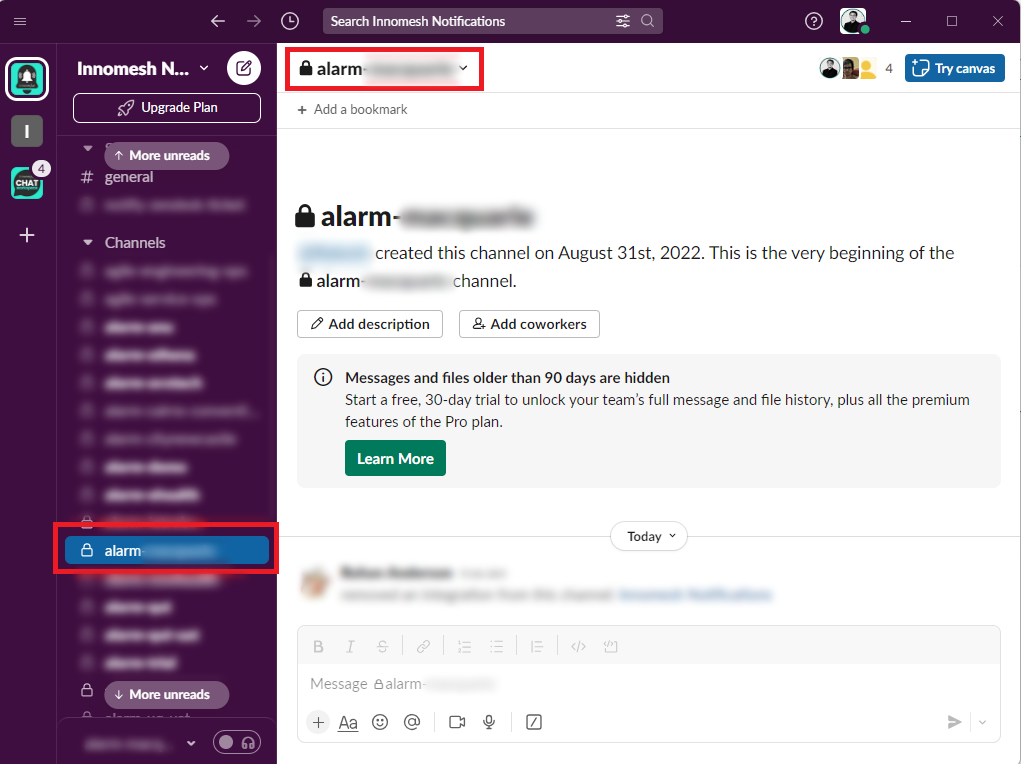
In Slack, navigate to the channel that should receive Innomesh notifications and click the channel name to open its details.
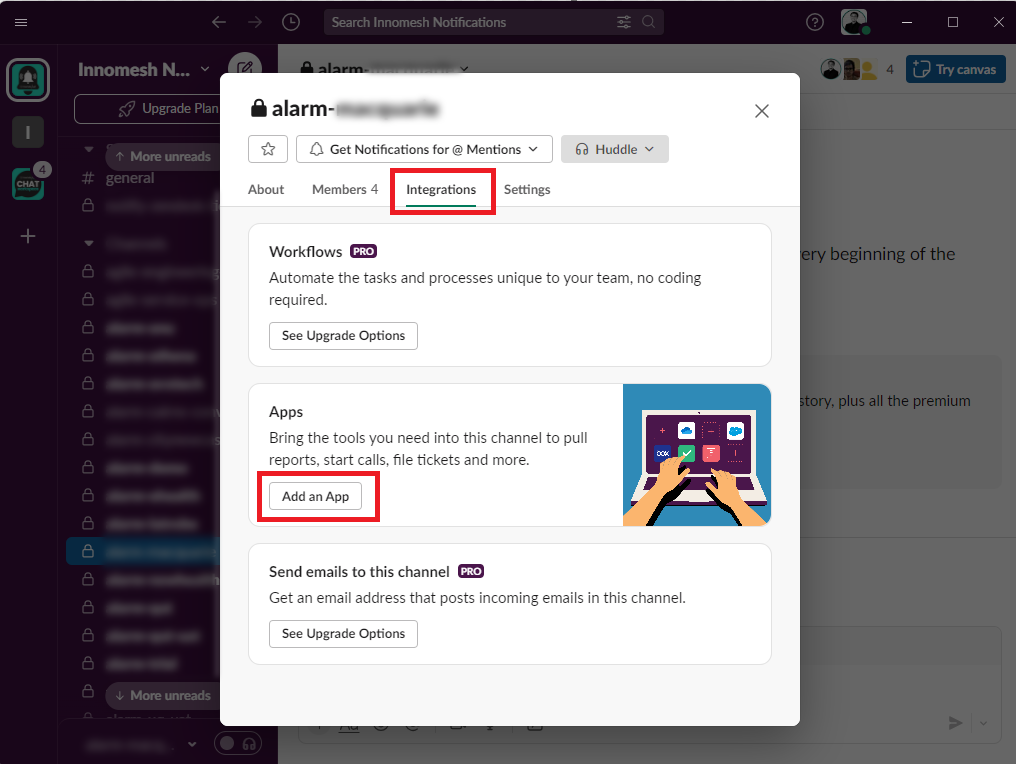
Go to Integrations, then click Add an App.
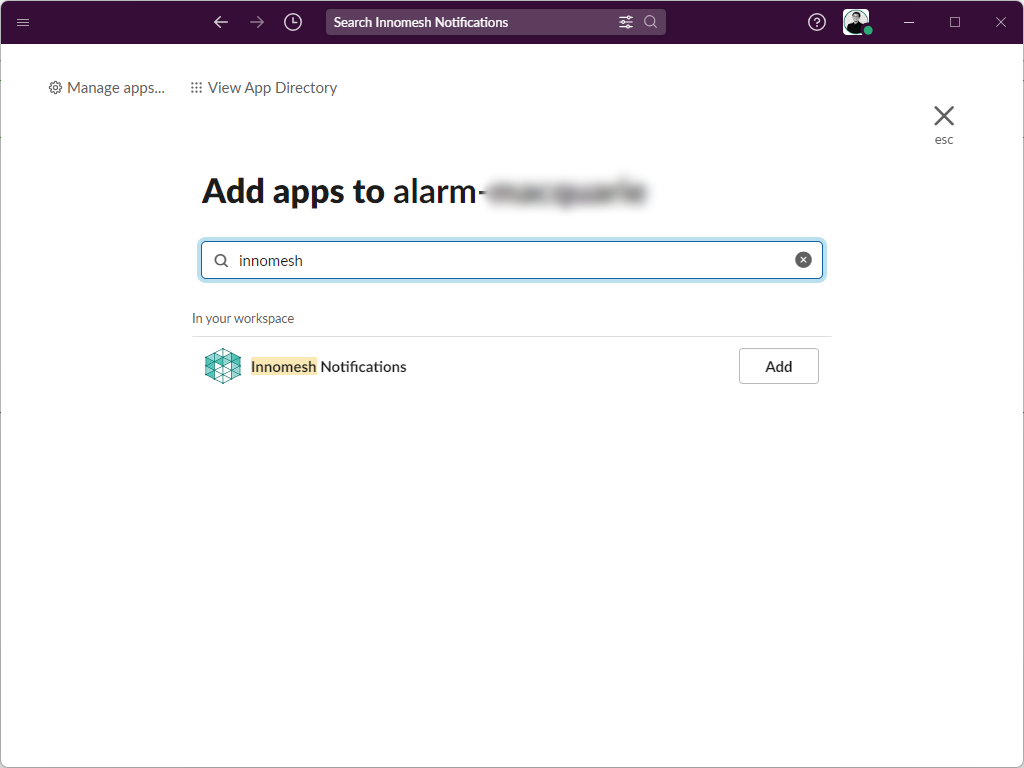
Search for the app created in Step 1 (e.g. Innomesh Notifications) and add it to the channel.
Repeat this step for each channel that will receive Innomesh notifications (e.g., a dedicated alarm channel and a general notifications channel).
Step 3: Generate Incoming Webhook URLs
For each channel set up in Step 2, an incoming webhook URL needs to be generated from the Innomesh Notifications Slack app.
Navigate to api.slack.com, then go to Your Apps and select the app created in Step 1 (e.g. Innomesh Notifications).

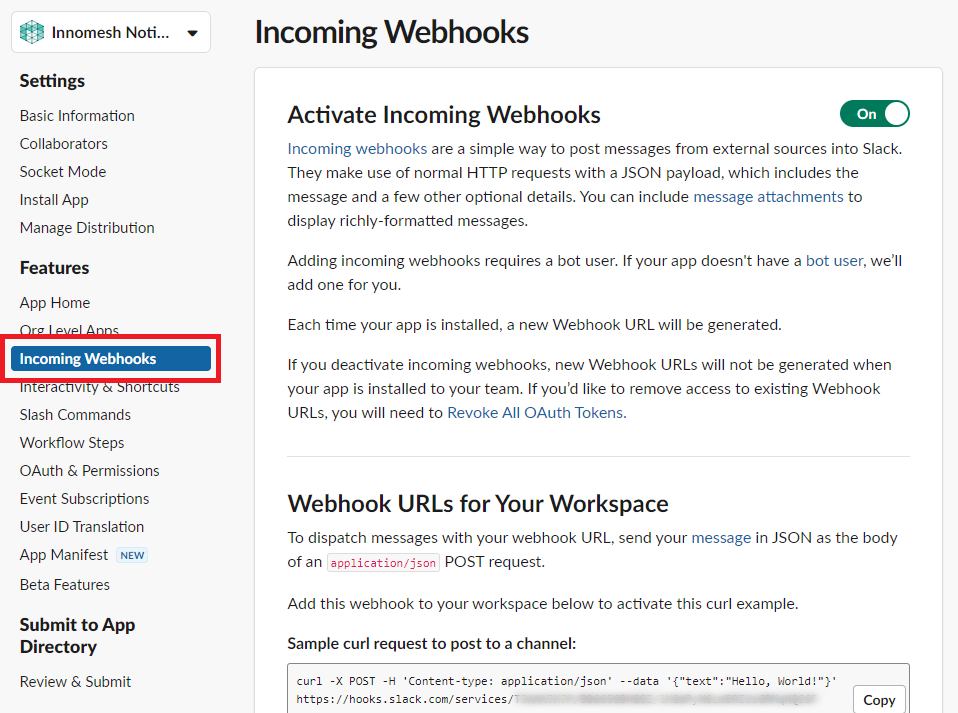
Click Incoming Webhooks in the side menu, scroll to the bottom of the page, and click Add New Webhook to Workspace.
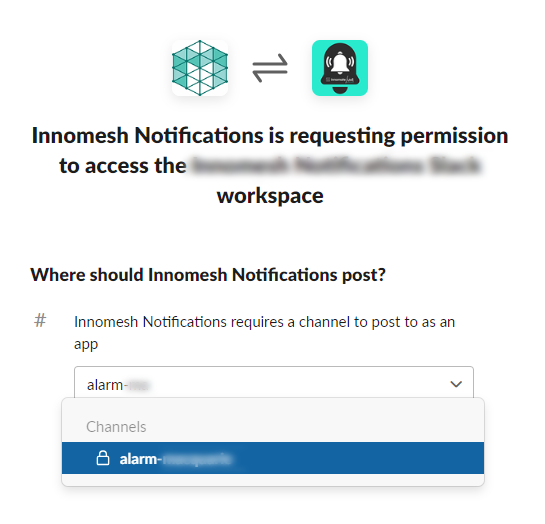
Search for the channel to post the webhook to, then click Allow.
This generates a webhook URL for the channel. Click Copy to copy it.
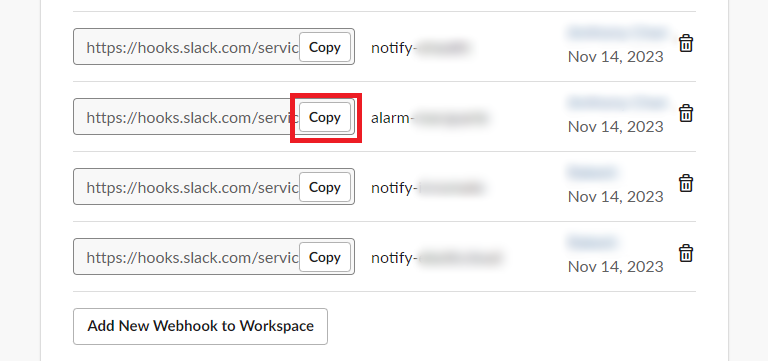
Repeat this for each channel (e.g., your alarm channel and your notifications channel).
Step 4: Provide the Webhook URLs to Support
Once you have the webhook URL(s), provide them to Innomate or UXT support to complete the backend configuration. Support will wire the webhooks into the Innomesh notification routing for your tenancy.
What Happens Next
After the webhook URLs have been provided and configured, Innomesh will route alert notifications to the designated Slack channels based on notification type and criticality. Notifications include alert severity, room name, device details, and a direct link to the affected room in the Innomesh Portal.