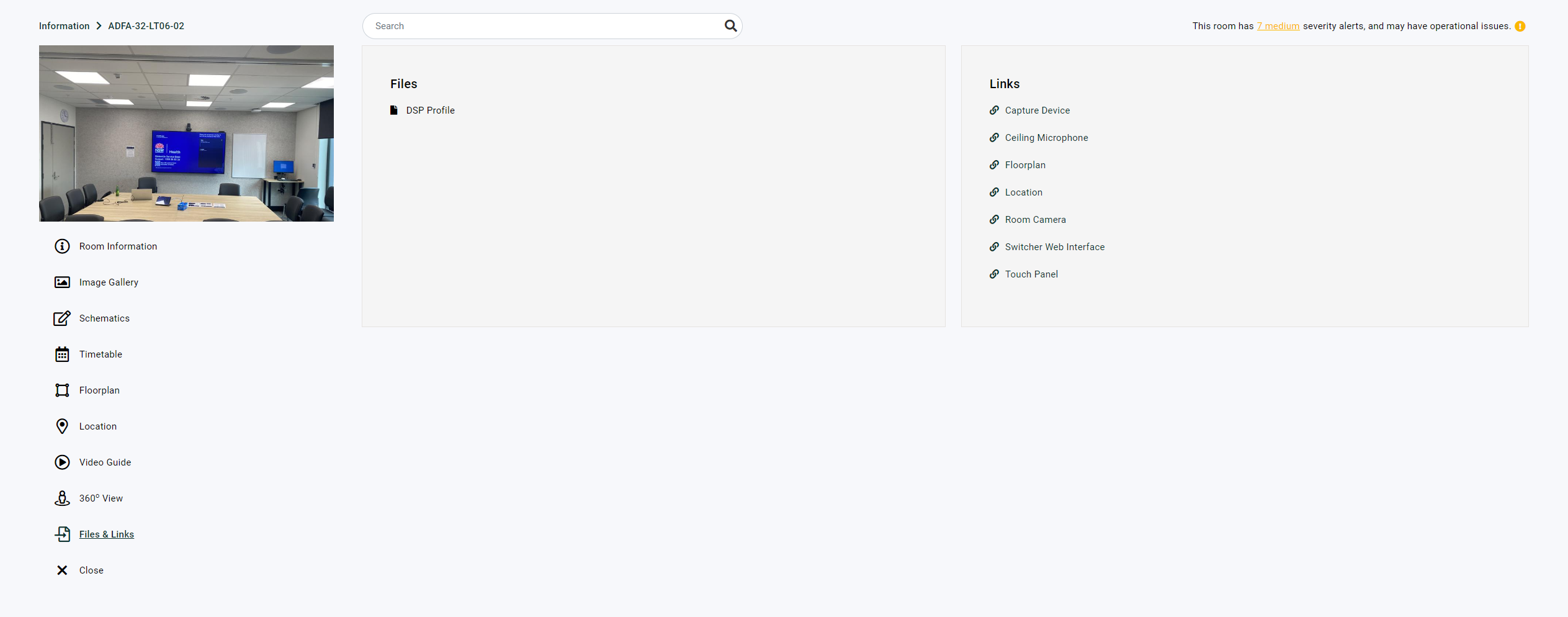
The Information page in Innomesh Portal provides a centralised view of room data and physical features. It combines image galleries, schematics, timetables, maps, and web links in a single, organised interface.
At a Glance
Access the Information page by selecting the Information tab from the Portal navigation bar. The page lists every room with its key metadata fields as configured in the AV Service Portal or Room Manager (room name, room friendly name, type, primary usage, space owner, SLA, phone number, and any custom fields). The Room Friendly Name is available from Innomesh v3.6.1.
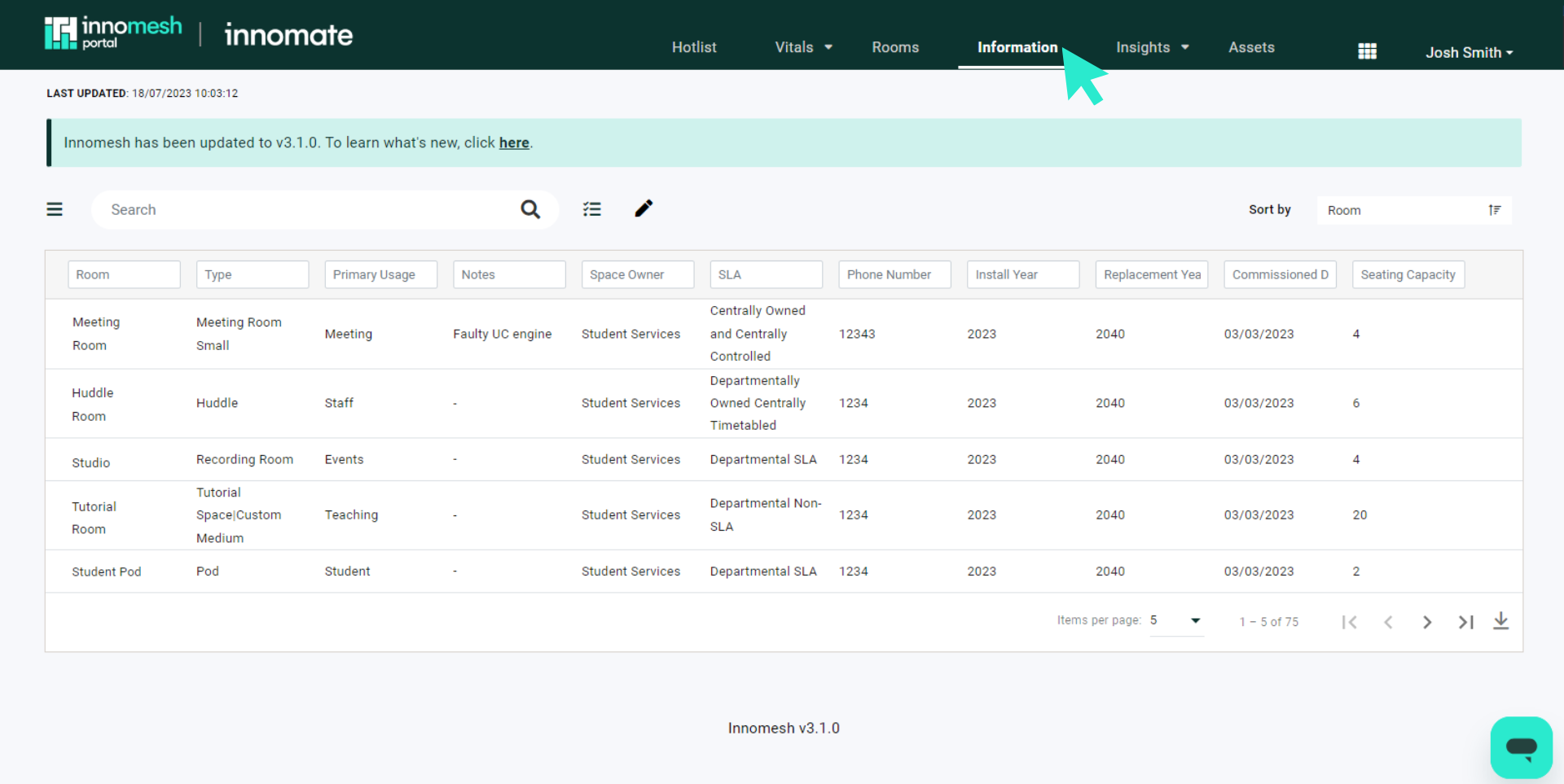
New tenancies are provisioned with a recommended starting set of these fields. See Default Fields for the full list, including field types, validation, and what each field drives in Portal.
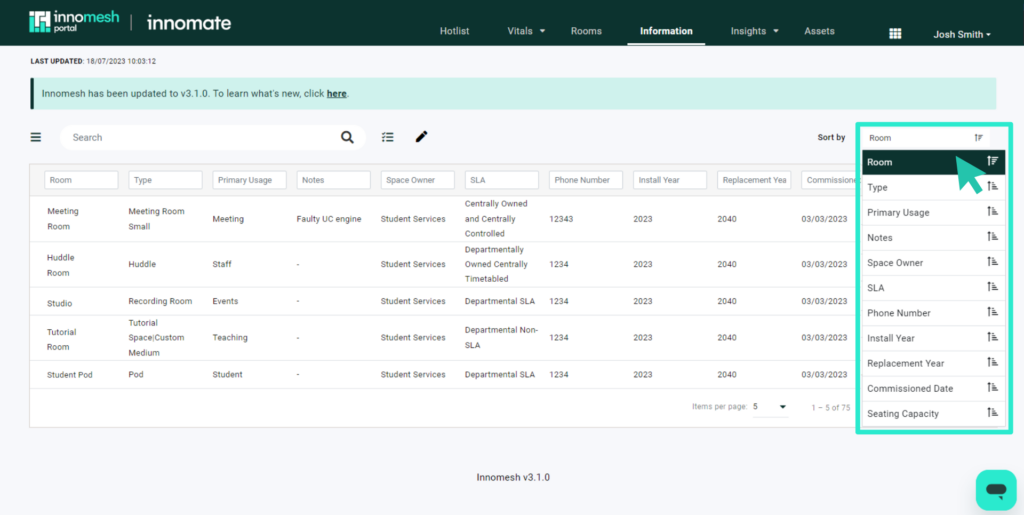
- Rooms sort alphabetically by default. Use the Sort By dropdown to change the sort order.
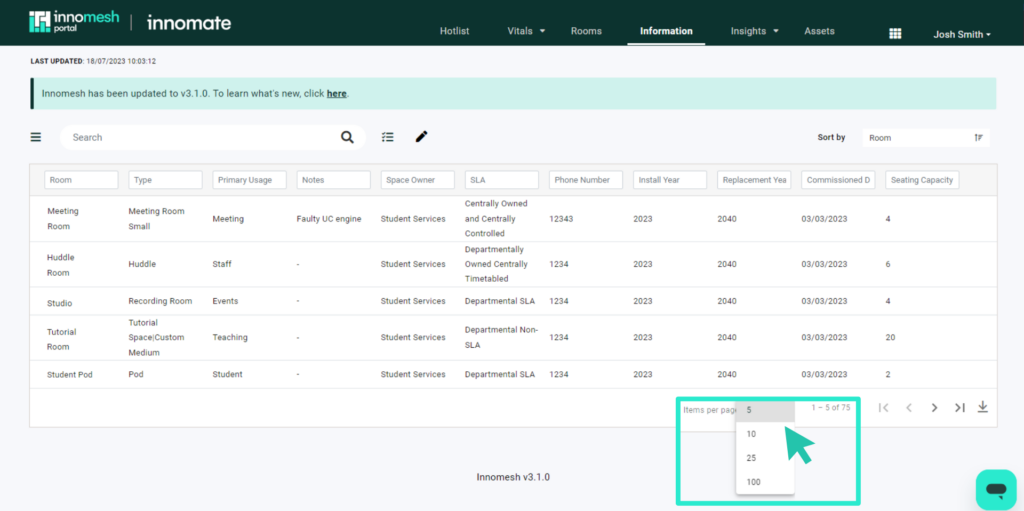
- Adjust the number of rooms displayed per page using the pagination controls.
- Download room information as a CSV file for offline use.
Summary Views
Summary Views let you organise Smart Room Attributes and existing room information fields into custom tabs on the Information page. This makes it easier to compare rooms across specific criteria.
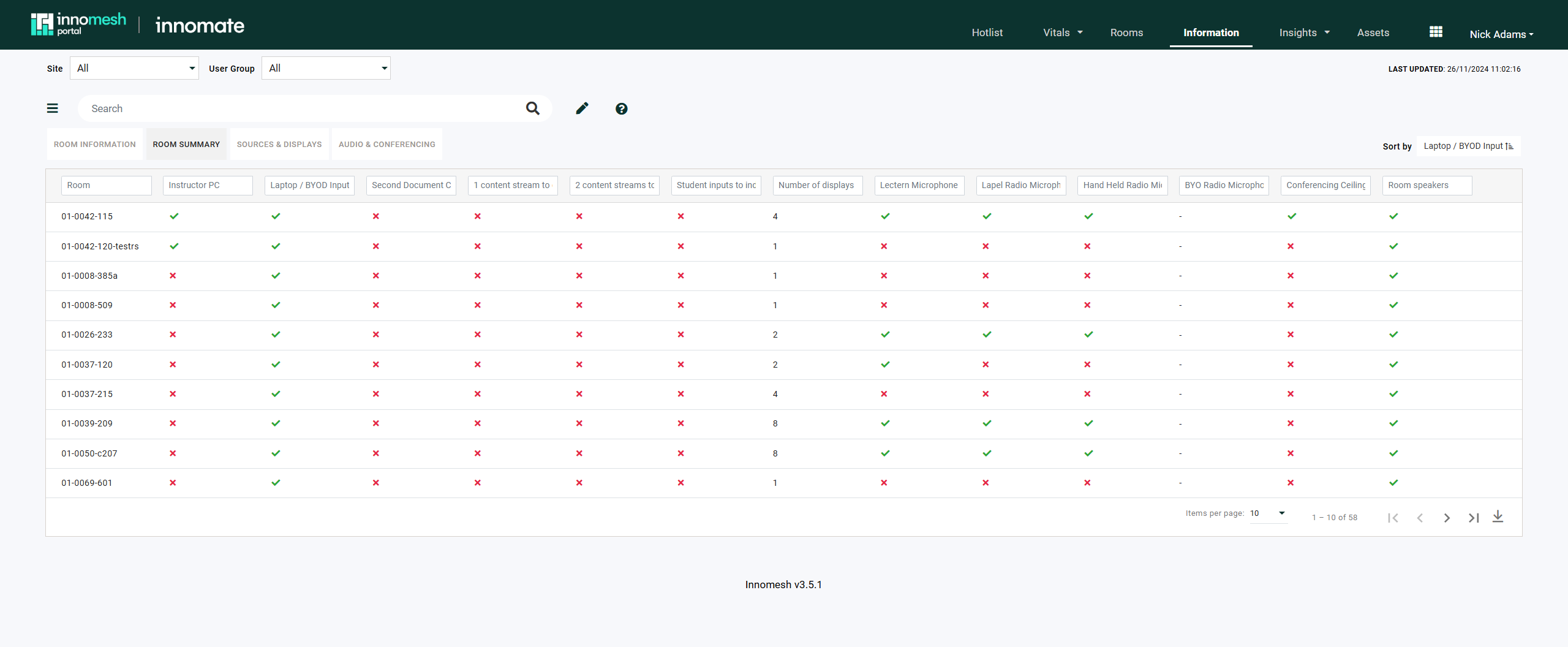
To create a Summary View:
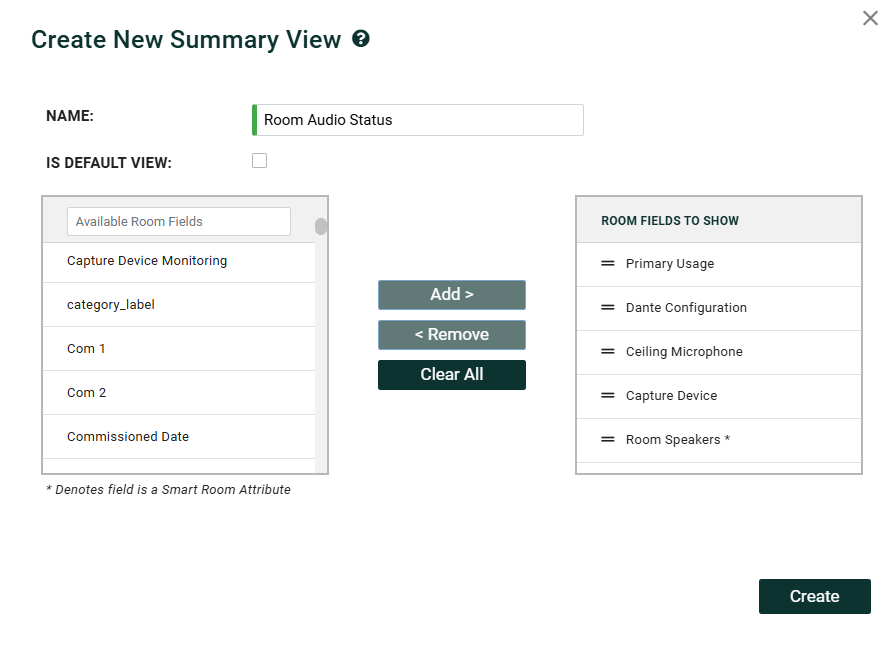
- Navigate to Administration > Smart Room Attributes > Summary Views.
- Click Create New.
- Name the view and select the fields to include.
Room Information Detail
Clicking a room opens its full information page, which is divided into the following tabs.
Room Information
The landing tab displays static room details (capacity, equipment, custom attributes) with direct editing capabilities. Values can also be updated through Room Manager. Dynamic information from external sources (data imports, Smart Room Attributes) appears alongside manually entered data.
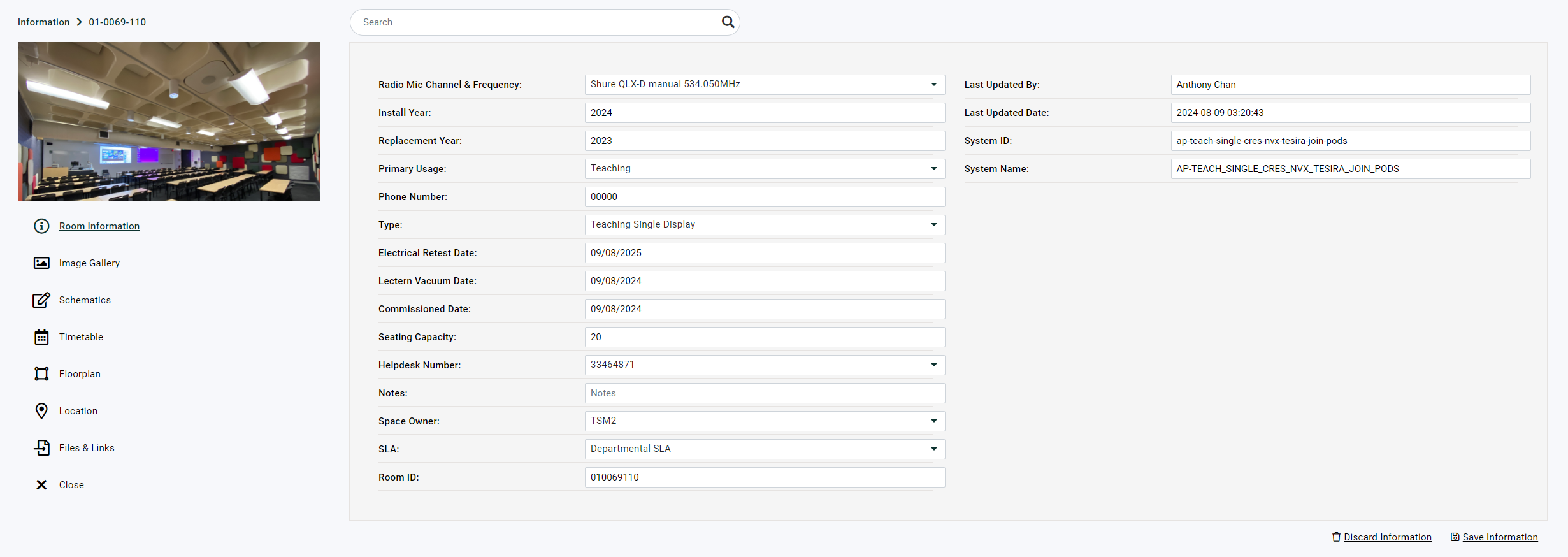
Image Gallery
Displays room photos in a grid layout with:
- Clean, organised grid display
- Detailed gallery view with zoom functionality
- Left and right navigation between images
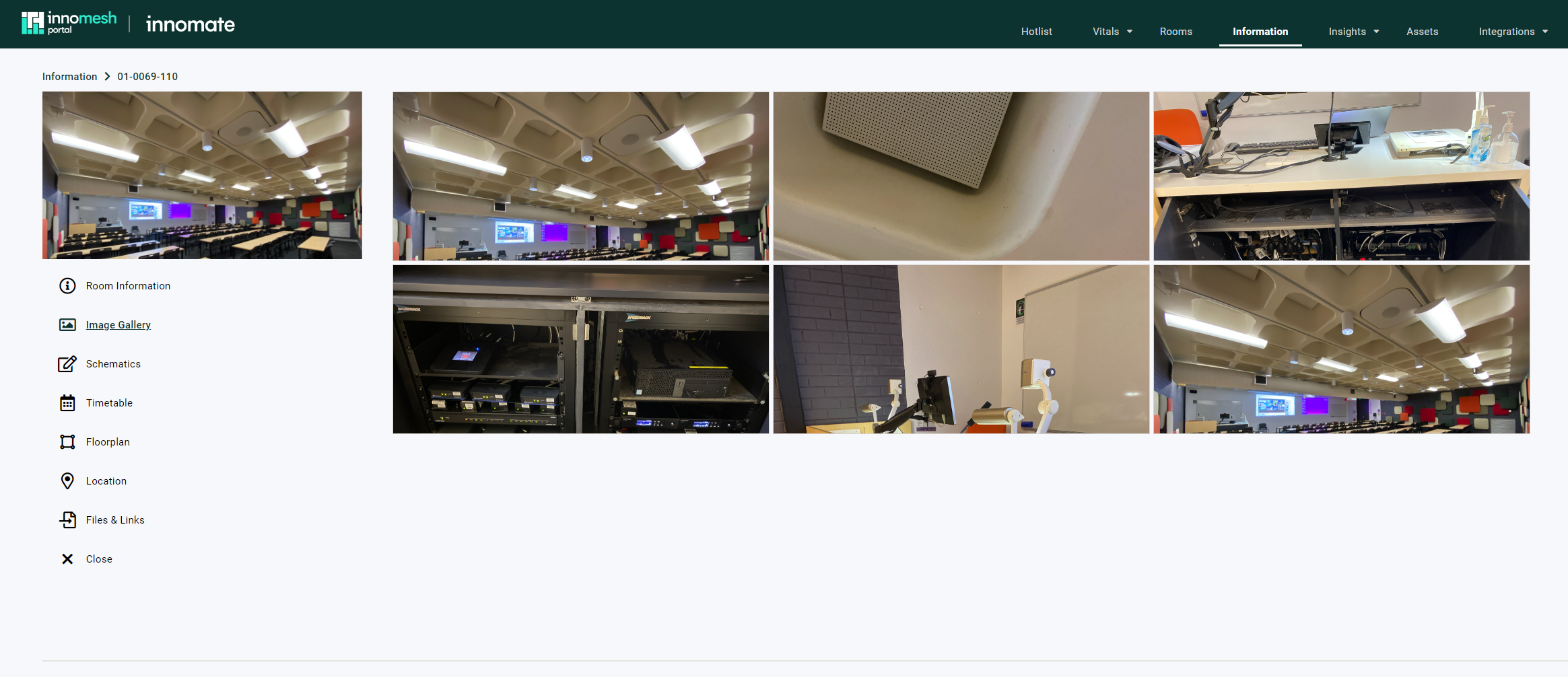
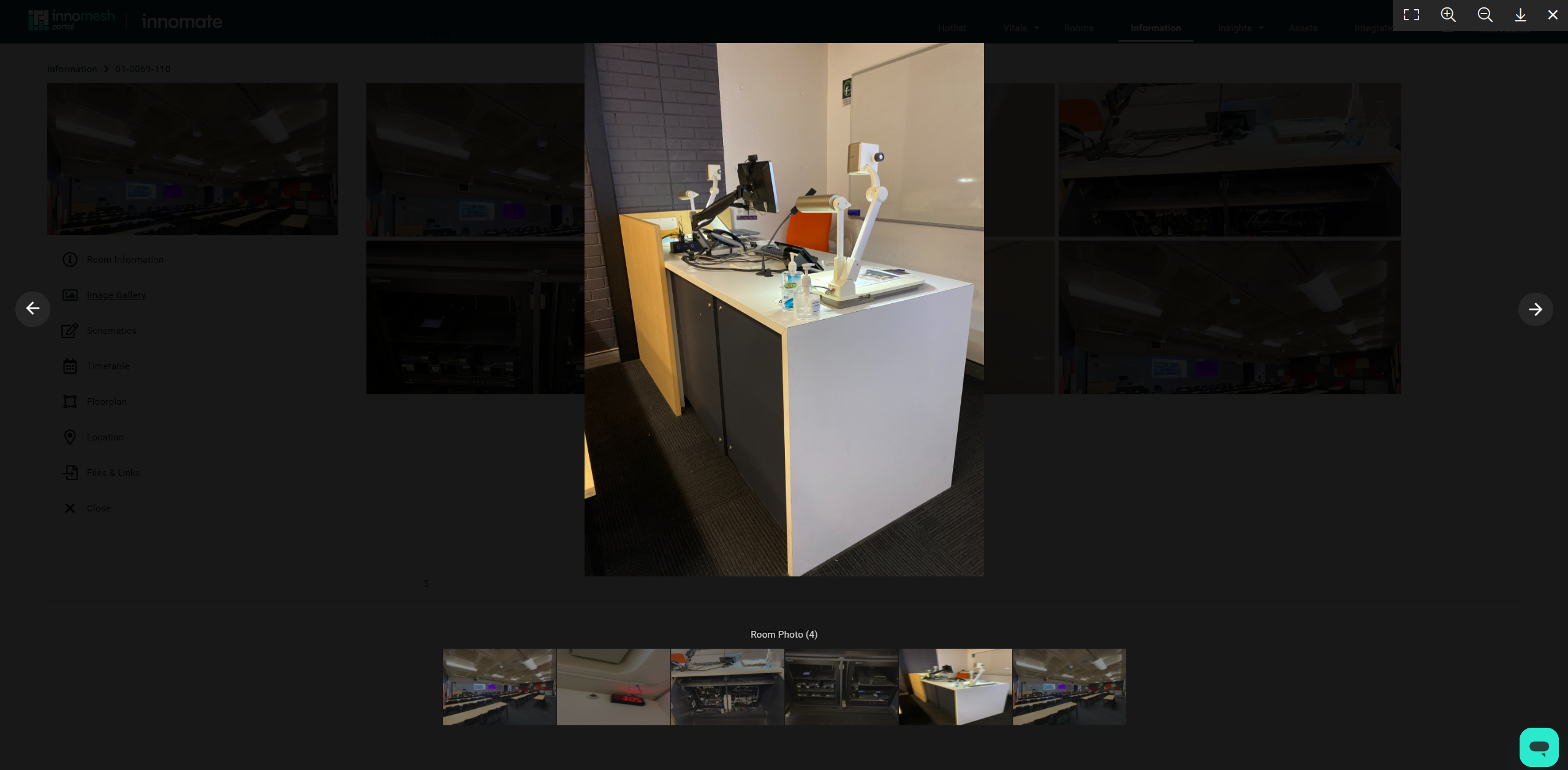
To add images, open Room Manager, navigate to the room’s Room Information tab, upload supported formats (JPG, PNG, GIF), and save changes.
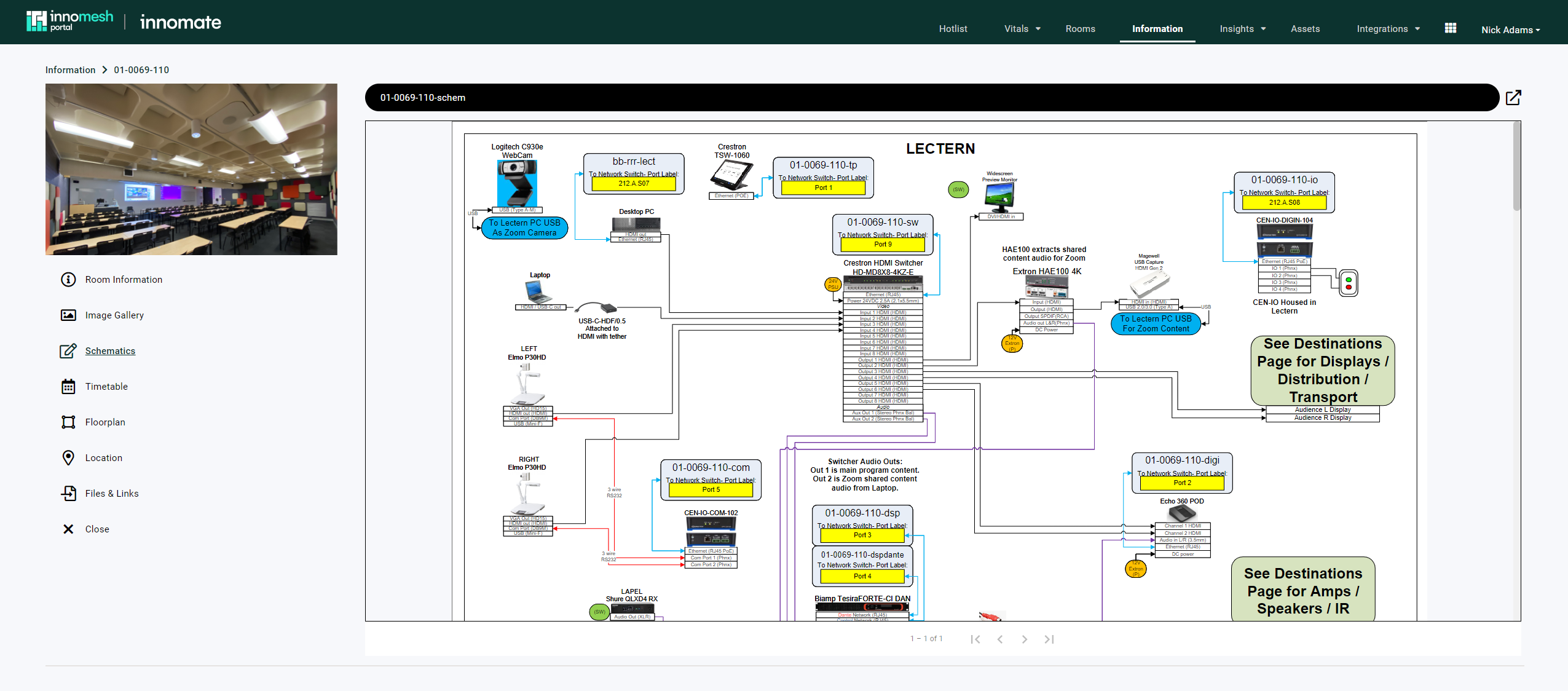
Schematics
Provides a dedicated view for room schematics with embedded or external viewing options.
Upload files to room fields containing “schematic” in the field name (supported formats: PDF, JPG, PNG). The Portal automatically detects and embeds these files.
Timetable
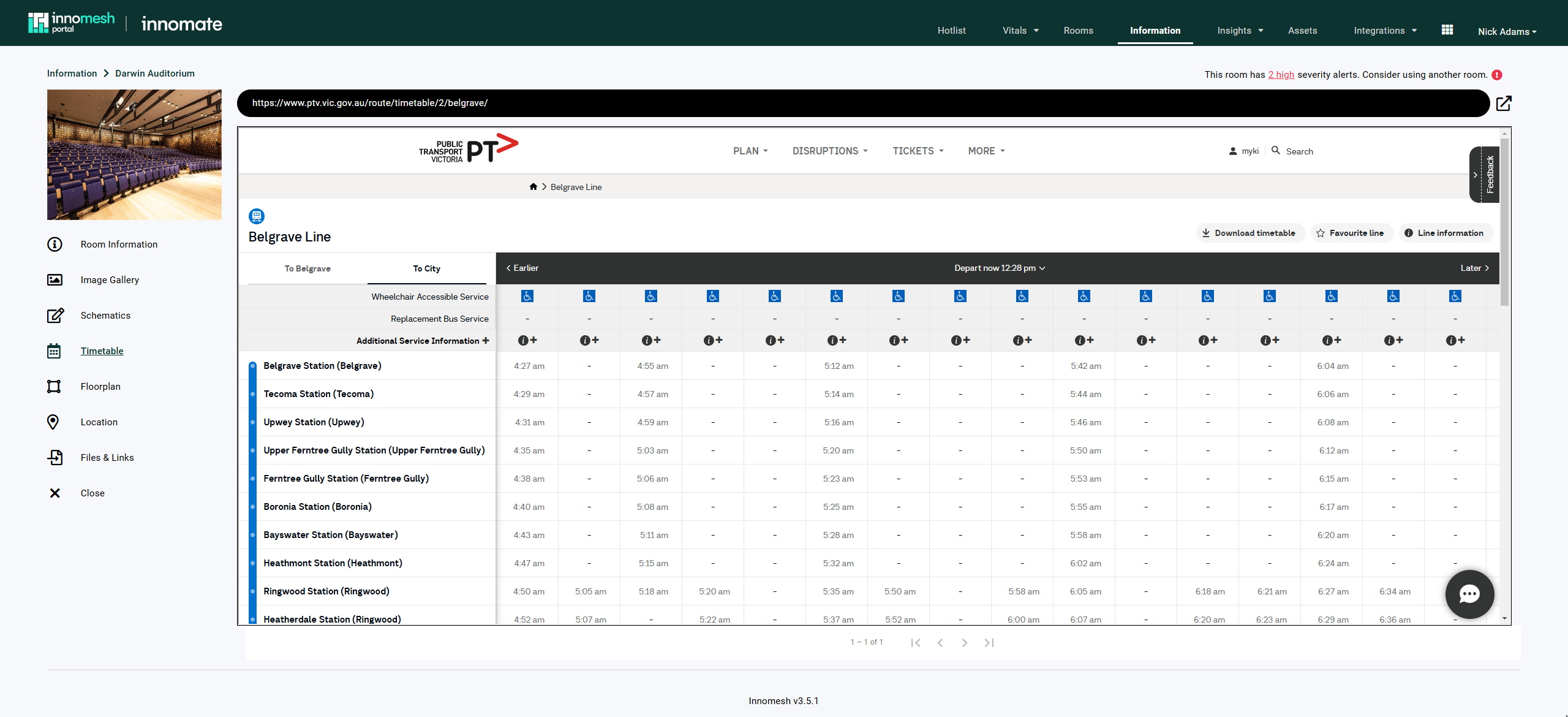
Displays room scheduling information with embedded or pop-up views depending on webpage compatibility.
Add hyperlinks to fields containing “timetable” or “schedule” in the field name.
Floorplan
Provides a visual room layout reference with embedded or pop-up viewing options.
Add hyperlinks to fields containing “floorplan” in the field name.
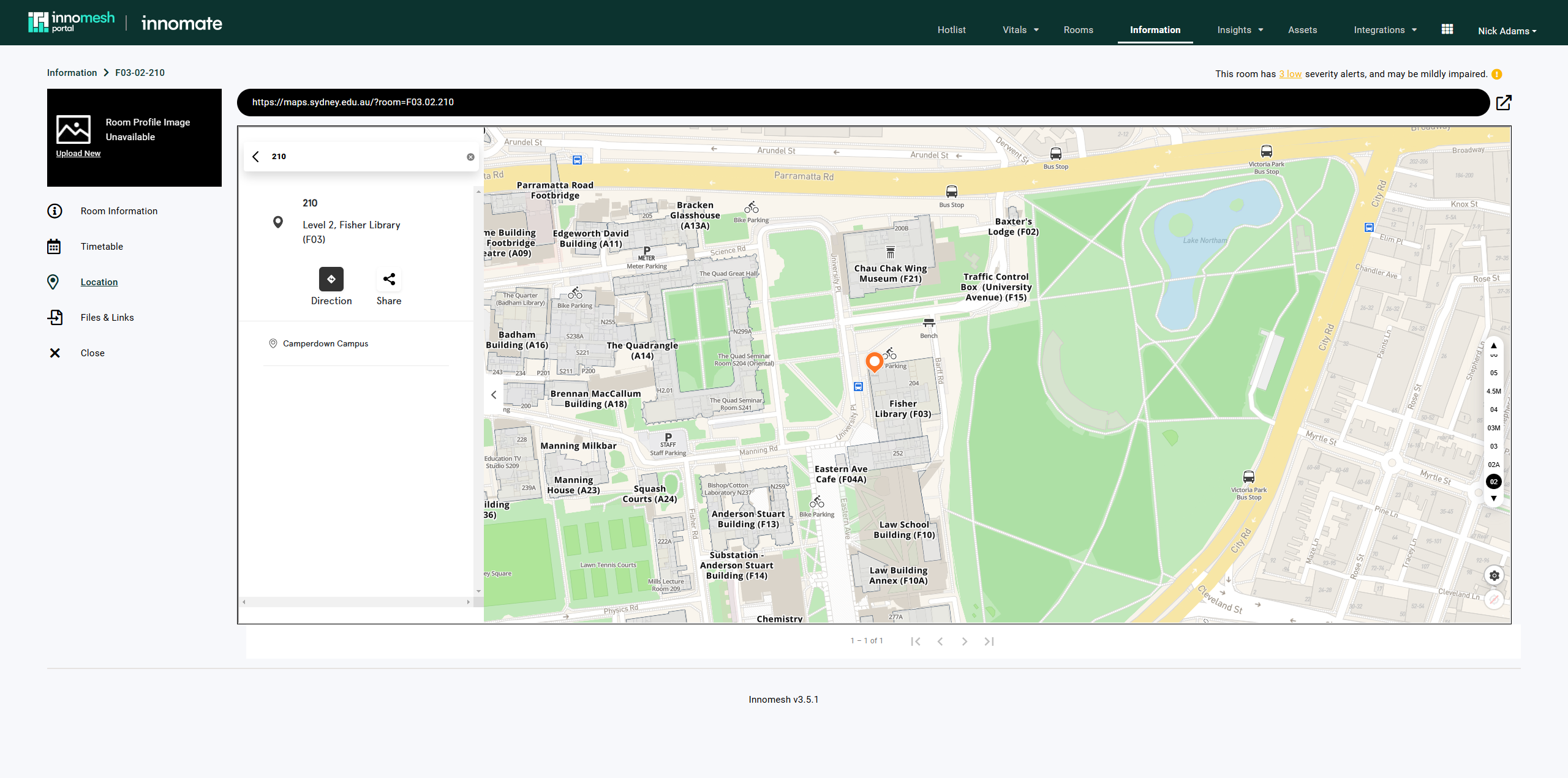
Location
Displays room location links, embedding them when possible or opening them in new tabs otherwise.
Add hyperlinks to fields containing “location” in the field name.
Video Guide
Displays instructional or overview videos specific to the room.
Add video files or hyperlinks to fields containing “video” in the name. Supported formats: MP4, WebM, Ogg.
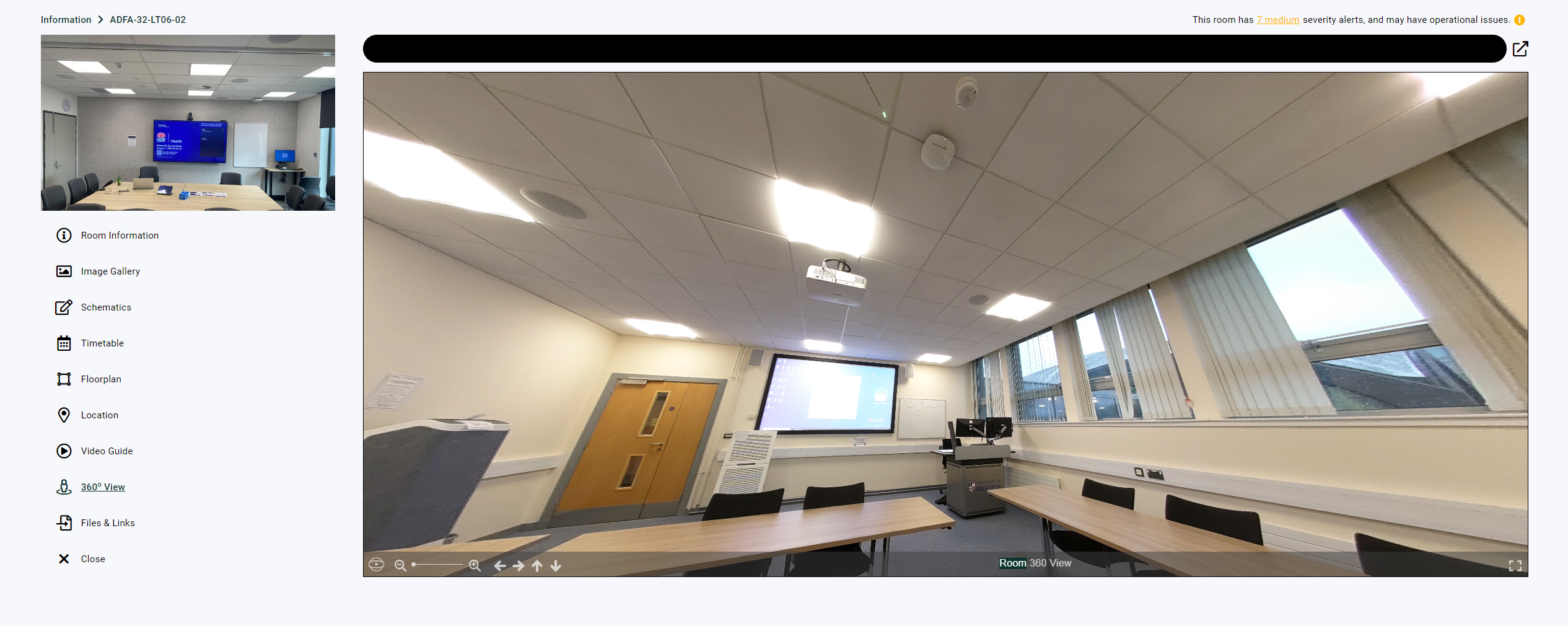
360 View
Provides interactive 360-degree room exploration.
Upload 360-degree photos to the Room 360 View field in Room Manager. Supported formats: JPG, PNG.
Files and Links
Displays two lists containing all room-associated files and hyperlinks, including those used in other tabs and any additional relevant materials.