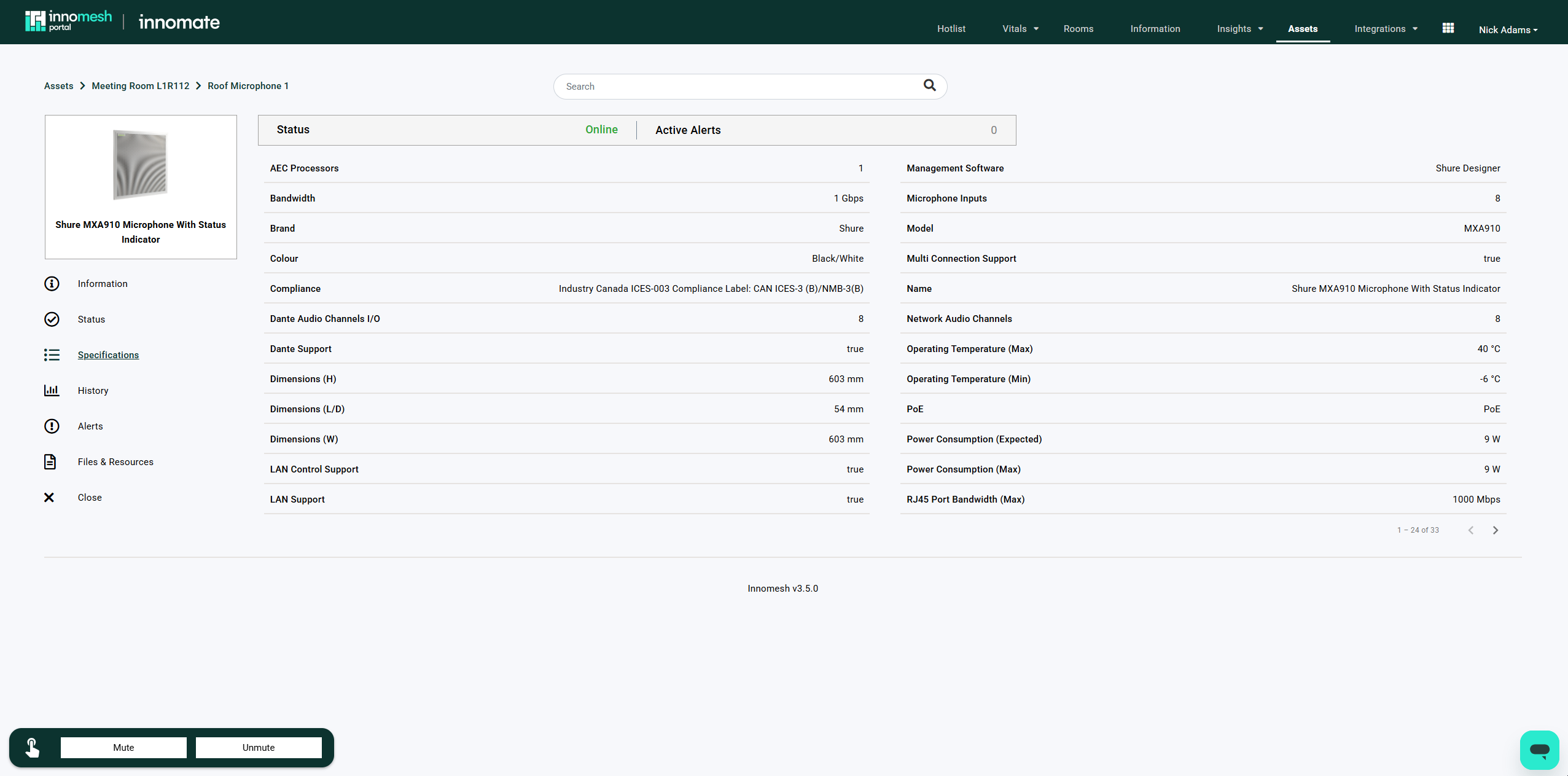
Asset Profiles standardise device information and normalise asset data across the Innomesh platform. Every device created in Innomesh Portal must have an asset profile and a mapped driver before it becomes available in Room Manager. The system uses asset profile details to populate the Specifications tab in the Asset Information page.
Profiles and their driver mappings are maintained by Innomate. New profiles, additional driver mappings, and corrections to an existing profile are requested through the form in the Innomate Support Portal. See Requesting a Profile or a Change.
Accessing Asset Profiles
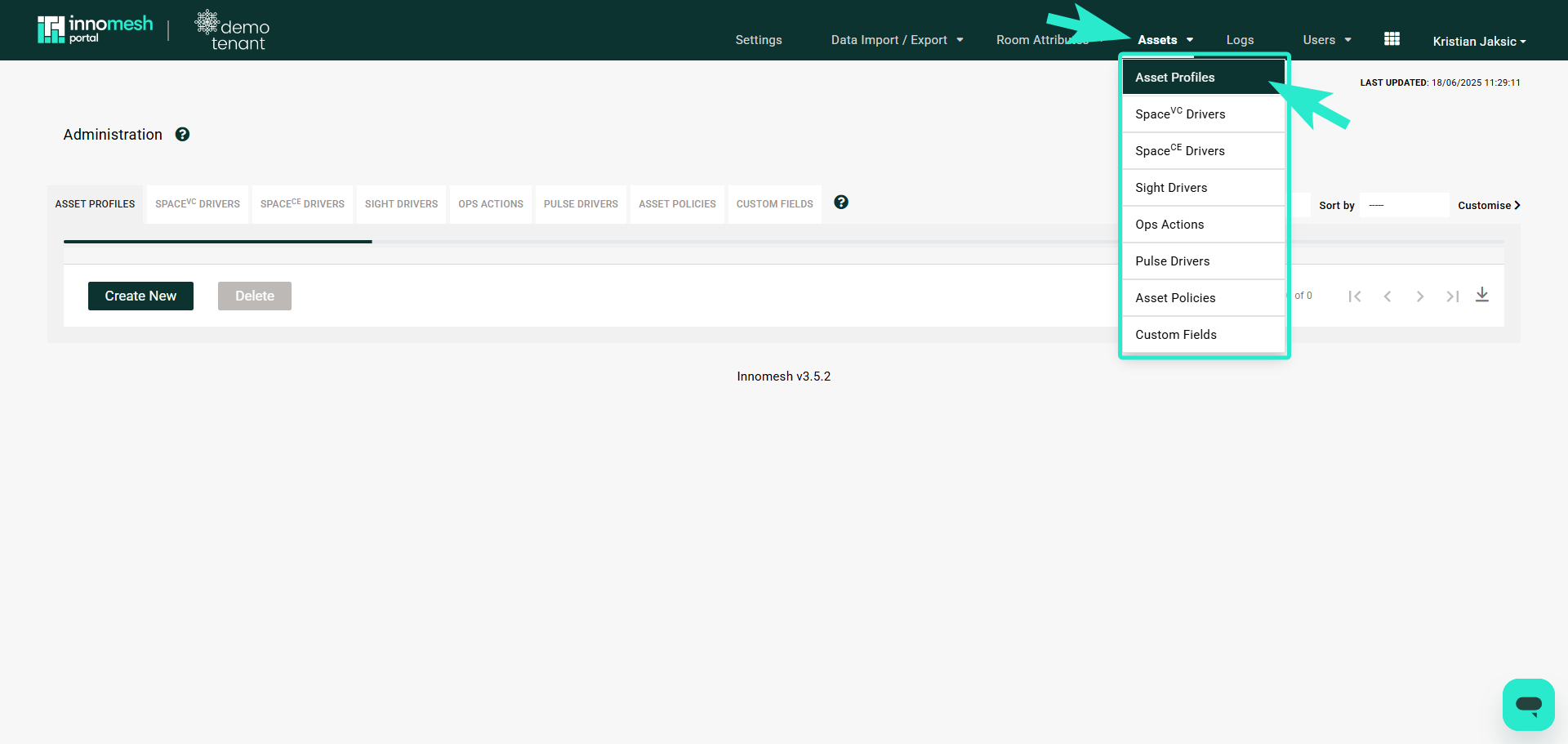
Navigate to Administration > Assets > Asset Profiles. This page displays a list of all existing profiles.
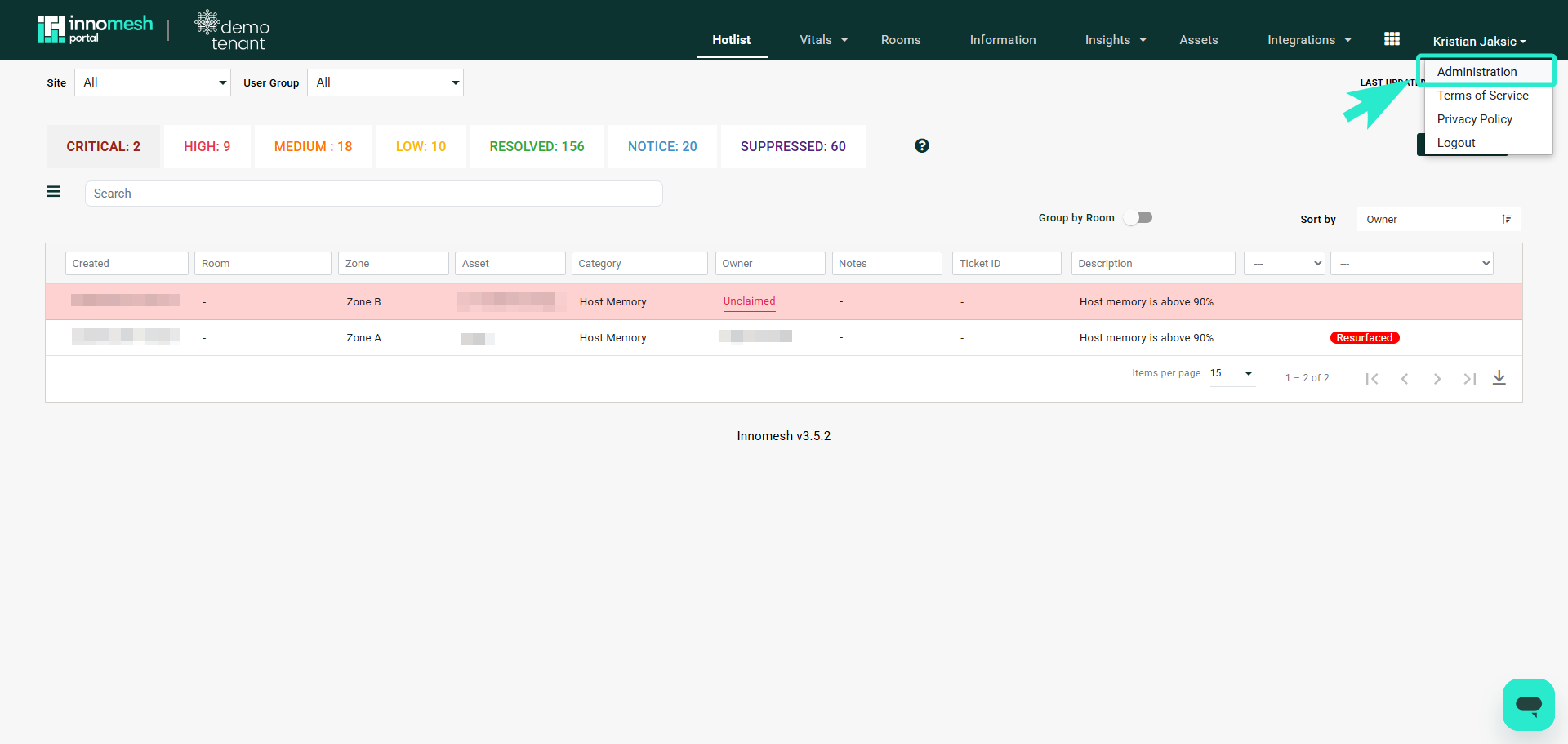
Profile Fields
Every profile carries the four fields that identify the device:
| Field | Description |
|---|---|
| Asset Name | Display name for the profile |
| Type | Device category (e.g. Display, Camera, DSP) |
| Brand | Manufacturer name |
| Model | Model name or number |
Beyond those, a profile holds the further device details that populate the Specifications tab of the Asset Information page, and a reference photo that appears alongside the device details.
Driver Mapping
Drivers are mapped to asset profiles so that devices are selectable during room creation in Room Manager. The driver types assigned (Space CE, Space VC, Sight, and Pulse) determine whether the asset profile appears in the device selection list for a given room type.
For example, a device with only a Space VC driver will not appear when creating a Space CE room.
Requesting a Profile or a Change
Asset profiles are created and maintained by Innomate, which keeps device data consistent across every tenancy. To have a profile added, a driver mapped to an existing profile, or profile details corrected, submit a request through the form in the Innomate Support Portal. Include the device brand, model, and the room types the device needs to be available in.
In Sight and Pulse rooms, a Generic device profile can be selected as a temporary measure while the profile is being prepared, with the driver set manually. See Creating a Sight Template and Creating a Pulse Template.
Using Asset Profiles in Room Manager
When adding devices to rooms in Room Manager, the available device list is filtered based on configured asset profiles and driver types. This ensures consistency and prevents duplicate or incorrect data entry.
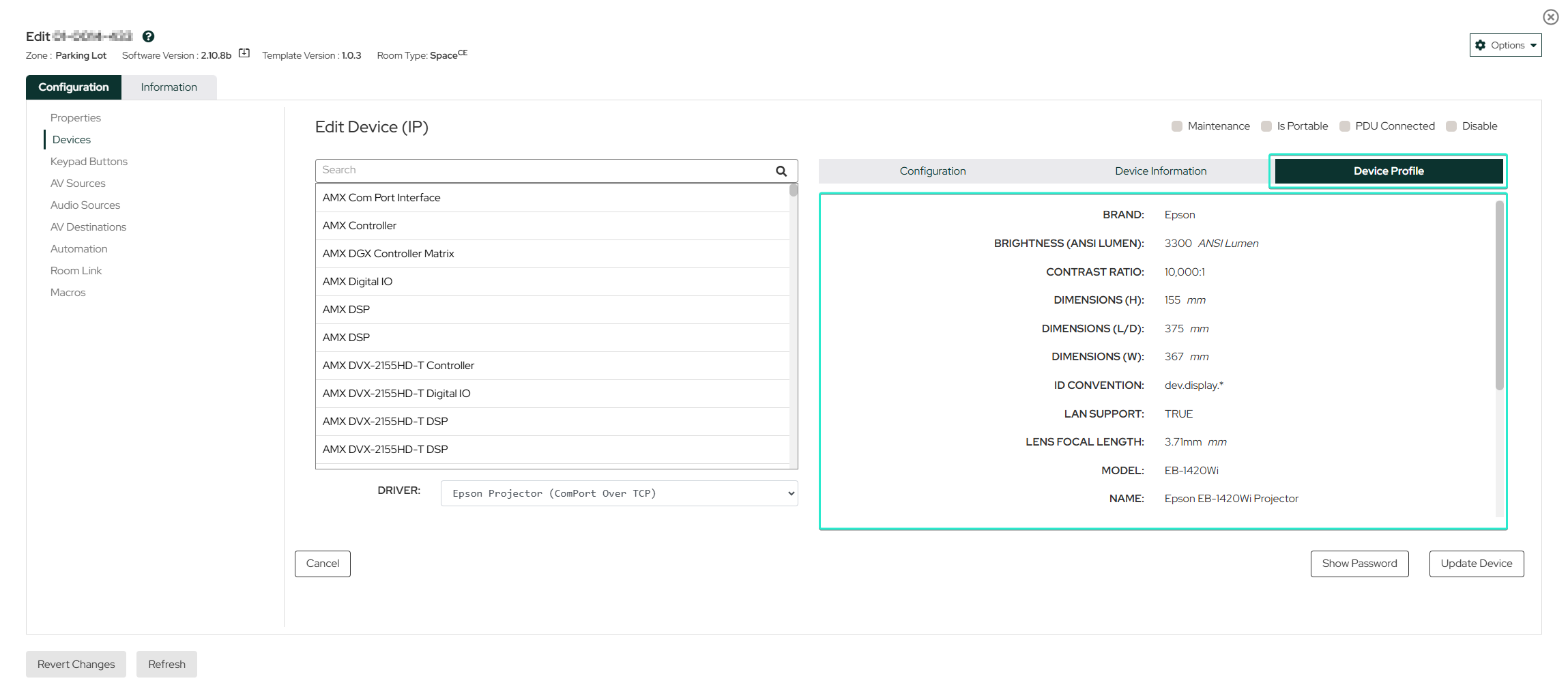
After room creation, assets automatically populate the Assets Registry in Innomesh Portal. Clicking an asset opens the Asset Information page with comprehensive details, specifications, status, and associated documents drawn from the profile.