Skip to content
Innomesh
Portal

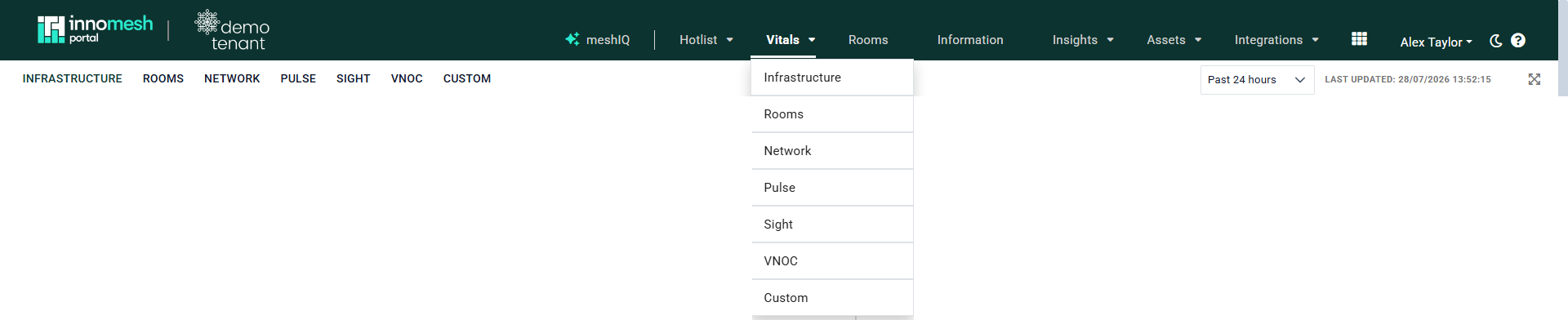
Vitals Overview

The Vitals page provides system performance metrics across infrastructure, rooms, network, and monitoring components. It enables proactive issue detection and system optimisation by surfacing health data in near real time.

Infrastructure

Monitors server performance through several key metrics:

Infrastructure tab showing CPU, Memory, Storage, Healthcheck and VC-4 panels

  • CPU Over Time displays server CPU usage patterns.

CPU Over Time line chart plotting server CPU percentage per 10 minutes

  • Memory Over Time tracks server memory consumption.

Memory Over Time line chart showing server memory percentage between 22 and 28 percent

  • Storage Over Time shows available storage utilisation across servers.

Storage Over Time line chart with server storage percentages plotted per 10 minutes

  • Innomesh Healthcheck Response Time measures room responsiveness to detect potential problems early.

Innomesh Healthcheck Response Time chart in seconds with two large spikes visible

  • Average Response Time per Zone identifies trends and patterns by geographic zone.

Average Response Time per Zone line chart with multiple zone series per 10 minutes

  • VC-4 Service Vitals lists all VC-4 servers with uptime, status, and zone information (exportable).

VC-4 Service Vitals table listing Host, VC4 Uptime days, VC4 Status and Zone columns

  • VC-4 Host Vitals shows server active status and vital statistics.

VC-4 Host Vitals table with Host, CPU, Memory, Storage, Uptime, Active and Zone columns

Rooms

Provides operational insights on room status and equipment:

Rooms tab showing Rooms Powered On, Occupied, Room Vitals table and projector lamp hours

  • Rooms Powered On and Rooms Occupied show at-a-glance counts and visual graphs of active rooms.

Rooms Powered On tile showing 10 and Rooms Occupied tile showing 4

Room Powered On % and Room Occupancy % donut charts with On/Off and True/False legends

  • Rooms Powered On (%) and Room Occupancy (%) show the equivalent figures as percentages of the total room fleet.

  • Room Vitals displays detailed usage metrics (CPU%, Memory%), uptime, location, and host data.

Room Vitals table with Room Name, Host, CPU %, Memory %, Uptime hours and Zone columns

  • Rooms Powered On and Occupied by Zone provides a zone-based breakdown of room activity.

Rooms Powered On and Occupied by Zone table with Zone Name, Rooms Powered On and Rooms Occupied

  • Rooms In Maintenance lists rooms currently undergoing service.

Rooms In Maintenance table with Room Name and In Maintenance columns showing false values

  • Top 10 Projector Lamp Hours identifies the most-used projectors by room.

Rooms with Highest Projector Lamp Hours horizontal bar chart ranging from 5,420 down to 1,919

Network

Comprehensive network performance and transaction monitoring:

Network tab with Client IP Locations map, DNS, HTTP, TLS, transaction type and latency panels

  • Client IP Location shows a world map visualisation of connected users.

Client IP Locations world map with orange markers over Oceania and the Americas

  • DNS Transactions tracks hostname resolution frequency.

DNS Transactions panel plotting Avg Response Time and Count per 5 minutes

  • HTTP Transactions measures server connections every five minutes.

HTTP Transactions bar chart with count per 5 minute timestamp from 7th to 10th November 2022

  • TLS Sessions shows secure sessions established per minute.

TLS Sessions bar chart showing sessions per minute around 2,600 to 3,000

  • Transaction Types provides a quantitative breakdown of transaction categories.

Transaction Types stacked bar chart with icmp, http, tls, dns and flow series

  • Response Times displays distribution and percentile analysis.

Response times repartition stacked bar chart of counts per 5 minutes bucketed by duration

Response times percentiles line chart plotting 75th, 95th and 99th percentiles of event duration

  • Errors vs. Successful Transactions provides comparative success and failure metrics.

Errors vs successful transactions stacked bar chart showing OK and error ratios per 5 minutes

Errors count over time ECS bar chart with http, icmp, tls and dns series per minute

  • Latency Histogram visualises request-to-completion time.

Latency Histogram with count on y-axis dropping sharply near zero event duration

Pulse

Device monitoring via the IMTP protocol:

Pulse tab with Assets donut, Pings Over Time, Assets list and median response time panels

  • Assets Up and Down shows a pie chart of online and offline devices.

Assets donut chart with Up 212 label and a small Down slice

  • Pings Over Time tracks Pulse device check frequency.

Pings Over Time bar chart showing Up and Down pings from 14th to 15th November 2022

  • Assets lists all devices with status, IP address, and location details.

Assets table with IP Address, Name, Status, Protocol, URL, Duration, TLS Certificate, Room and Zone

  • Median Device Response Time measures device responsiveness in milliseconds.

Median Device Response Time line chart hovering around 30 ms per 30 minute timestamp

  • Median Device Response Time per Zone provides zone-based response metrics.

Median Device Response Time per Zone line chart around 30 ms with a late spike

Sight

Real-time device state monitoring. The Sight tab surfaces expanded information about devices across all rooms.

Sight tab with CPU, Memory, Queries Over Time, query counts and asset error word cloud
Sight section in Vitals
  • CPU Over Time — CPU usage of the servers in use.
  • Memory Over Time — Memory usage of the servers in use.
  • Queries Over Time — Extracted information from the database.
  • Successful Sight Queries — Number of successful device pings.
  • Failed Sight Queries — Number of unsuccessful device pings.
  • Sight Connection Errors — Number of unreachable devices.
  • Sight Authentication Errors — Number of Sight authentication errors.
  • Sight Worker Uptime — Host uptime in days.
  • Asset Types with Most Errors — Device types where most errors have been detected.
  • Median Sight Response Time — Average response time.
  • Sight Response Time per Device — Response time for reaching a specific device.

VNOC

Visual alerts monitoring for quick insight when issues arise.

VNOC tab with Active Alerts gauge, alerts over time and response time panels
VNOC section in Vitals
  • Active Alerts — Momentary active alerts in the system.
  • Active Alerts Over Time — Active alerts across a period of time and date.
  • Active Alerts Over Time New — Active alerts per 10-minute time frame.
  • Innomesh Healthcheck Response Time — Response time for reaching specific rooms.
  • Alerts Created Over Time — Alerts created per 10-minute interval.
  • Average Response Time per Zone (TSVB) — Average response time by zone, per 30-minute interval.
  • Pulse Device Response Time — Pulse device response time per 10-minute interval.

Custom

A configurable dashboard that combines visualisations from other tabs, or entirely new visualisations custom to your tenancy. Setup is tailored per client — reach out to Innomesh with a list of visualisations you’d like populated on your custom tab.

Custom tab with empty-state message: You do not have any custom visualisations for Vitals

On this page