
The Hotlist is the central alert dashboard in Innomesh Portal. It displays every active alert across your environment in real time, organised by severity. Use it to monitor, triage, and resolve device and infrastructure issues.
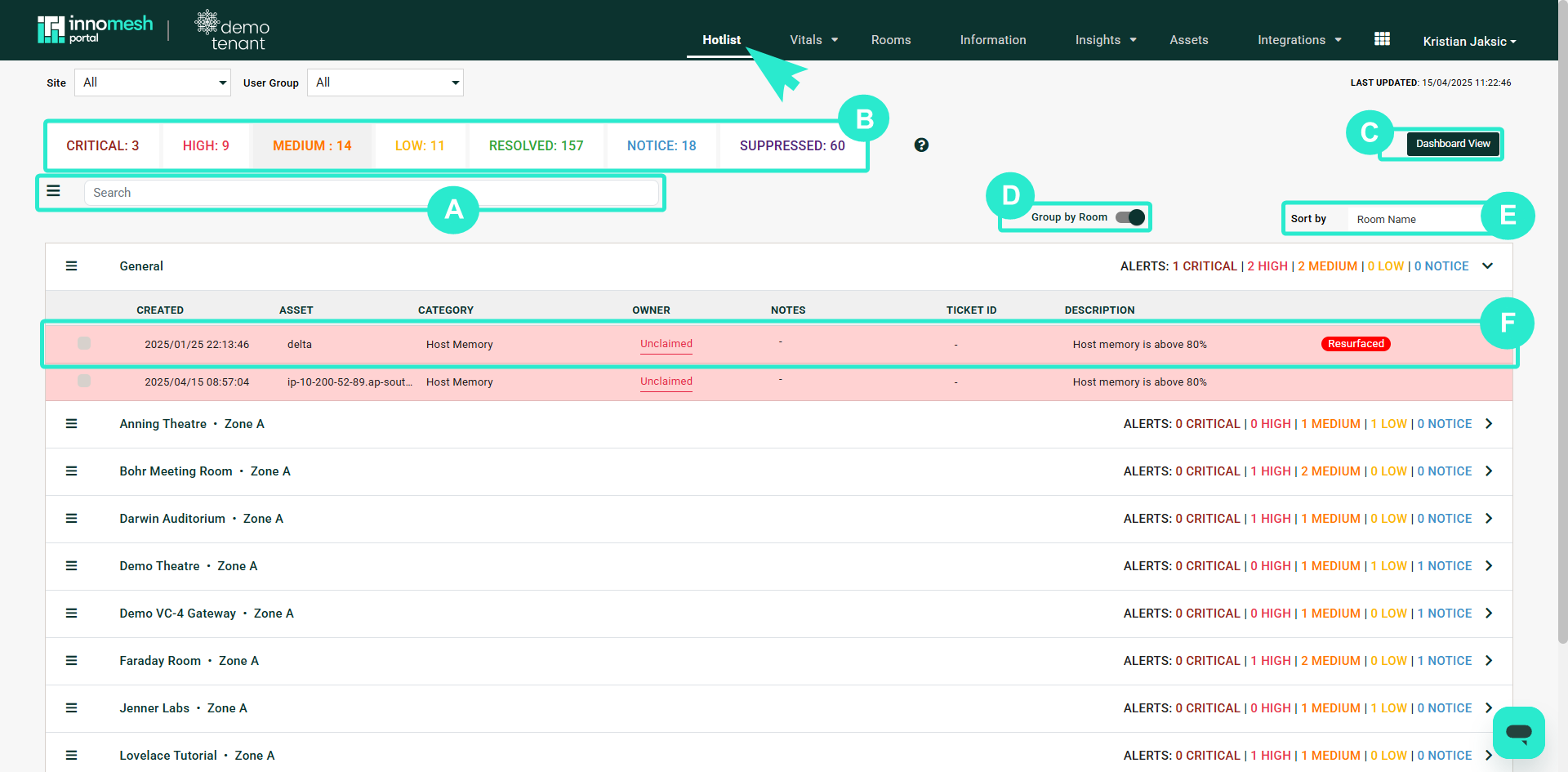 Hotlist overview | Innomesh Portal
Alert Severities
Alerts are categorised into severity levels, each displayed as a tab with a running count:
| Severity | Description | Example |
|---|---|---|
| Critical | High-impact issues affecting infrastructure or multiple rooms | Host memory above 90%, licensing capacity exceeded |
| High | Issues rendering a single room non-functional | Room offline, gateway connection lost |
| Medium | Issues impairing room operations | Device memory above threshold, endpoint communication failure |
| Low | Informational notices or pending warnings | Projector lamp hours approaching limit, battery below 20% |
| Notice | Advisory items that may require future attention | Non-standard room name detected, missing room information |
| Resolved | Previously active alerts that have cleared | Automatically resolved or manually cleared |
| Suppressed | Alerts intentionally hidden from the active view | Maintenance suppression, permanently suppressed devices |
Alert Lifecycle
An alert progresses through several stages:
- Detection: The platform detects an alert condition (e.g., device goes offline)
- Grace Period: A 2-minute window before the alert appears in the Hotlist, to filter transient issues
- Active: The alert appears in the Hotlist under the appropriate severity tab
- Resolution: The condition clears (automatic) or a user manually resolves the alert
- Resolved Hold: Resolved alerts remain visible for a minimum of 15 minutes before being cleared
- Resurfacing: If the same condition recurs within 60 minutes, the alert is tagged as “Resurfaced”
Key Features
Claiming an Alert
Claiming an alert signals to your team that someone is investigating. Click an alert to open the Alert Details panel, then click Claim. Your name appears as the owner.
Assigning Alerts
Assign alerts to specific users or groups. This is useful for routing issues to the appropriate support team.
Group by Room
Toggle Group by Room to organise alerts by location rather than by individual device. This makes it easier to see the overall health of a room and perform bulk operations.
Search and Filter
Use the search bar to find alerts by room name, device name, or description. Filter by Site and User Group using the dropdowns at the top of the page.
Dashboard View
Click Dashboard View to switch to a summary view showing alert counts by severity. This is useful for at-a-glance monitoring on a wall-mounted display.
Mass Operations
Select multiple alerts to perform bulk actions:
- Mass Resolve: Clear multiple alerts at once
- Purge: Permanently delete resolved alerts (useful when rebuilding rooms)
Alert Details
Click any alert to open the details panel, which shows:
- Severity and category (e.g., Device Set Health, CPU, Memory)
- Room and device information
- Description of the alert condition
- Threshold value that triggered the alert
- History tab showing the full event timeline
- Notes added by support staff or the Innomate diagnosis team
- Ticket ID if a ServiceNow ticket has been created
Permanently Suppressed Alerts
Some alerts are permanently suppressed by the platform because their trigger conditions are expected and do not represent real issues. These alerts never appear in the Active Hotlist:
- XPanels — “Device not connected” alerts for XPanels. XPanels are designed to be launched and closed at any time, so a disconnected XPanel is not an error. These alerts are dropped entirely and do not appear in the Suppressed tab.
- In Maintenance — Room and device alerts where the room or device is flagged as “In Maintenance” in Innomesh.
- Portable — Room and device alerts where the room or device is flagged as “Portable” (typically mobile AV systems that may be disconnected when not in use).
- PDU Connected — “Device not connected/communicating” alerts where the device is flagged as “PDU Connected” and the room is currently powered off. These alerts are dropped entirely and do not appear in the Suppressed tab.
For user-defined suppression rules (room-level and device-level), see the Alert Suppression article.