This article covers Zoom Rooms as part of the UC integration within Innomesh. The system enables monitoring of Zoom Room devices and their status through the Room Manager interface.
Hotlist
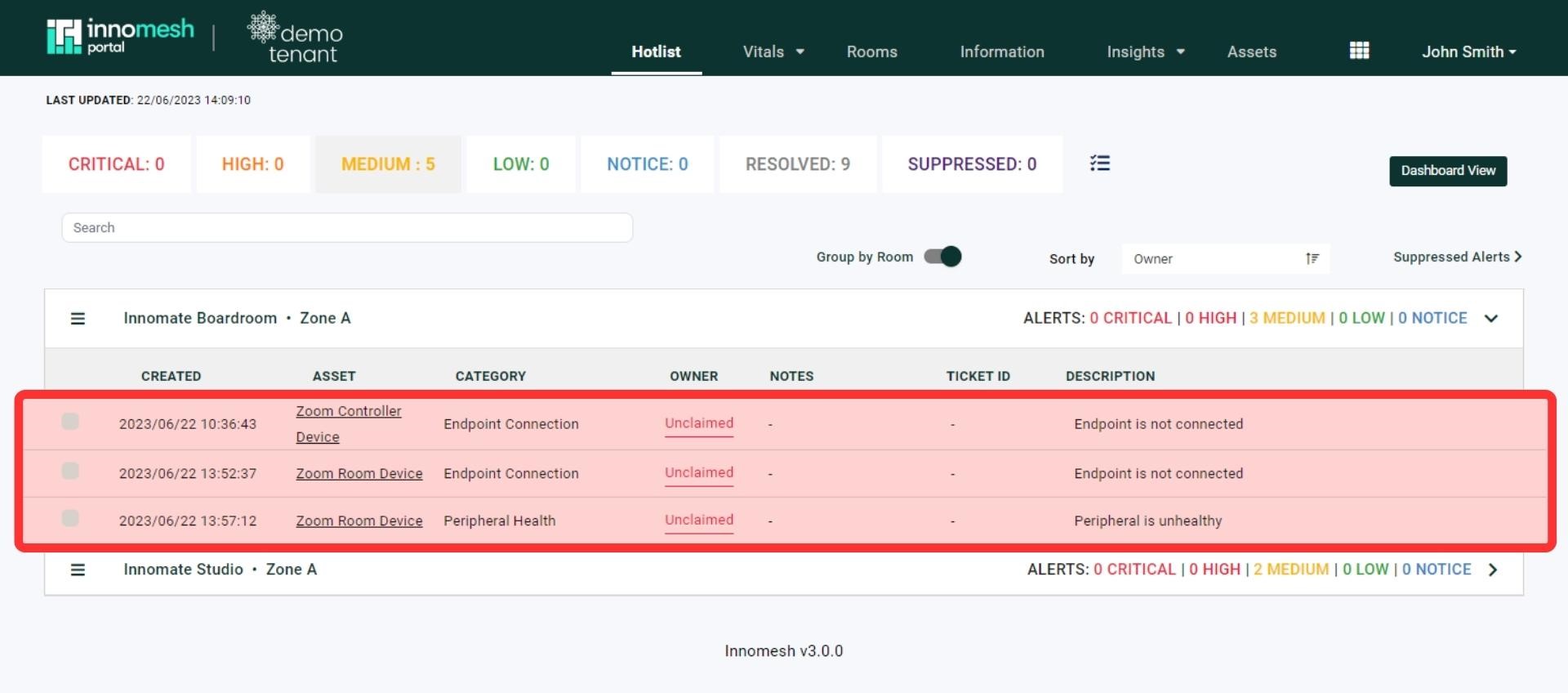
Zoom Room alerts appear in the Hotlist with severity levels determined by individual tenancy requirements. For example, device endpoint connection issues trigger medium priority alerts.
Assets Tab
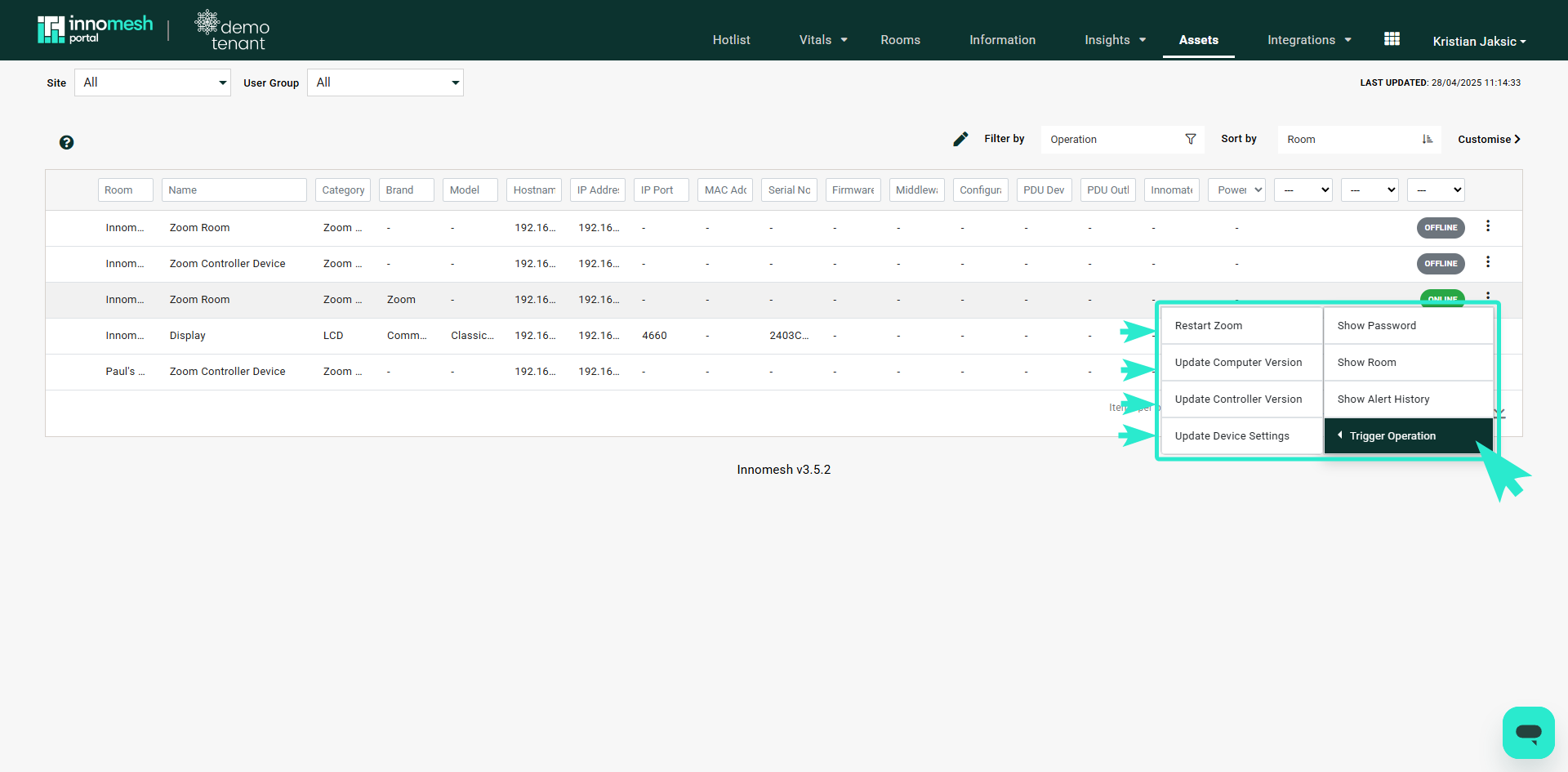
The Assets Tab displays the status of devices assigned to each Zoom room and provides an action menu with the following options.
Show Details
Displays three information tabs:
- Properties Tab: Room configuration details
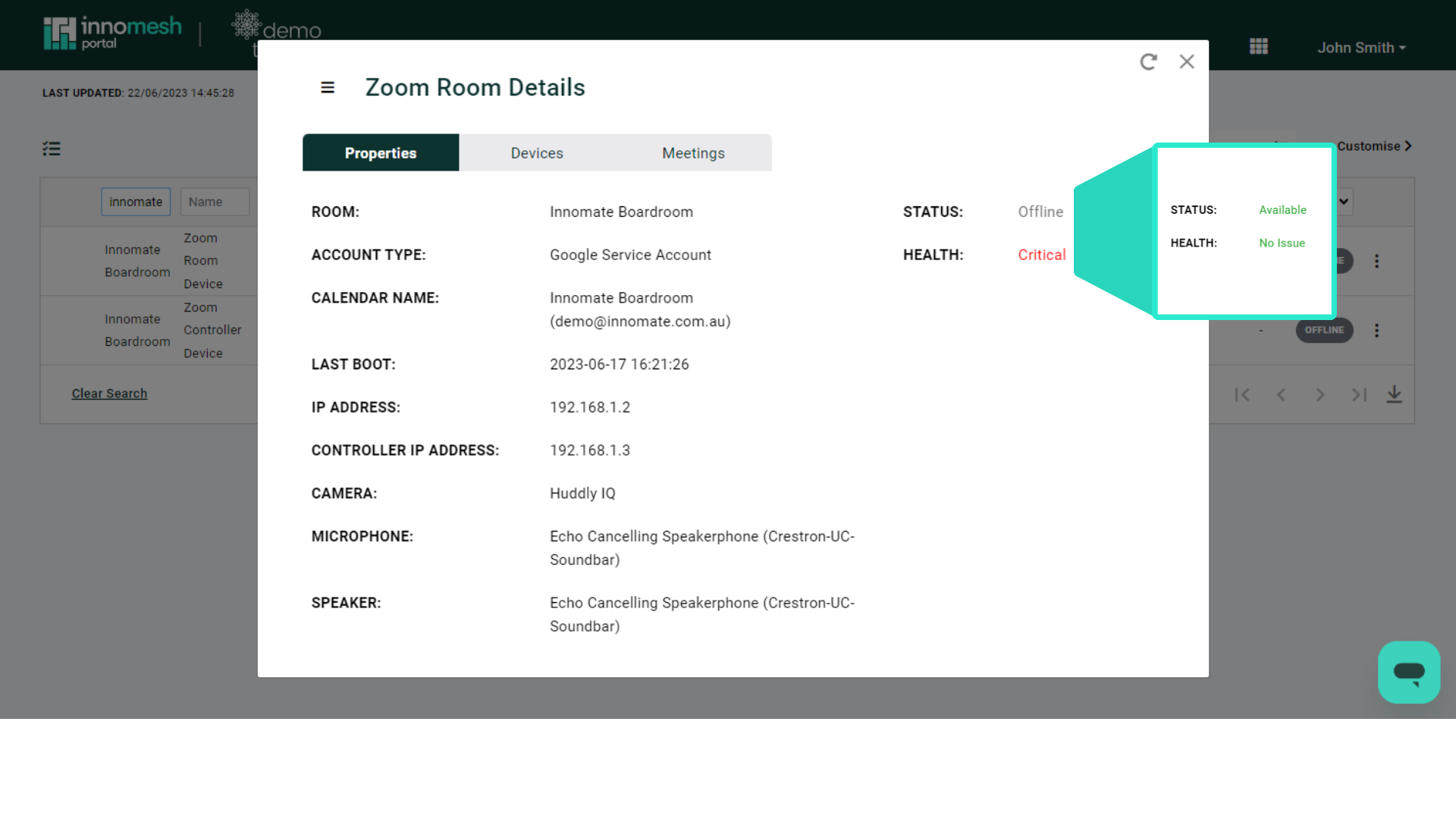
- Devices Tab: Connected device information
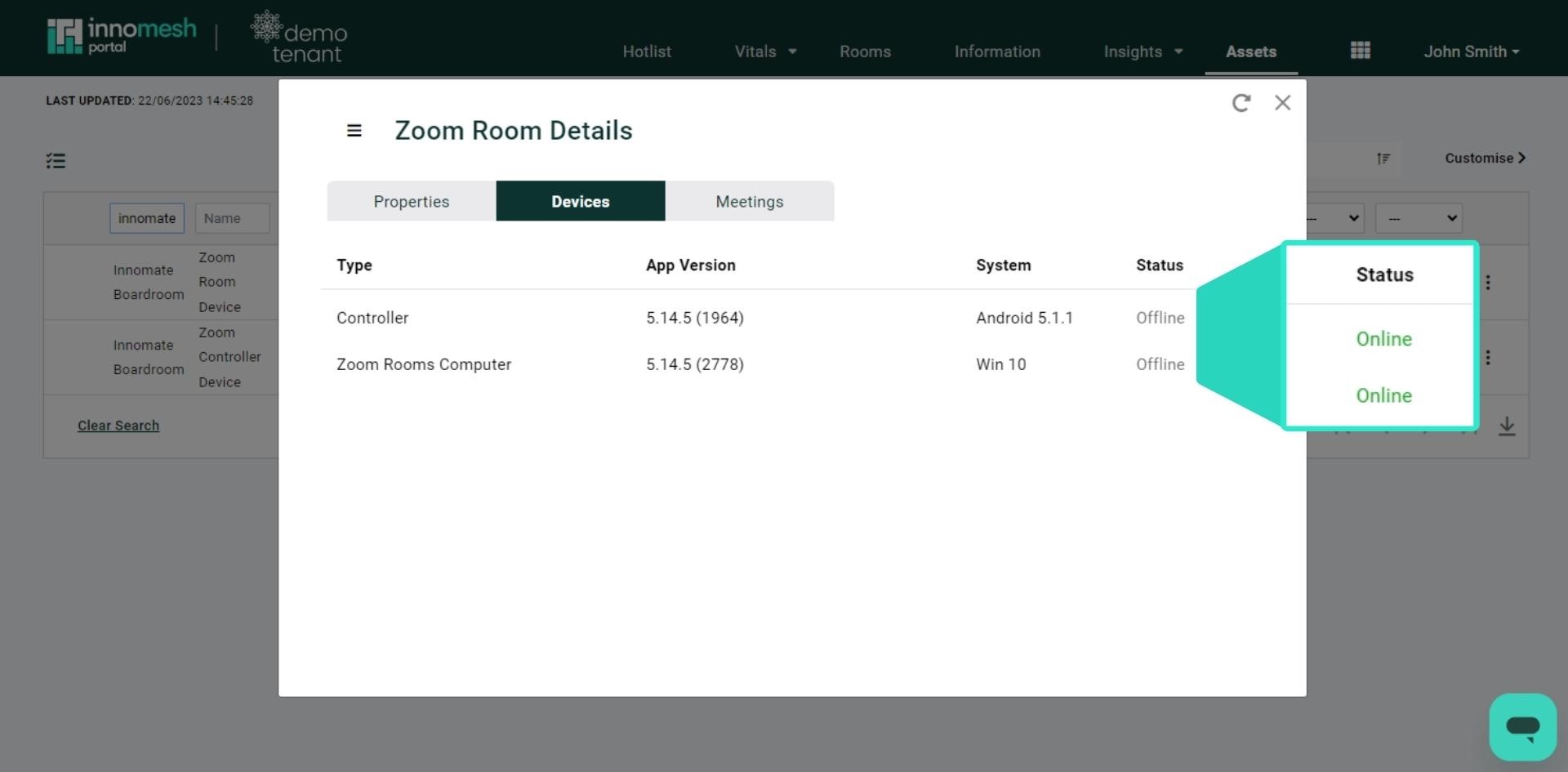
- Meeting Tab: Current meeting data
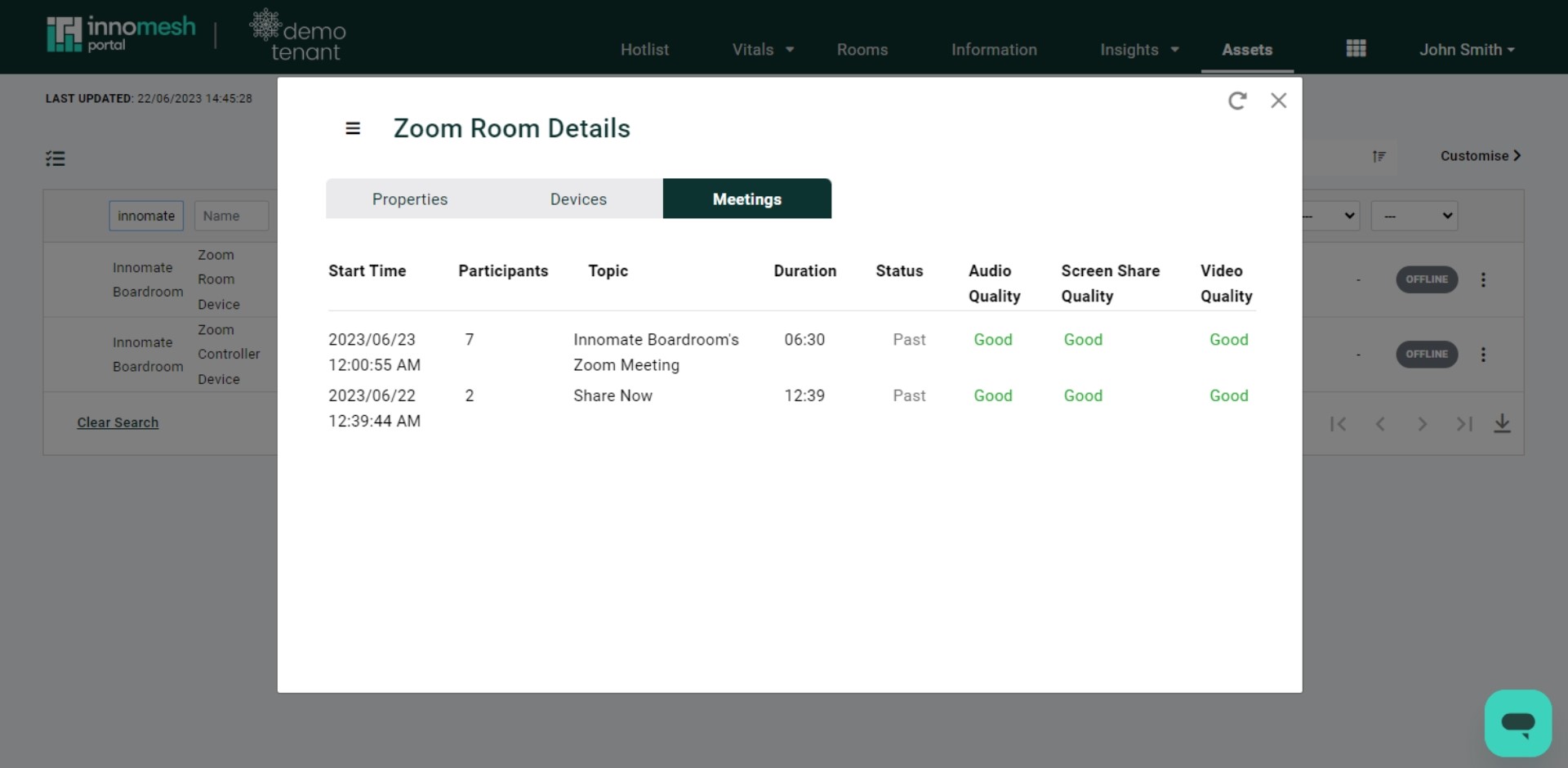
A dropdown menu within this view allows users to edit room details manually.
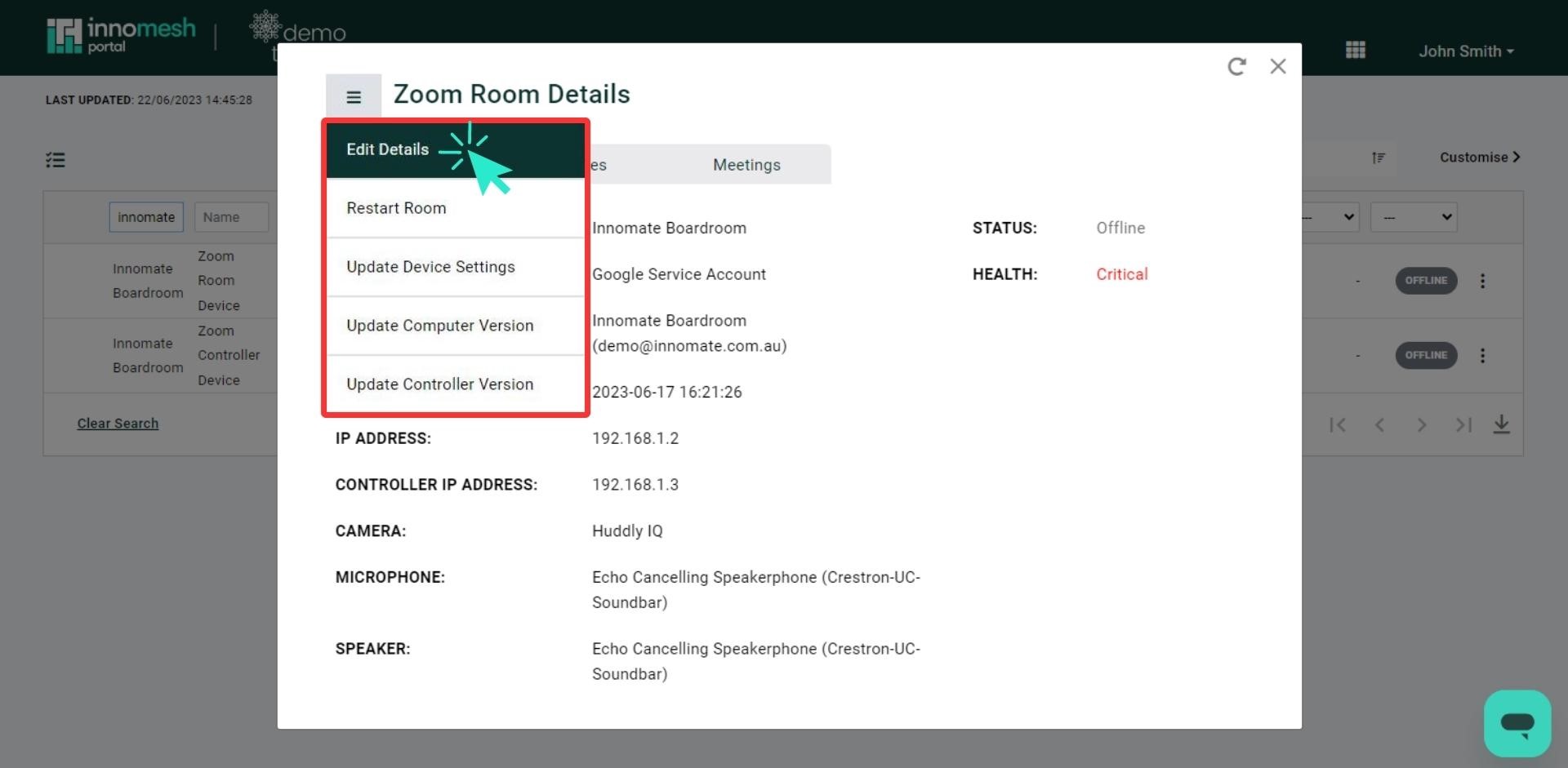
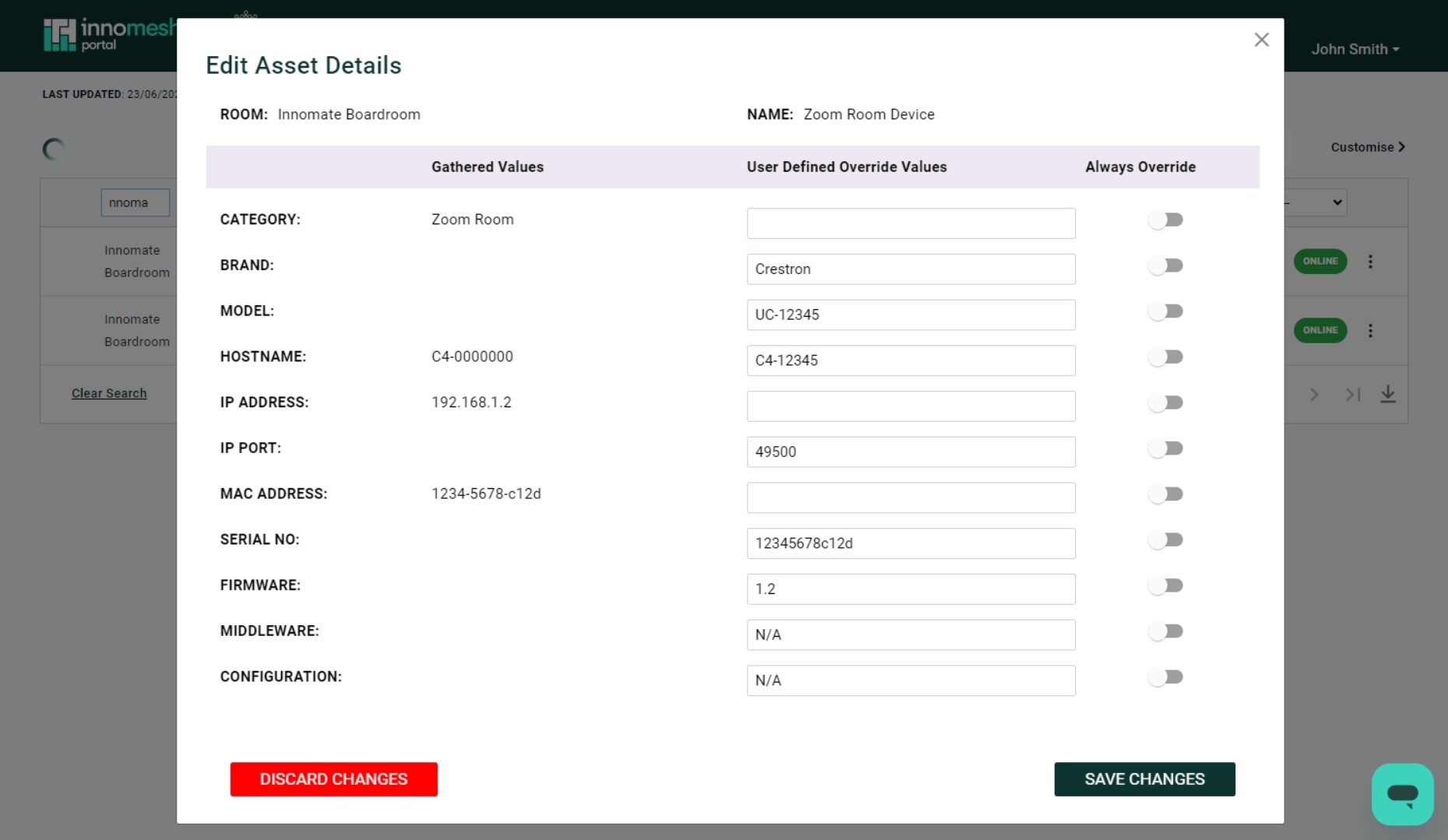
Show Room
Navigates to the room’s dedicated tab view.
Show Live Info
Provides real time health status of the room and data collection platform.
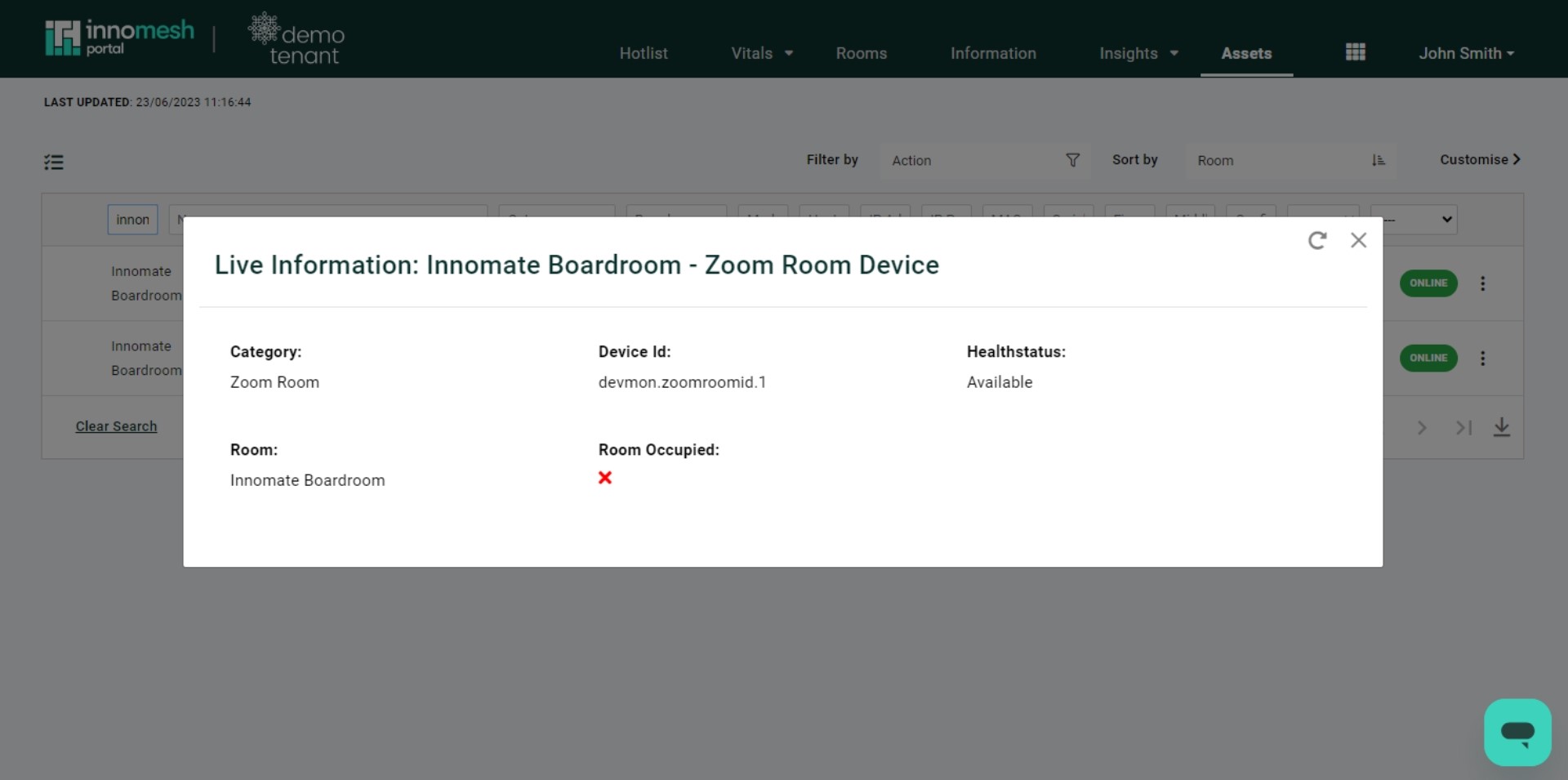
Restart Zoom
Restarts both the UC engine (Zoom Room) and touch panel controller.
Update Computer Version
Enables remote firmware updates for the UC engine.
Update Controller Version
Enables remote firmware updates for the touch panel controller.
Update Device Settings
Allows modification of peripheral settings.
Onboarding a Zoom Room
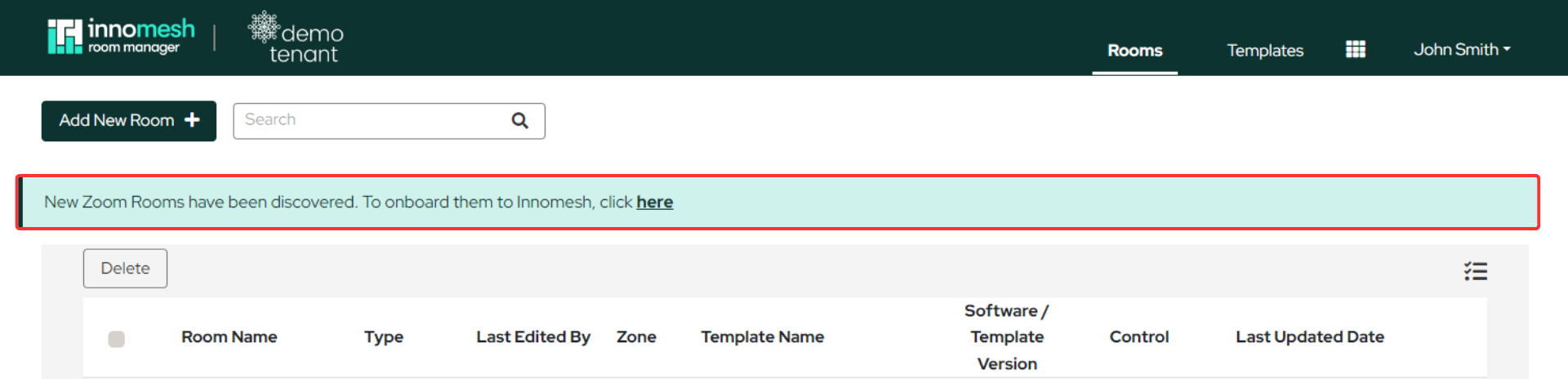
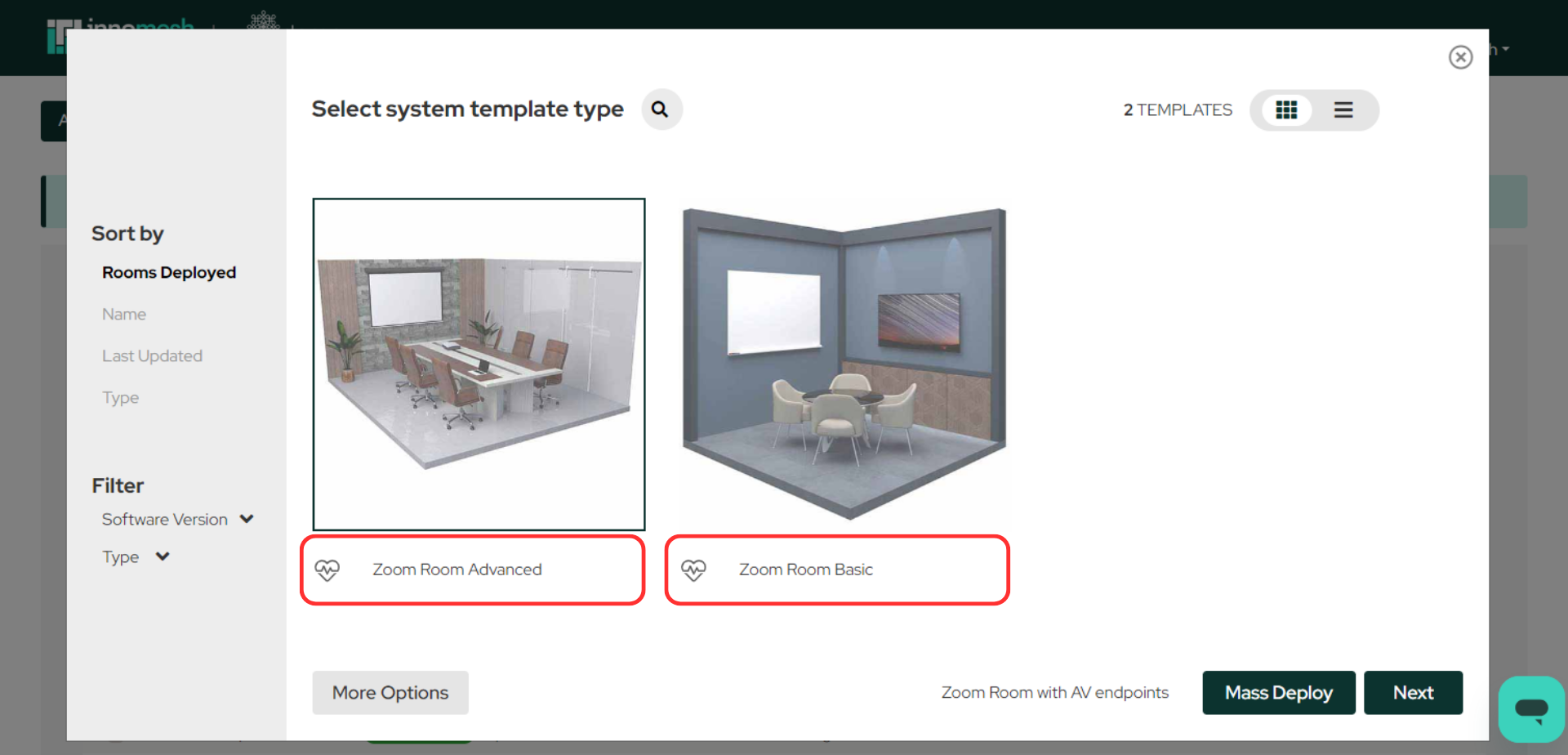
New Zoom rooms can be created through the notice banner or by selecting Add a new Room, choosing the appropriate template, and proceeding through the setup wizard.