

Room Summary Views provide customisable, at-a-glance displays of room information derived from Smart Room Attributes. Administrators can create tailored views that surface the most relevant data for different teams. For example, an AV support view showing display counts and codec types, or a facilities view showing occupancy capacity and building codes. This feature was introduced in Innomesh v3.5.1.
Key Concepts
Room Summary Views build on Smart Room Attributes. Where Smart Room Attributes derive higher-level data points from room configuration (e.g., “number of displays”, “has BYOD”), Room Summary Views control which of those attributes are displayed and how they are presented on the Information page.
| Term | Description |
|---|---|
| Summary View | A named, reusable layout that defines which Smart Room Attribute fields to display. |
| Tab | Each Summary View appears as a selectable tab on the Information page. |
| Fields | The individual Smart Room Attribute data points included in the view. |
Creating a Summary View
- Navigate to Administration > Room Attributes > Summary Views in Innomesh Portal.
- Click Add View.
- Enter a name for the view (e.g., “AV Support Summary”, “Facilities Overview”).
- Select the Room Attribute fields to include in this view.
- Arrange the fields in the desired display order using drag-and-drop.
- Click Save.
 Creating a Room Summary View, Innomesh Portal
The new view appears as a tab on the Information page for all rooms.
Using Summary Views
When viewing a room on the Information page, each configured Summary View appears as a selectable tab alongside the default room information tabs (Room Info, Gallery, Schematics, etc.).
- Navigate to Information in Innomesh Portal.
- Select a room.
- Click the tab for the desired Summary View.
 Room Summary View tab, Innomesh Portal
The view displays only the selected fields, providing a focused snapshot relevant to the viewer’s role.
Managing Views
From Administration > Room Attributes > Summary Views, you can:
- Edit an existing view to add, remove, or reorder fields
- Delete a view that is no longer needed (the tab is removed from the Information page)
- Reorder views to control the tab display sequence
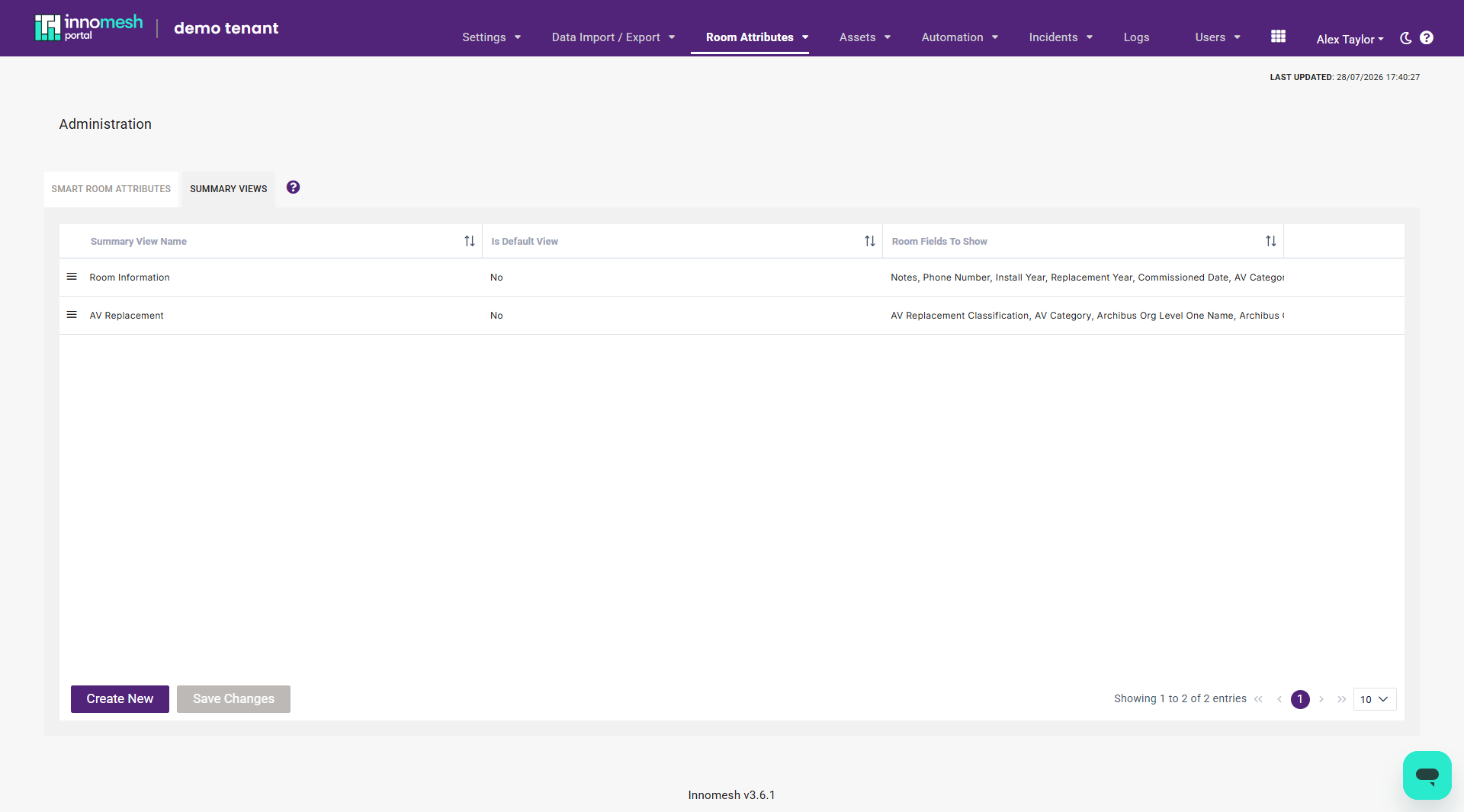 The Summary Views management page, Innomesh Portal
Use Cases
- AV Support: A view showing display count, codec type, microphone count, and BYOD availability for quick triage
- Facilities Management: A view showing room capacity, building code, floor plan reference, and accessibility status
- Executive Reporting: A simplified view showing room name, location, and high-level room type for leadership dashboards