

The PDU Association feature lets you link individual devices to specific Power Distribution Unit (PDU) outlets. Once associated, you can control device power states and monitor PDU connectivity directly from the Asset Information page in Portal, rather than managing the PDU separately.
Key Capabilities
- Link assets to specific PDU outlets through Room Manager
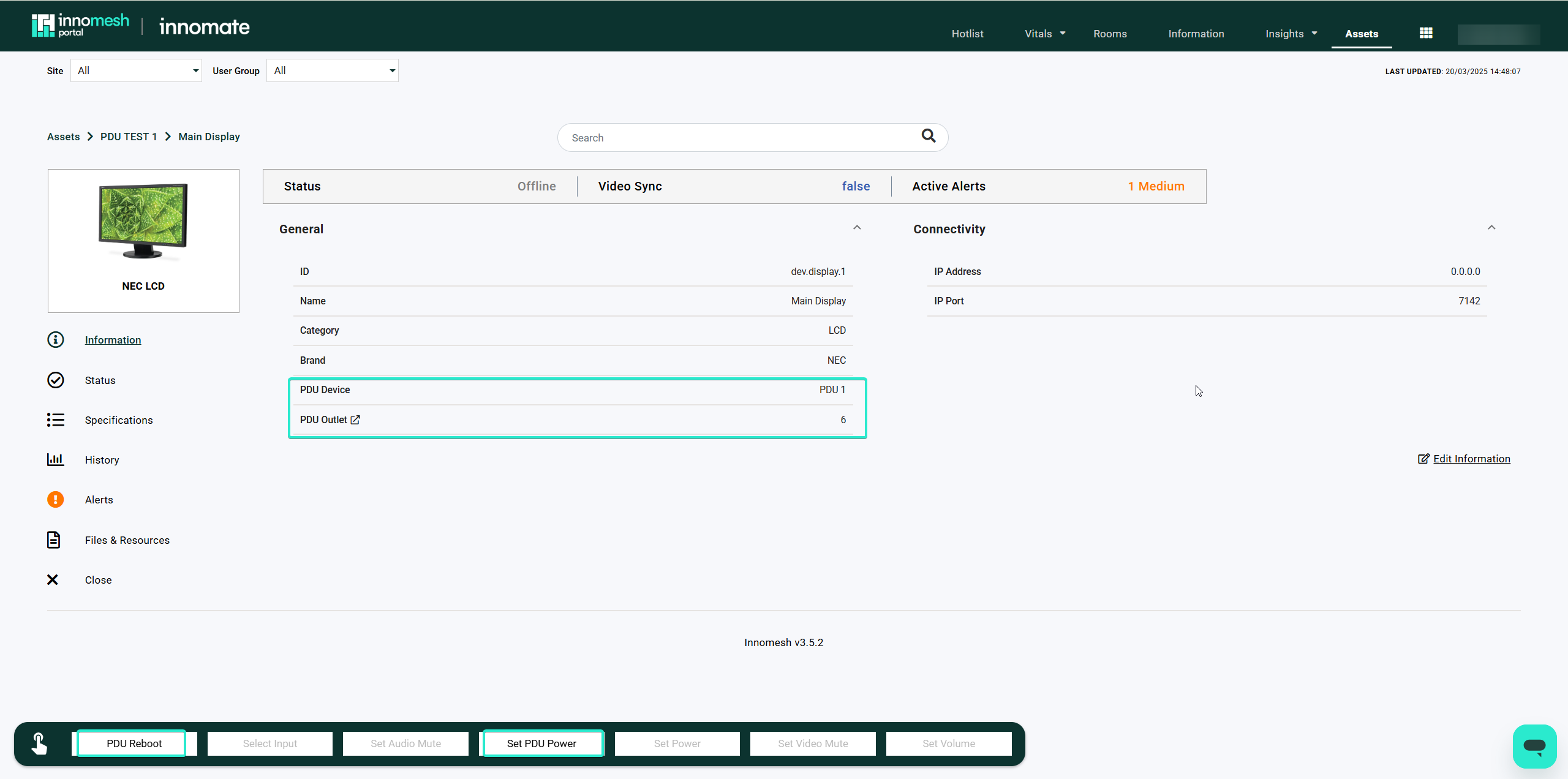
- Control power states with Set PDU Power and PDU Reboot options from the Asset Information page
- View live status indicators showing PDU connectivity
Setting Up a PDU Association
- Open Room Manager and select the device you want to associate.
- In the device configuration, locate the PDU association section.
- Choose the corresponding PDU from the dropdown.
- Select the outlet number the device is connected to.
- Click Update Device to save the association.
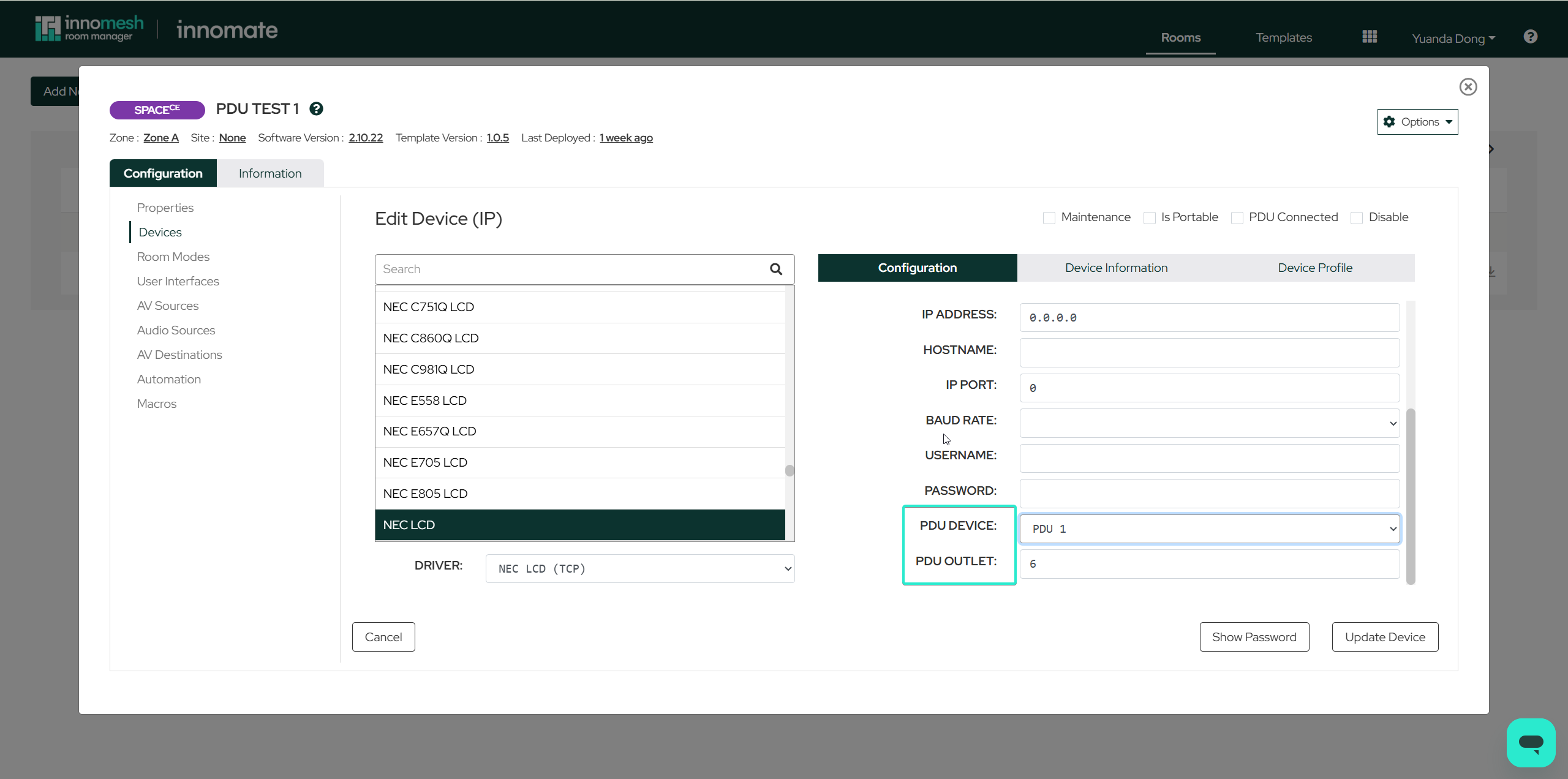
Once configured, the Asset Information page in Portal displays PDU status alongside the device’s own status data.
Power Control
With the association in place, two additional options appear in the device’s ellipsis menu on the Assets page:
- Set PDU Power toggles the outlet on or off.
- PDU Reboot power-cycles the outlet, turning it off and back on after a brief delay.
Status Monitoring
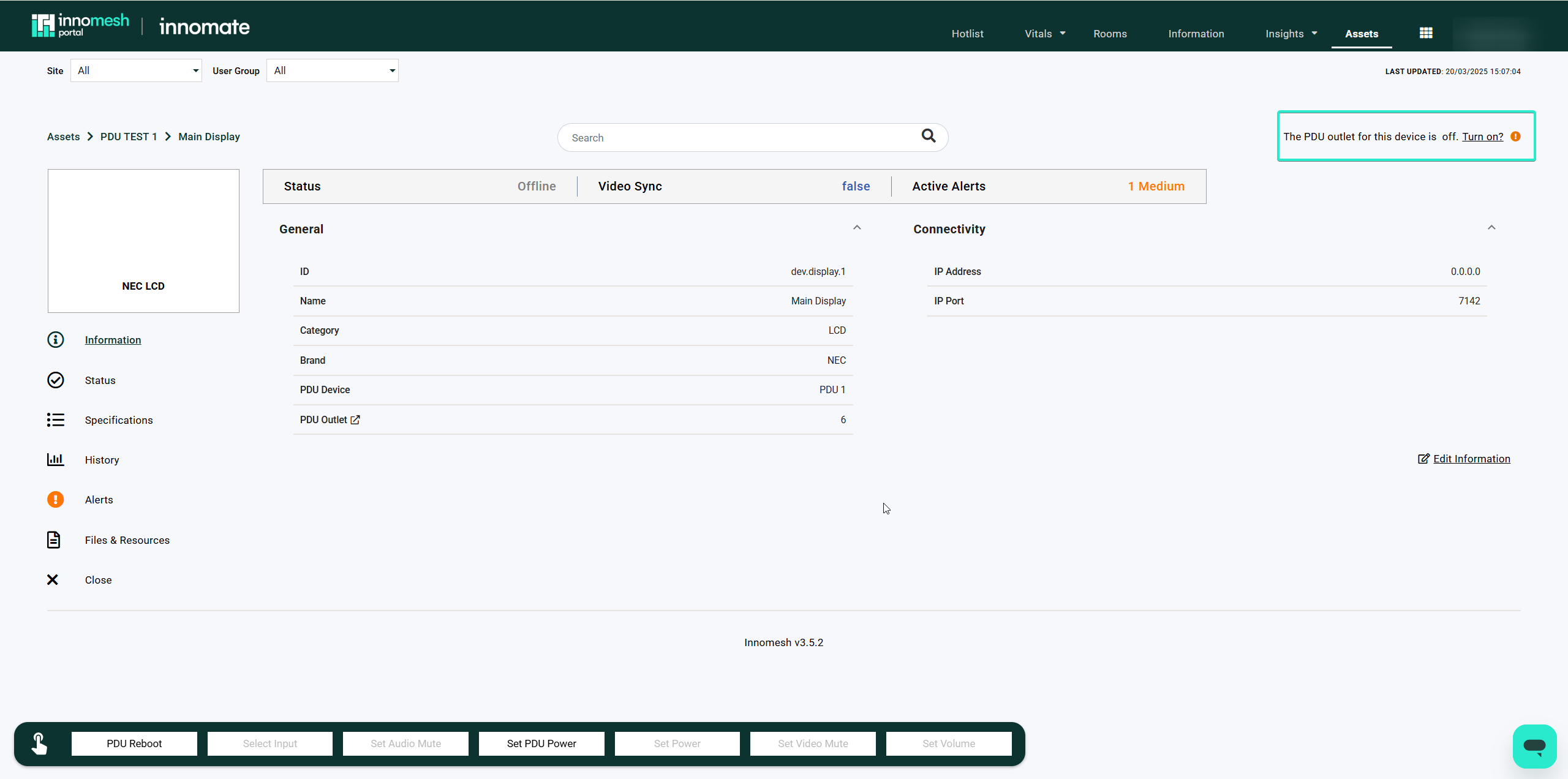
The system provides notifications when a PDU outlet is powered off. This helps diagnose whether a device is offline because of a power distribution issue rather than a device failure.
📝 Note
Only assets connected to a recognised PDU can use this feature. If power control options do not appear for a device, check that the asset is properly mapped to a PDU outlet in Room Manager.