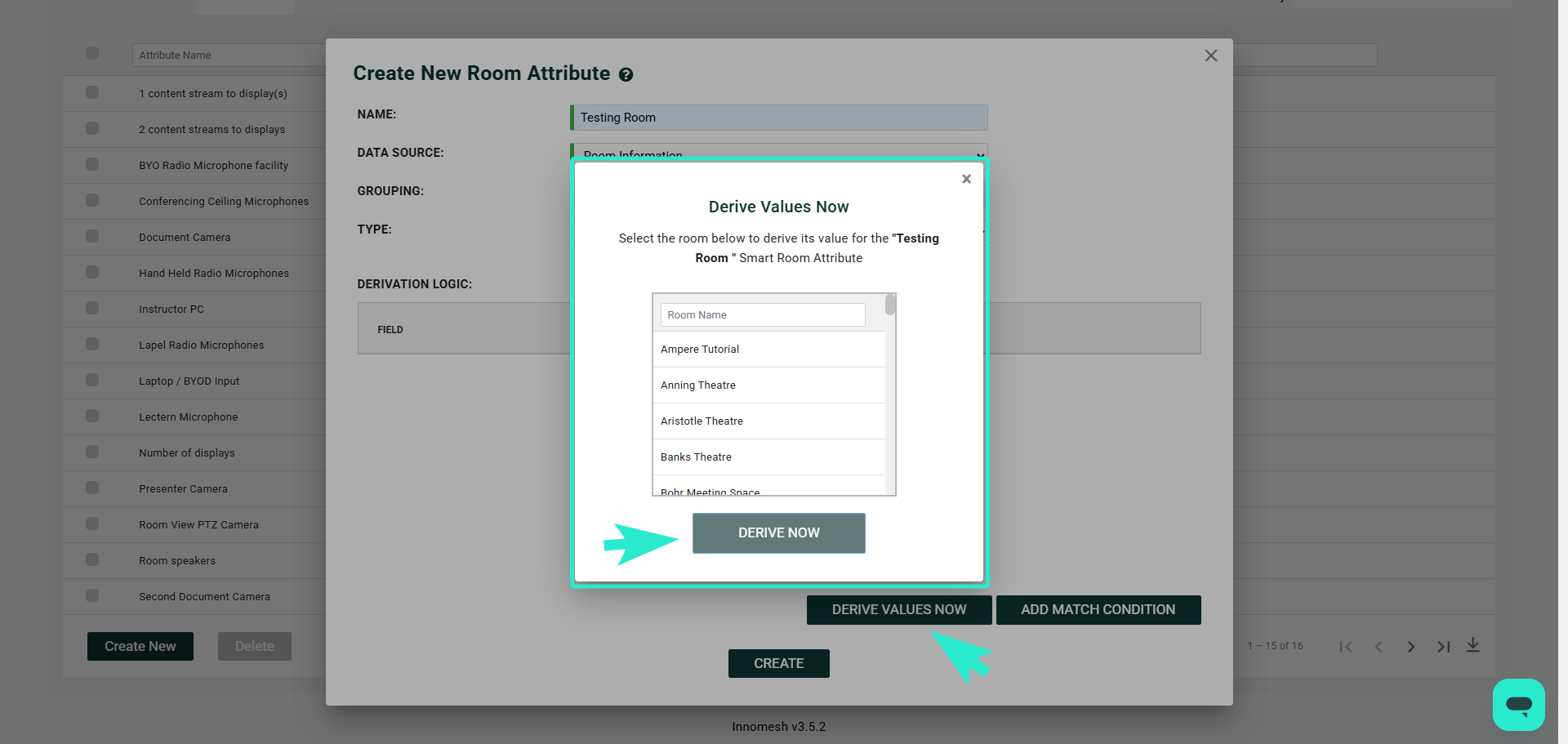
Smart Room Attributes let you define custom room metadata fields that are populated automatically by querying room configuration data. Instead of manually inspecting individual rooms, you create an attribute with derivation logic and the system extracts the relevant information across your entire environment.
For example, you could create an attribute called “Display Count” that counts the number of display devices in each room, or a “Has Wireless Microphone” boolean that checks whether any room includes a wireless mic.
Accessing Smart Room Attributes
Navigate to Administration > Room Attributes > Smart Room Attributes. This page displays a list of all existing attribute profiles.
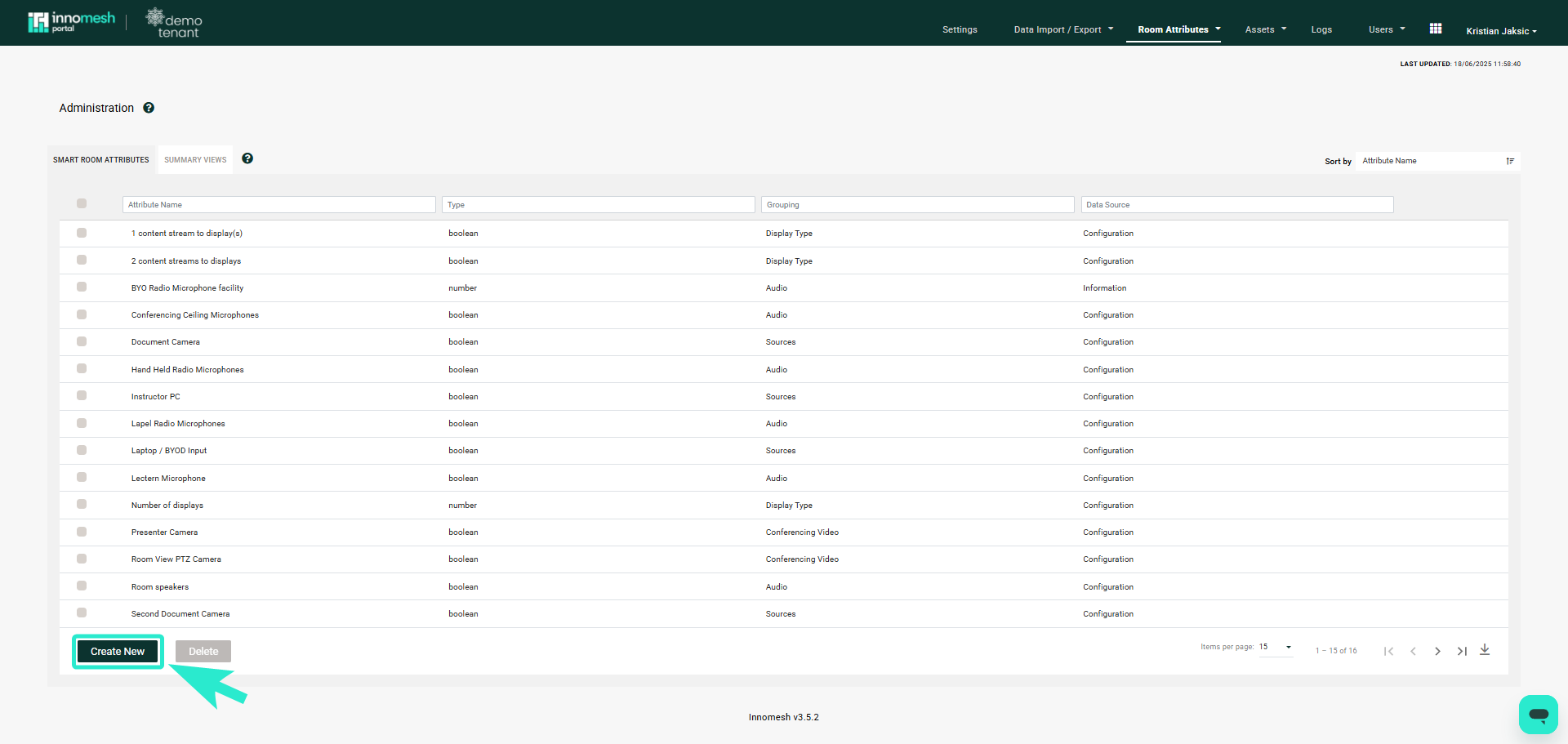
Creating an Attribute
Click Create New to configure a new attribute. Each attribute requires the following fields.
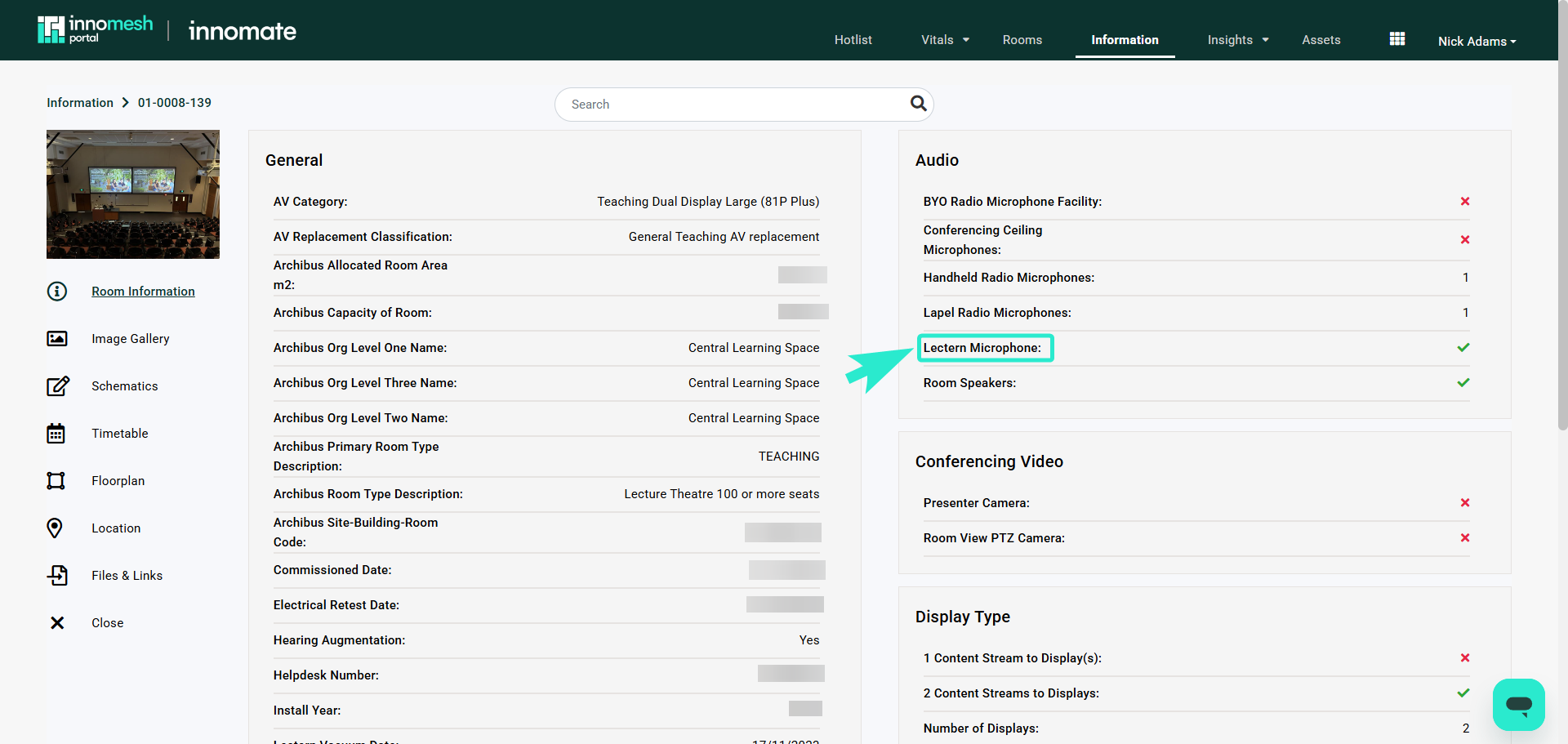
Name
Labels the attribute for display in a room’s General tab on the Information page.
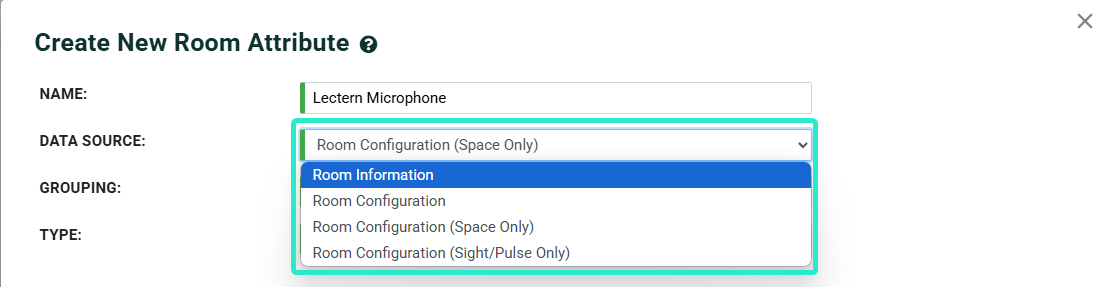
Data Source
Specifies where the information originates. For example, “Room Configuration (Space Only)” draws data from room processor configurations.
Grouping
Determines which subsection within the General tab displays the attribute. Use groupings to organise related attributes together.
Type
Defines the output format of the attribute:
| Type | Description |
|---|---|
| Boolean | Yes or No response |
| Number | Numerical value |
| Text | Free-text response |
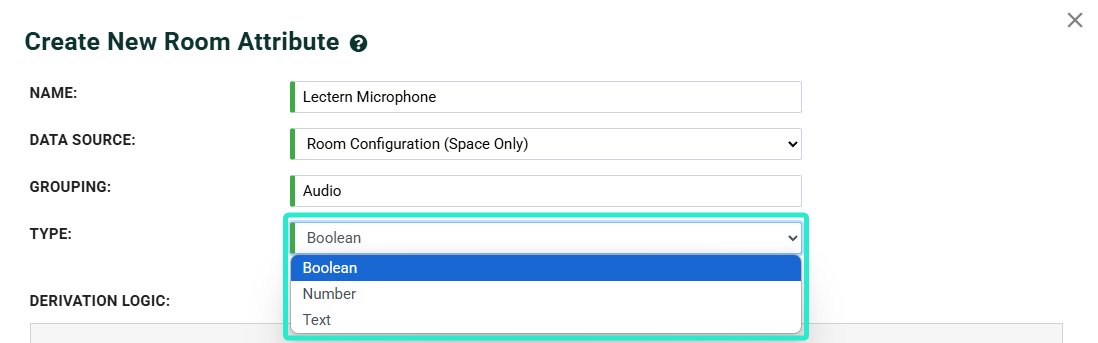
Derivation Logic
Derivation logic defines how the system navigates through room configuration data to locate and extract the target information.
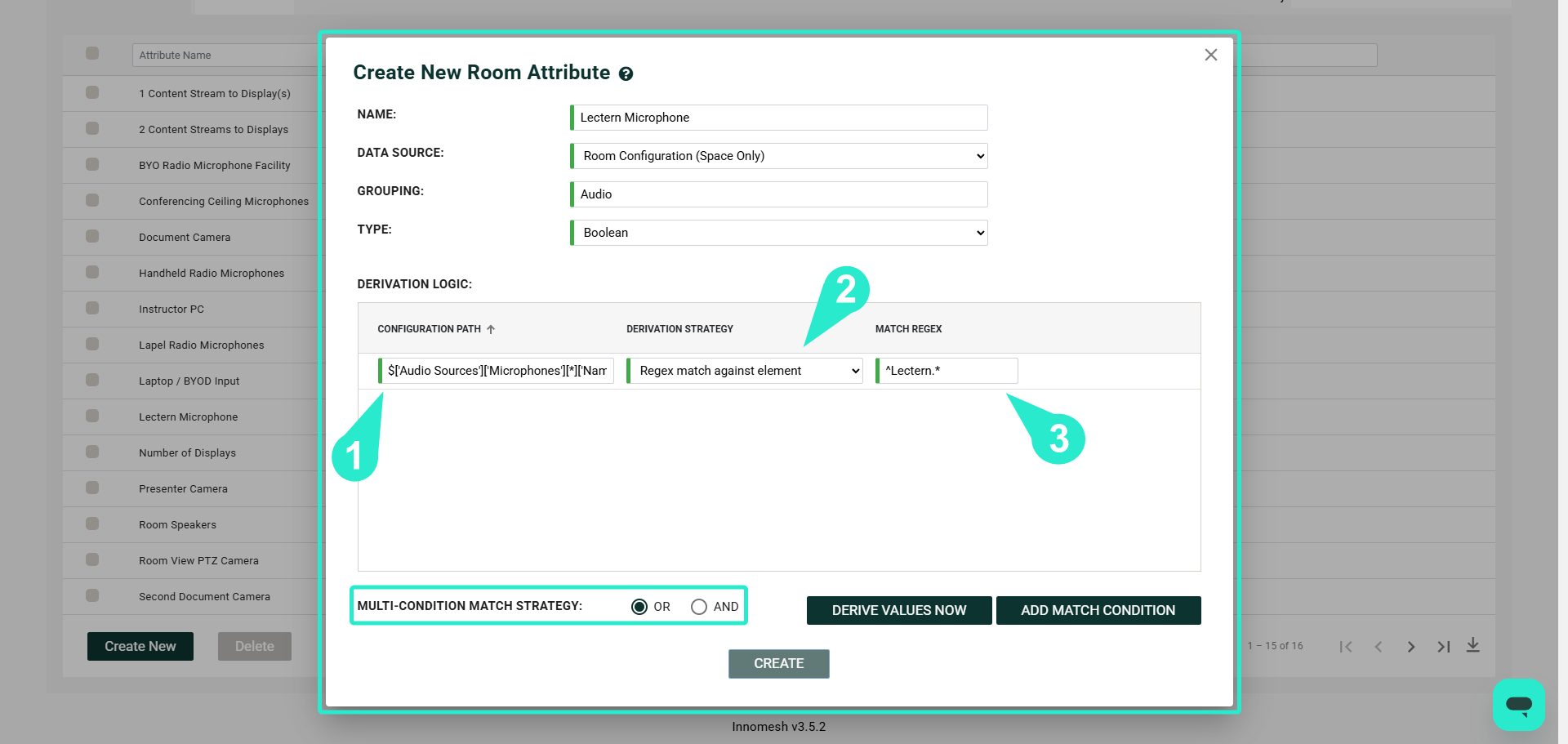
Configuration Path
Specifies the pathway through the configuration hierarchy to reach the target data.
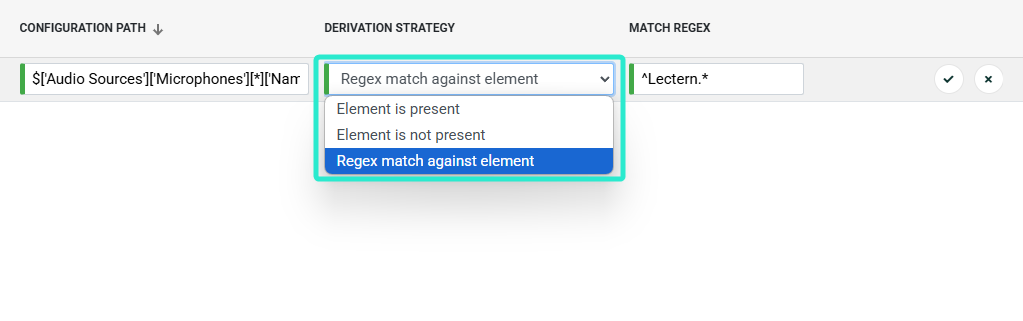
Derivation Strategy
Determines the method used to retrieve and format the result. Options include counting, checking for existence, extracting a value, and other strategies.
Match Regex
Enables precise targeting within the configuration data. For example, (^Lectern.*) matches all items starting with “Lectern”.
Multi-Condition Match Strategy
When multiple conditions are defined, choose:
- OR to match when any condition is met
- AND to match only when all conditions are satisfied
Testing Attributes
Use the Derive Values Now button to run the attribute immediately against all rooms. This lets you verify the derivation logic, identify errors, and confirm the output before relying on the attribute in Summary Views or exports.