

Innomesh v3.5.0
Released to production on 30/08/2024.
Here’s a summary of the new features, enhancements and bug fixes included in this release.
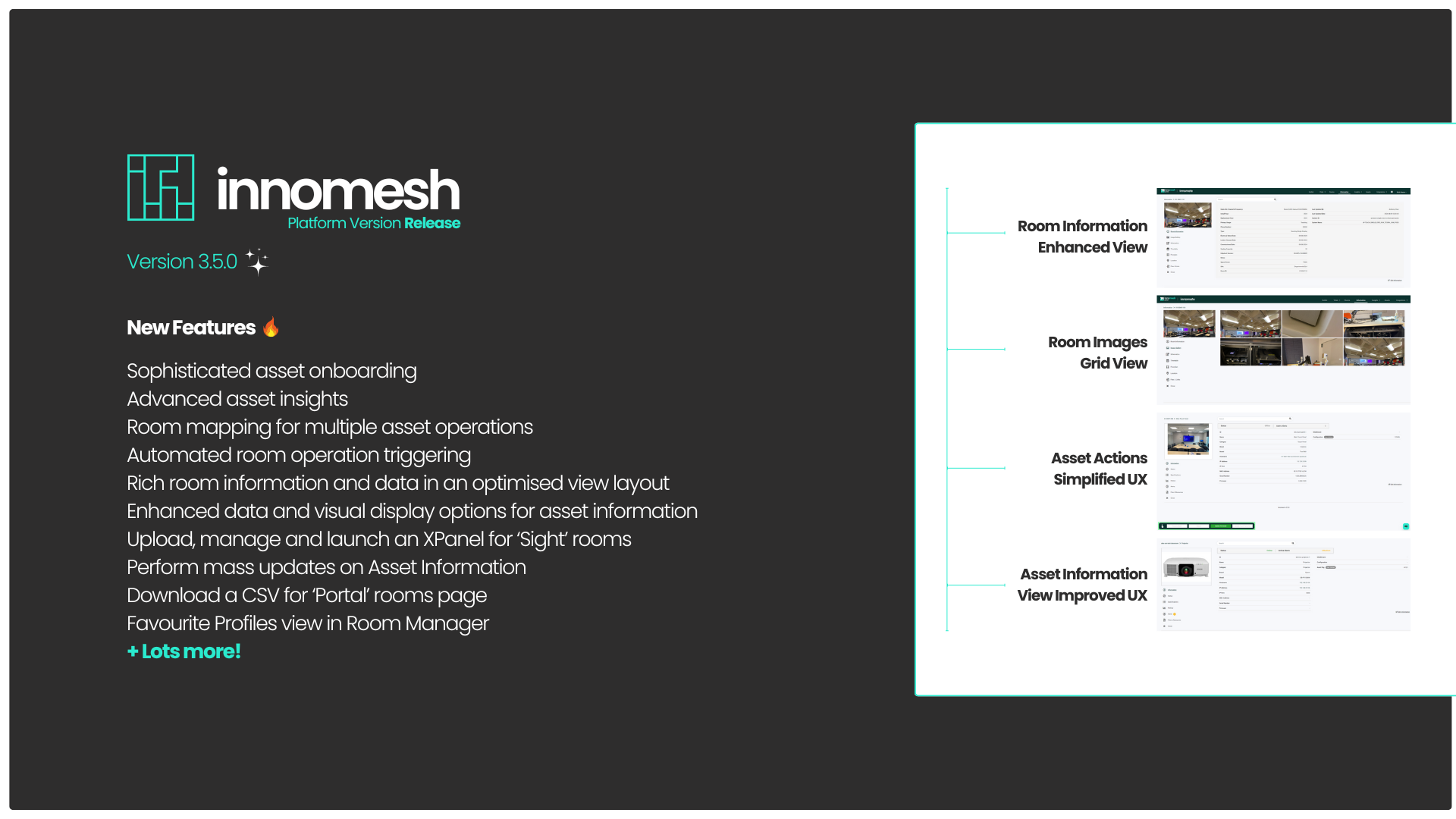
What’s New in Innomesh Room Manager
Asset Profiles — This feature paves the way for a more streamlined process of onboarding assets to Innomesh, and for generating much richer asset insights. You’ll find a detailed description of this hugely valuable new feature later in these release notes.
Room Operations for Innomesh Sight — This feature allows for “room operations” to be set up for Innomesh Sight rooms and mapped to one or more asset operations for assets that belong to that room, enhancing the user’s ability to support rooms from Innomesh. Triggering the “room operation” will then trigger the corresponding asset operations.
What’s New in Innomesh Portal
Room Information View — This re-designed user experience provides a view that enhances the presentation of room information on the Innomesh Portal. This new experience includes an improved layout, an image gallery view, and in-browser views of schematics, timetables, maps, and other web links. The all-new Room Information View provides a single overview of a room, laid out in a logical format, with all pertinent room information and associated data available at a glance.
Asset Information View — This brand-new view enhances the presentation of individual assets on the Innomesh Portal, including a more logical user flow to access asset information, specifications, live status, operations and alerts. There’s also the additional benefit of an asset file management system for storing device manuals, invoices, warranty cards, and any other pertinent files. So now Innomesh users have a comprehensive, built-in Asset Documentation function that’s easily accessible from multiple dashboards.
Key Features
Asset Profiles
Asset Profiles is an exciting key feature of this release that our team has been developing for some time now.
Asset Profiles delivers a broad range of new sub-features and functionality, and has been developed to streamline the process of onboarding and maintaining devices. At a high level, Asset Profiles enforces consistency for device information entered into the Innomesh environment and ensures that asset data is normalised in the platform. Asset profiles are also used to serve the Specifications page on the Asset Information View.
Adding Devices to an Innomesh Room
All devices that can be added to an Innomesh room will now have an associated asset profile, which can be selected from a list as you add or edit a device. All of the information contained in the asset profile is pre-filled in the Device Configuration and Information tabs. The driver to control the device is also automatically selected, with an option to change the driver if required.
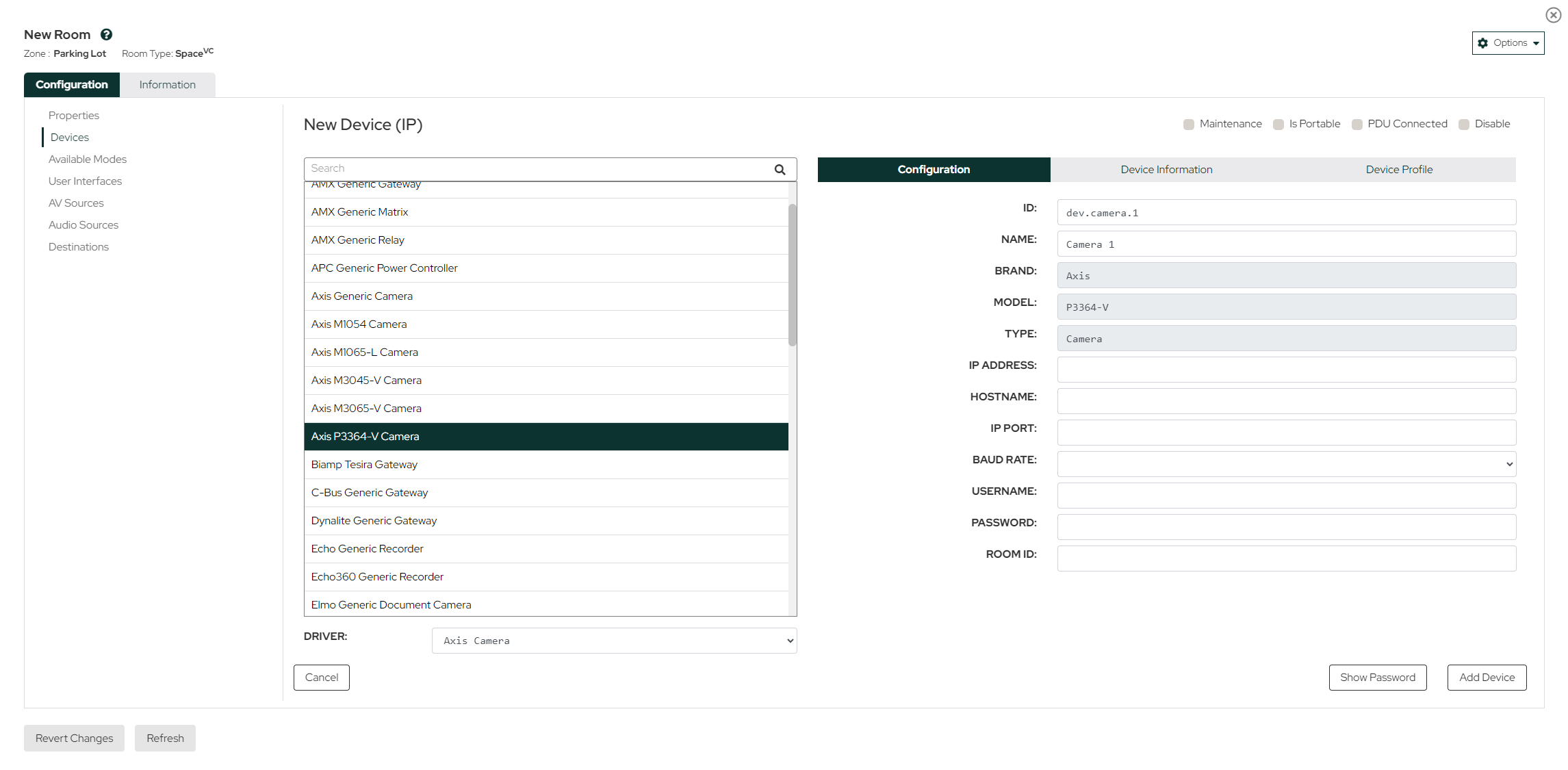 Example of the configuration page for an Axis Camera. Note the driver is selected under the list
You can fill out any remaining details that differ for each device and then click “Add Device”. The device will be added to the devices list and will be available in Room Manager and Portal once the room has been saved and deployed.
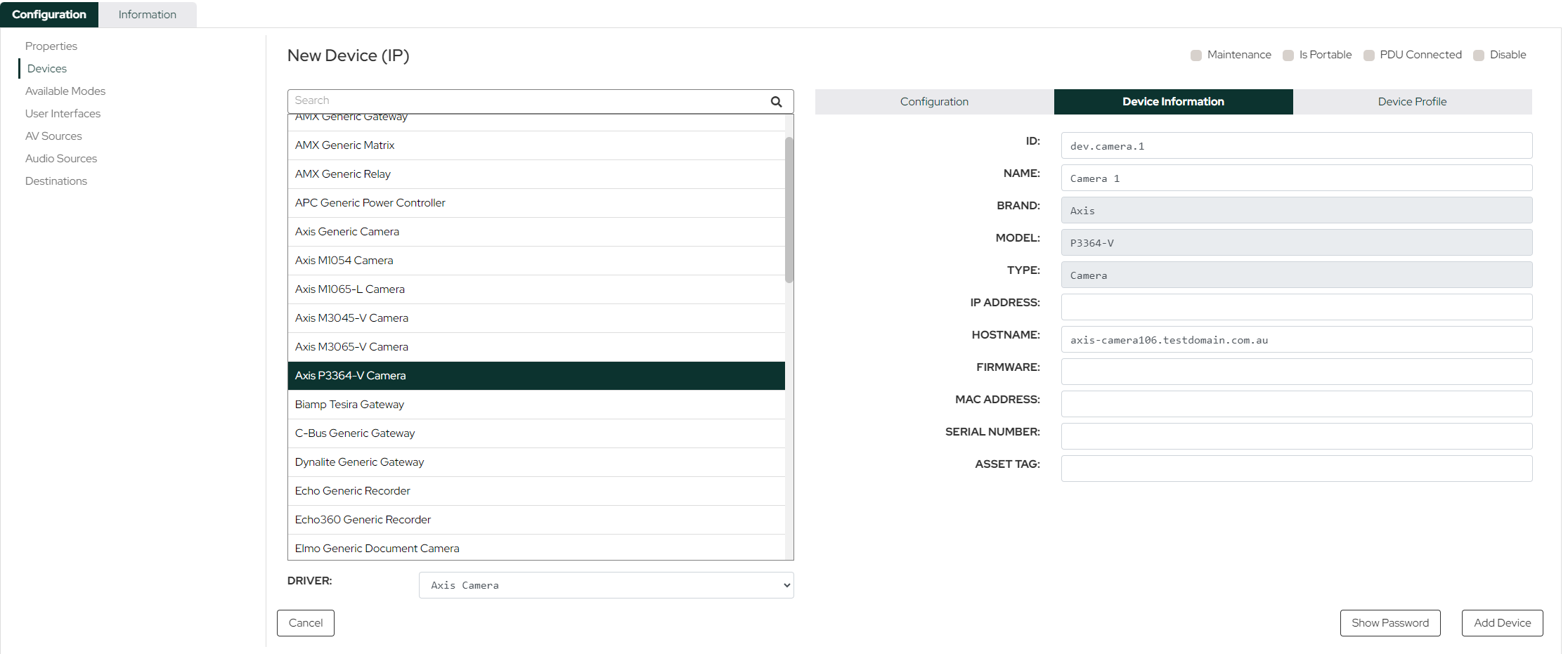 Example of the information page for an Axis Camera
Administering Asset Profiles
Every device will need an Asset Profile, so our team has created a large number of “default profiles” that are included with the release of Innomesh v3.5.0. Our team will also create more asset profiles over time and enrich existing profiles.
Innomesh administrators can create and edit their asset profiles when new devices become available or when existing devices need to be updated. This is done through the Innomesh Portal → Administration → Assets → Asset Profiles.
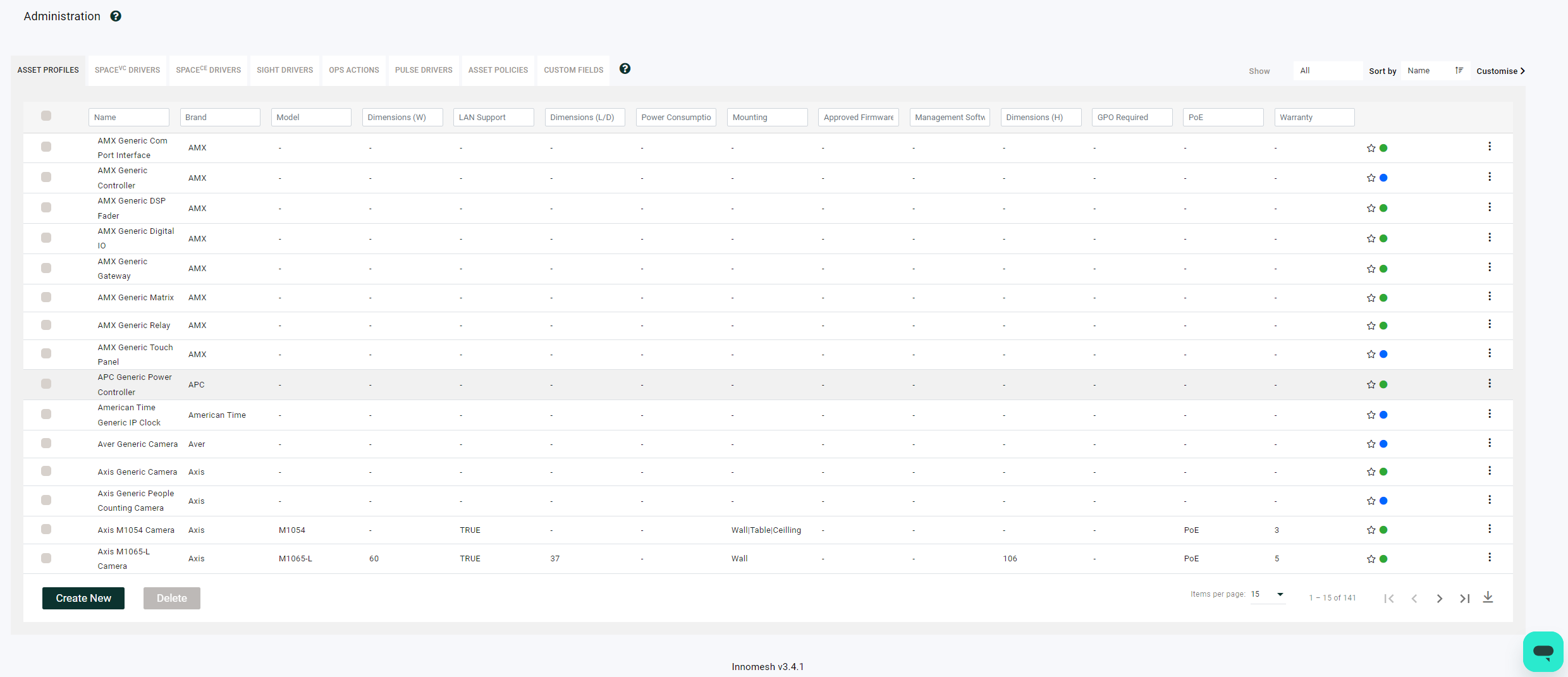 Asset Profiles list in Administration View
Favourite Profiles
Administrators can now mark asset profiles as “favourites” using the star icon, enabling a filtered view of devices they commonly use.
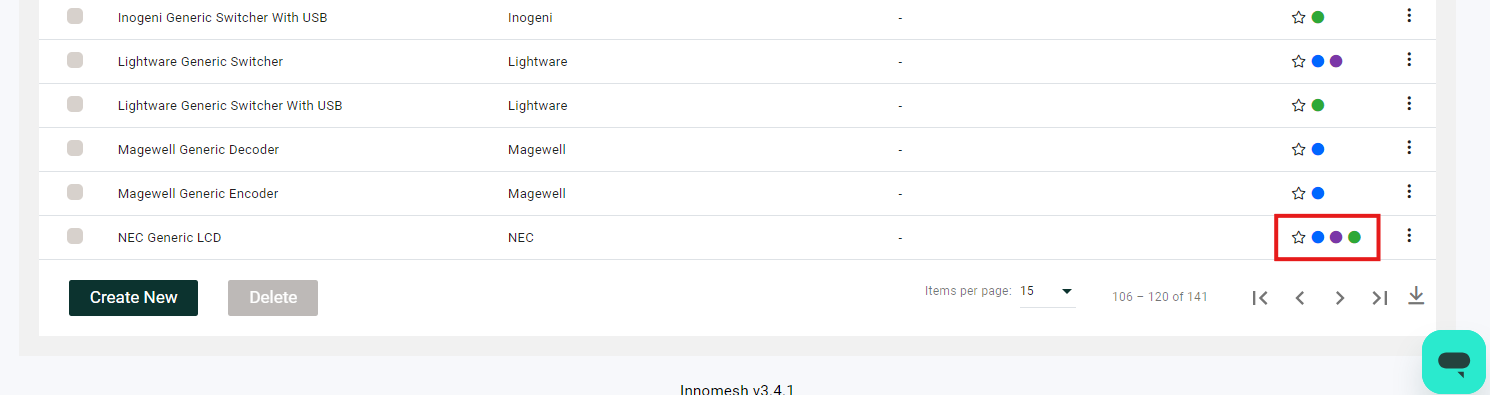 Favourite Profiles and Driver Availability Indicators
Driver Availability Indicators
Next to the favourite star in the list, there may be one or more coloured circles. The colour of this circle indicates what kind of driver is available to the asset profile. The colours follow the room type label in Room Manager:
| Room type | Indicator colour |
|---|---|
| Space CE | Purple |
| Space VC | Green |
| Sight | Orange |
| Pulse | Blue |
Room Operations for Innomesh Sight
Leveraging Innomesh Ops, administrators can now set up Ops for an Innomesh Sight room. This is done by mapping a room Ops action to one or multiple asset Ops actions. These room Ops actions will then be displayed in the room’s context menu on the Rooms page of the Innomesh Portal.
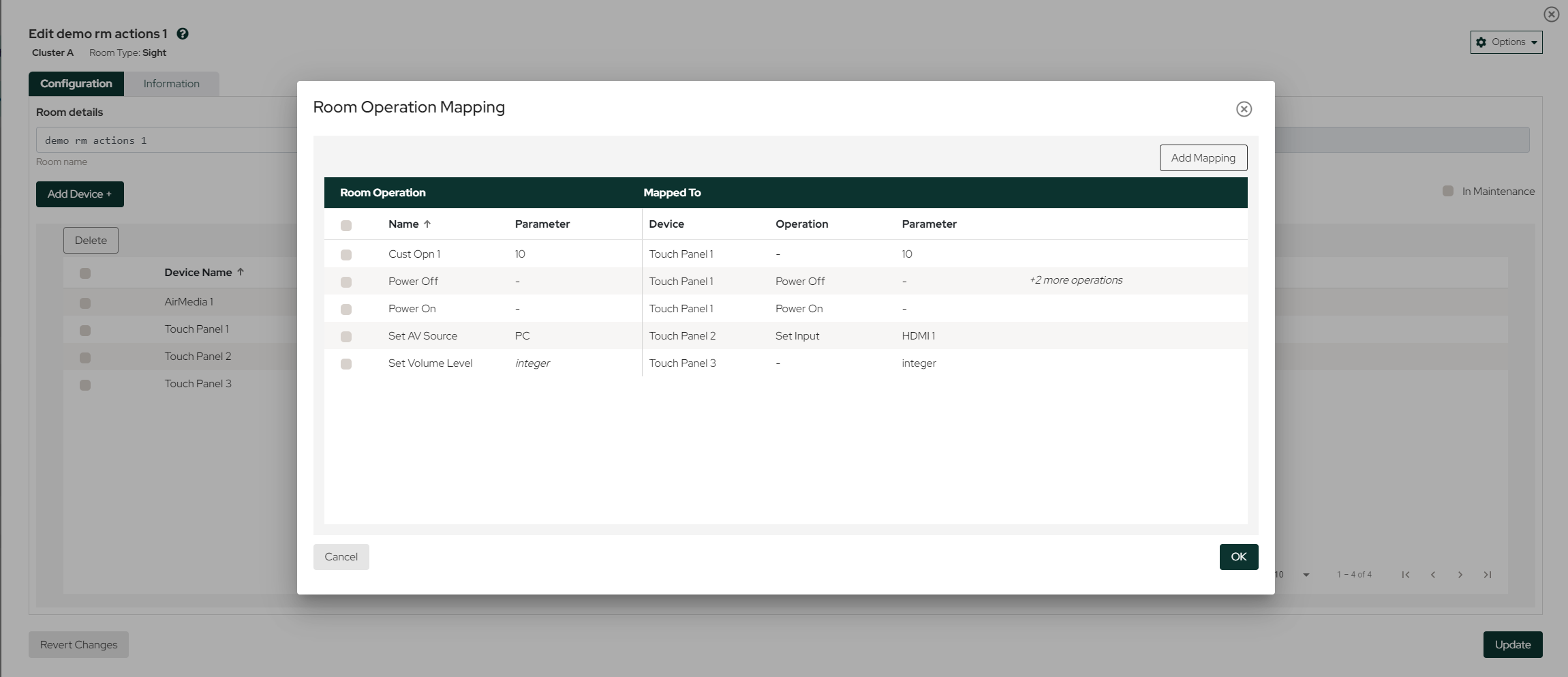 An example of “Room Operations”
Adding Room Operations
- Create or open a Sight room.
- Go to options in the top left and select “Room Operations Mapping”.
- Press Add Mapping.
- Select the name of the operation from the “Operation” dropdown or tick the custom operation.
- Add the devices you would like to target with this Operation.
- Add the function that each device should execute for the Operation.
- Click Add and Update the room.
Executing Room Operations
To execute the room operation, find the room in the Innomesh Portal → Rooms. Then, go to the context menu and click on Room Operation. All of the device Ops that have been mapped will trigger.
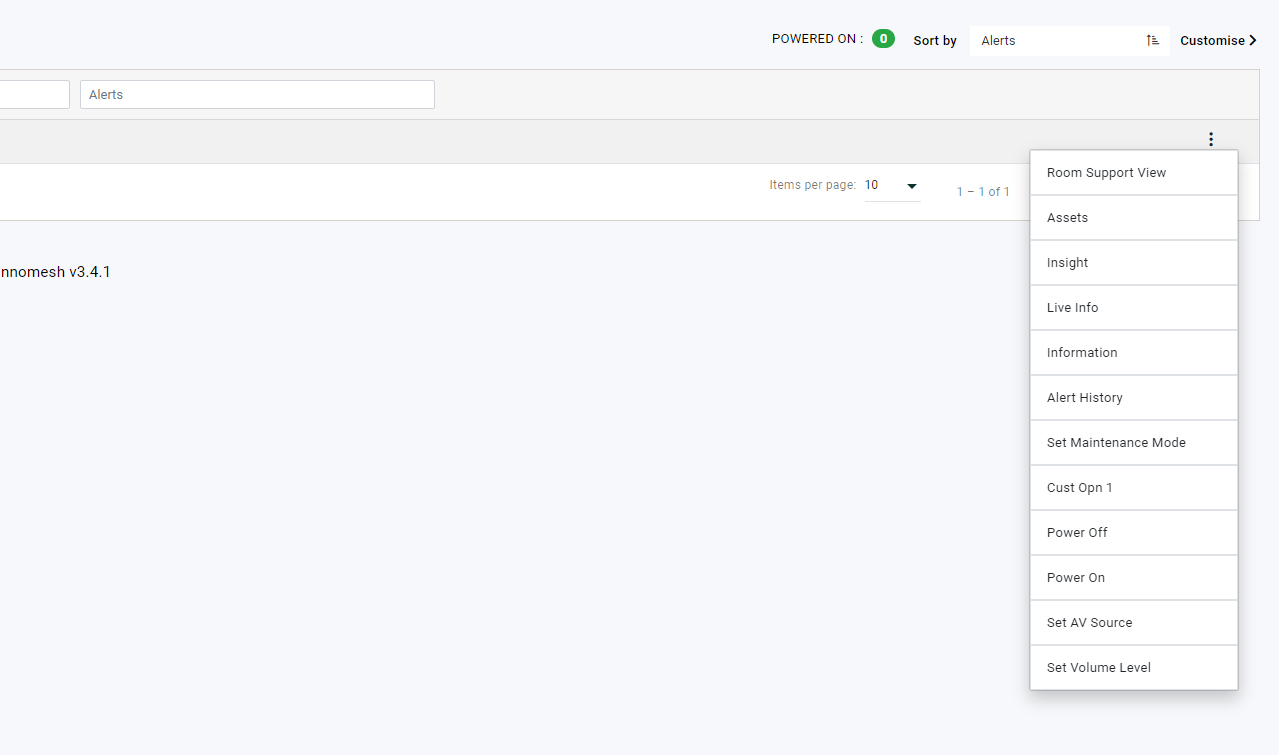 Context menu showing Room Operations
Room Information View
The redesigned Room Information View significantly enhances the presentation of room information on the Innomesh Portal, offering users a frictionless user experience and visually appealing interface. The updated layout makes it easier to access and navigate between key room details. The addition of an image gallery allows users to browse through room photos quickly, while the in-browser views of schematics and web links mean users will no longer need to leave the Innomesh Portal to view what they need.
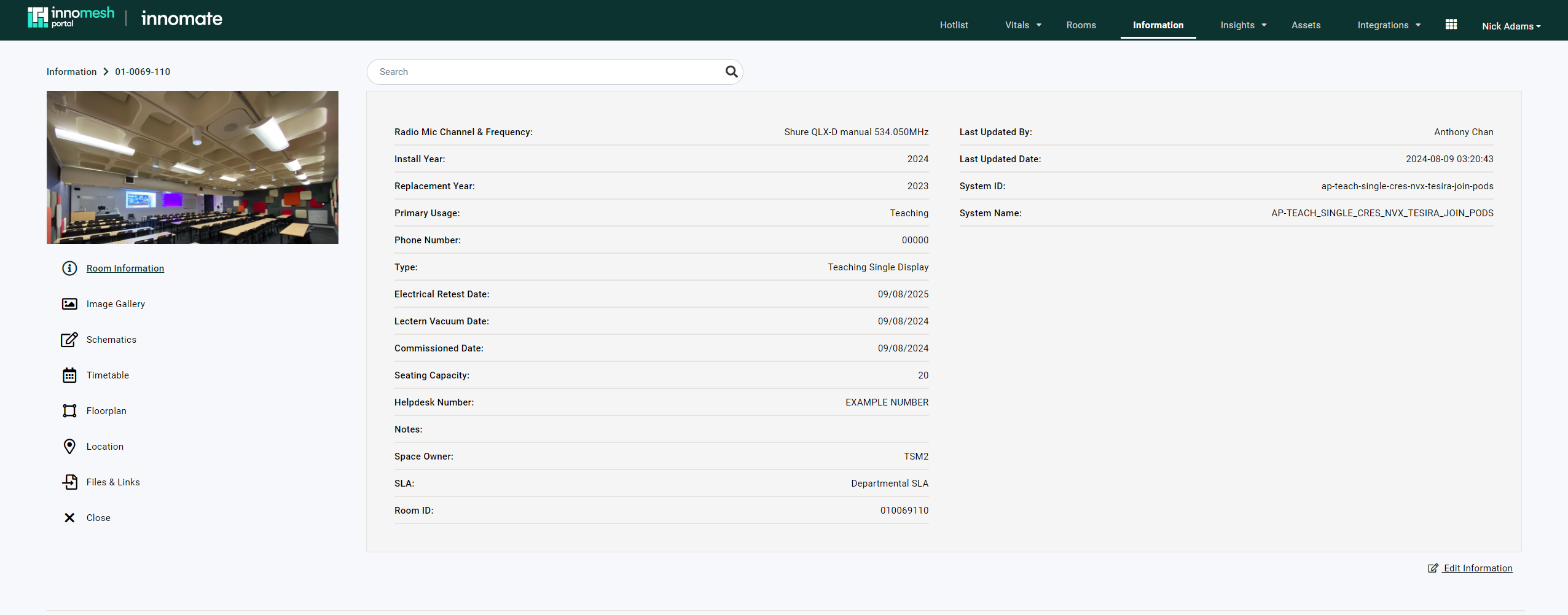 New Room Information View
Accessing Room Information
The Room Information View is accessed by clicking on a room within the “Information” page of the Innomesh Portal.
Room Information Pages
- Room Information Page
- Image Gallery
- Schematics
- Timetable
- Floorplan
- Location
- Video Guide
- 360 View
- Files & Links
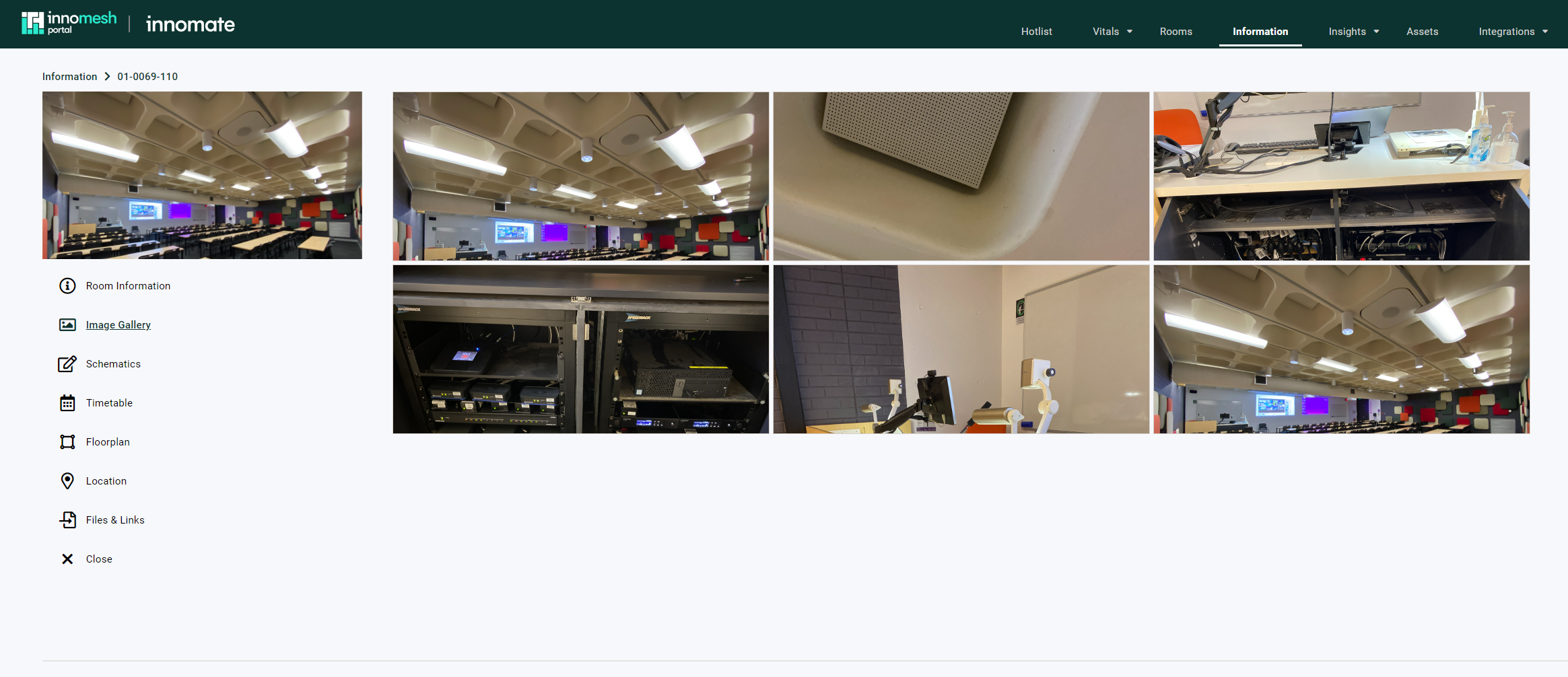 Grid view of Room Images
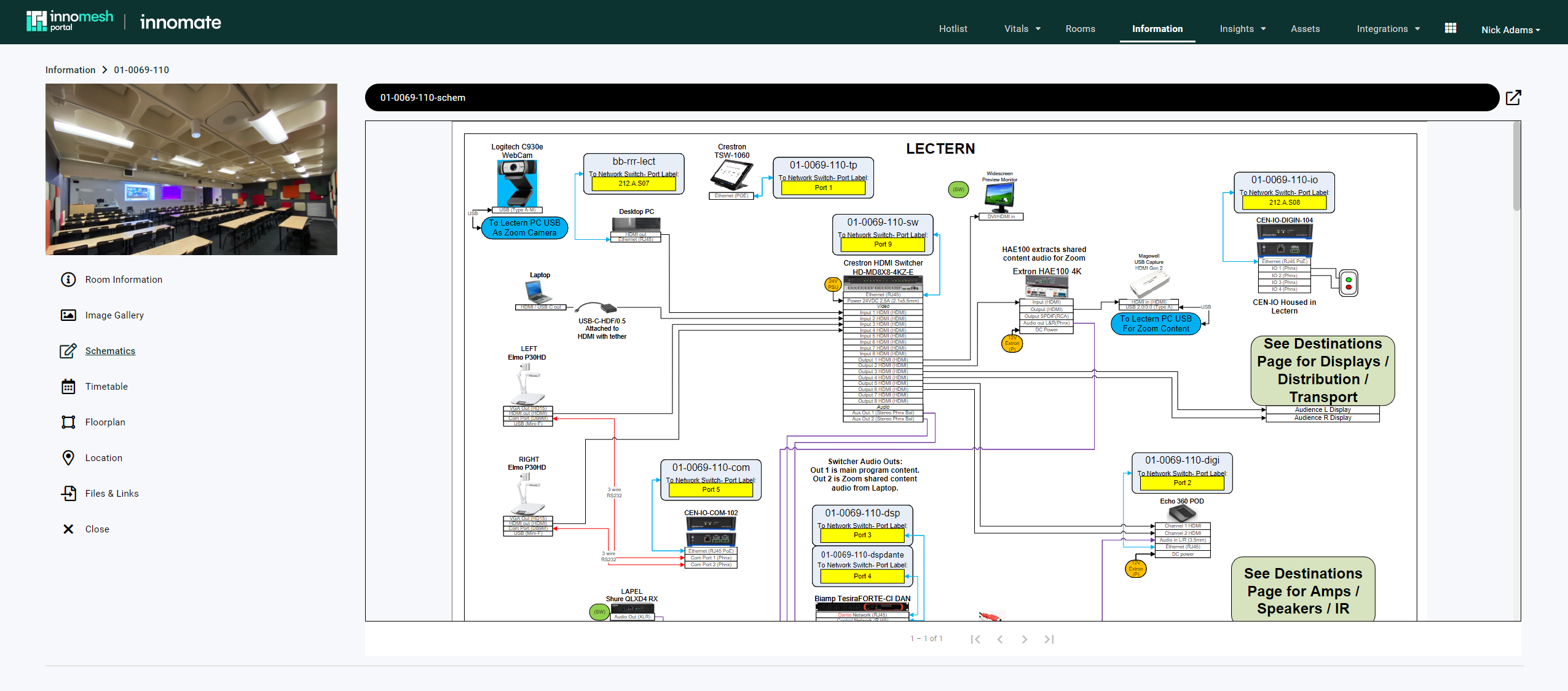 Schematics Page. The Timetable, Floorplan and the Location page contain the same layout
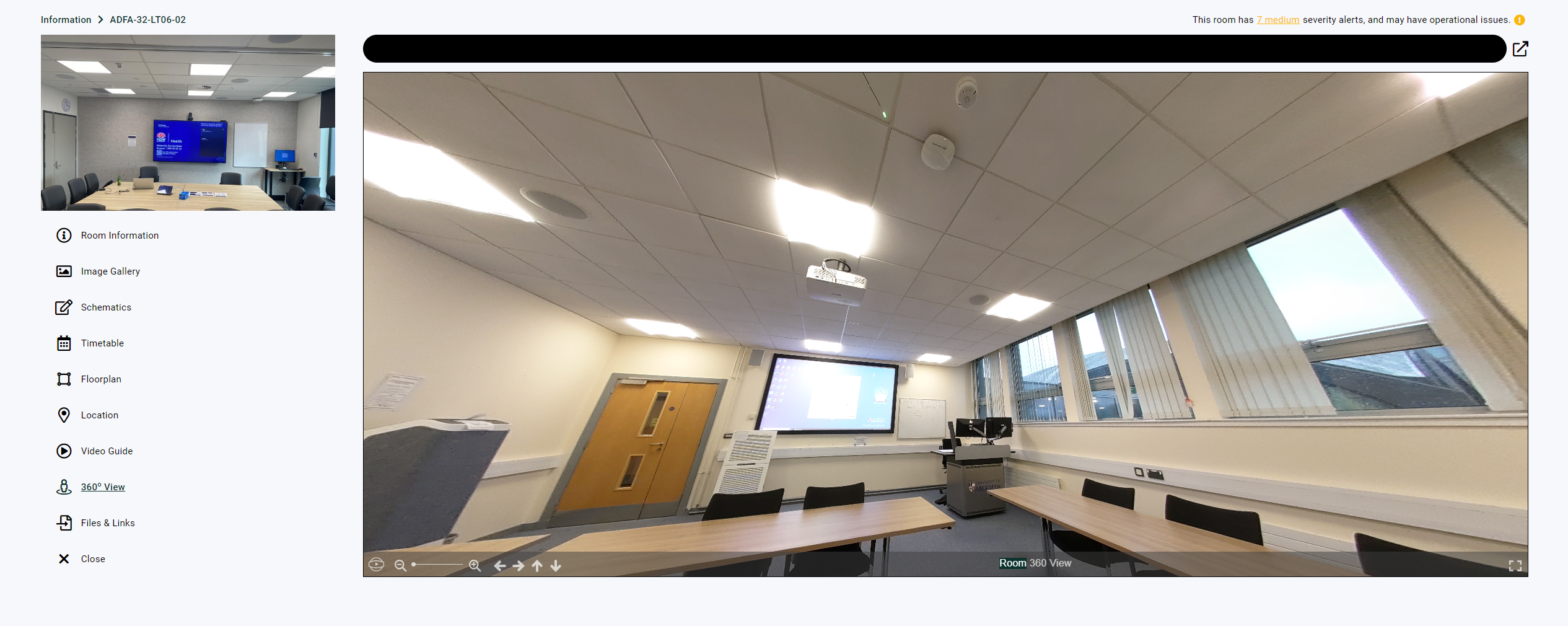 360 View Page
Asset Information View
The Asset Information View on the Innomesh Portal has been designed for an optimised user experience when browsing your assets. This view includes access to all critical device information: static, live, and related to the device’s asset profile. It provides single-click access to a device’s specifications, status, state and alert history, and the file repository.
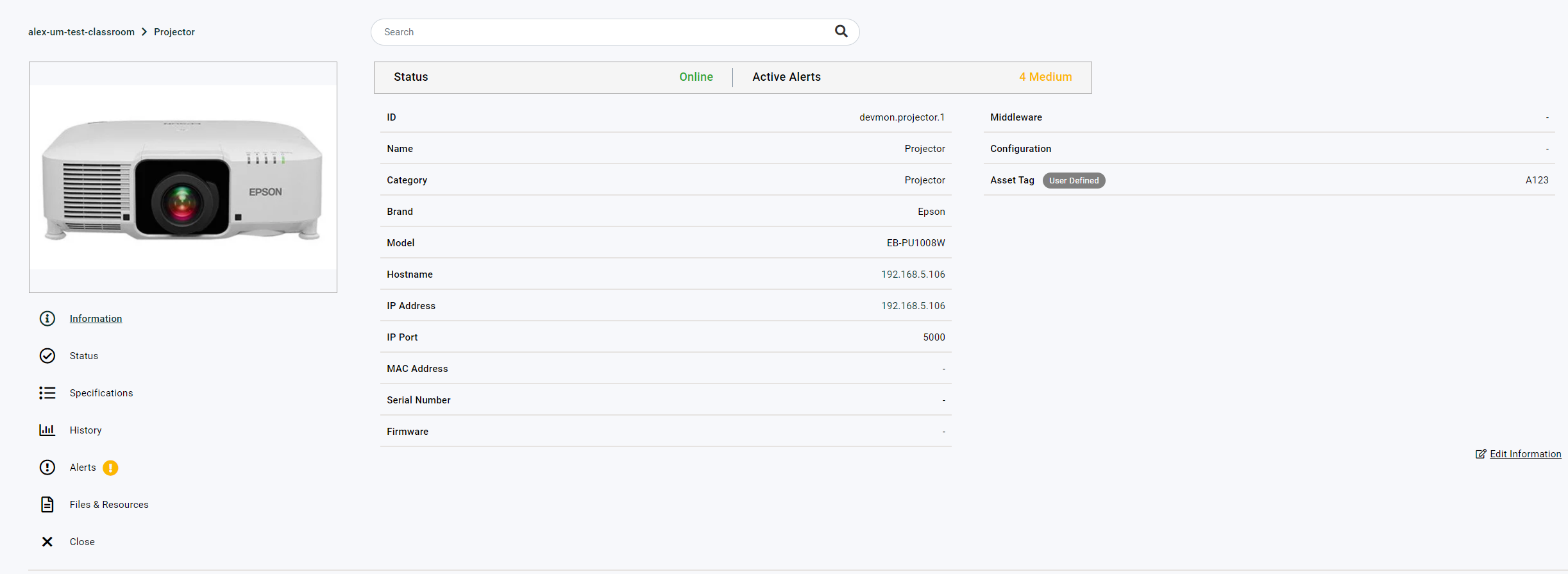 Example of the Asset Information View
Accessing Asset Information View
The Asset Information View can be accessed by clicking on an asset in the Assets Registry within the Innomesh Portal.
Asset Actions
You can also access Asset Actions from the context menu of the asset. These actions can be accessed from the assets page itself. You’ll see a hand icon in the bottom left corner of the assets page. Clicking on this will expand a list of interactive asset actions.
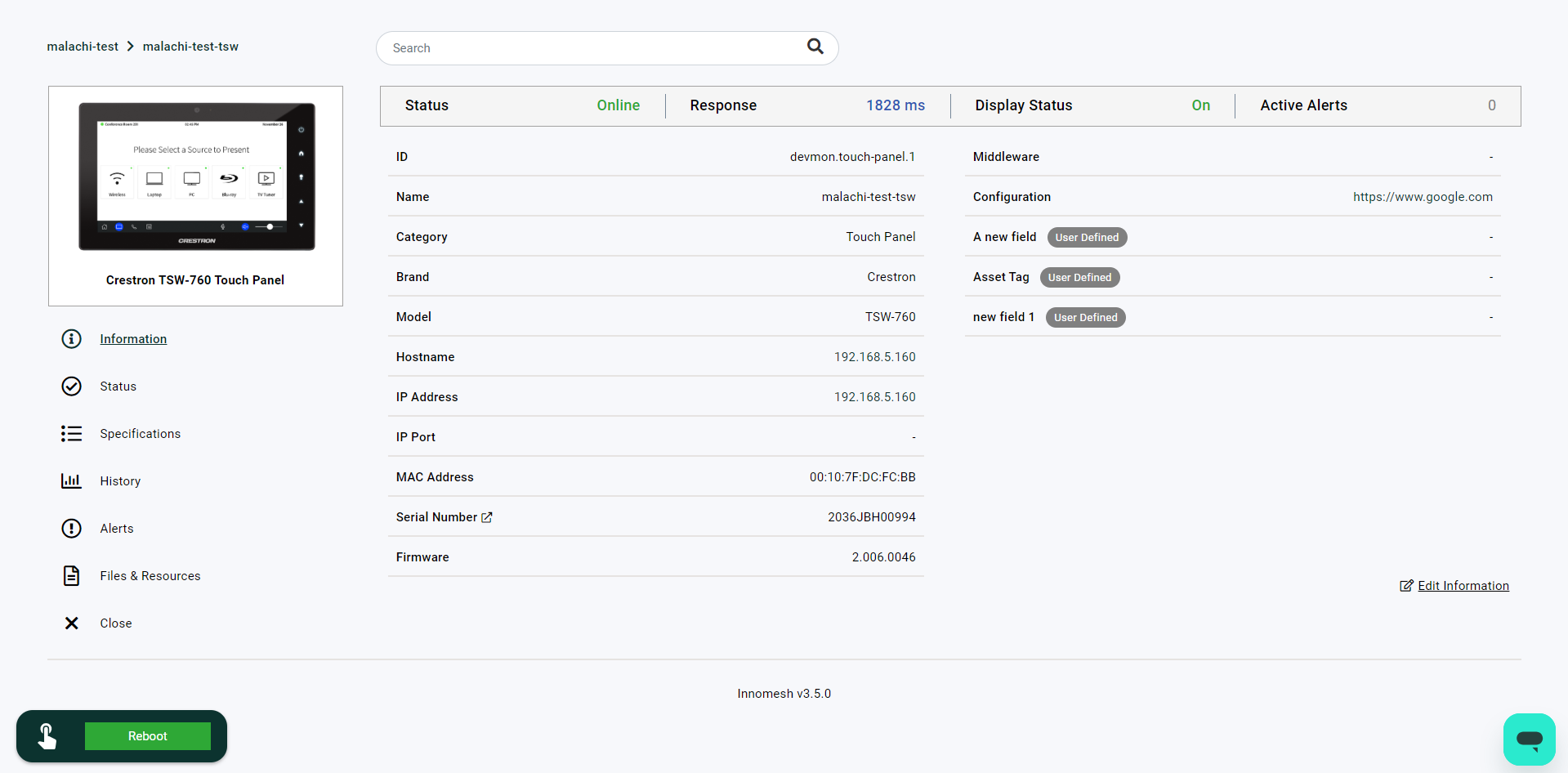 Asset actions after opening the menu
Asset Information Pages
The new Asset Information View comprises a number of sections to provide a complete set of details about an asset, including:
- Information
- Status
- Specifications
- History
- Alerts
- Files & Resources
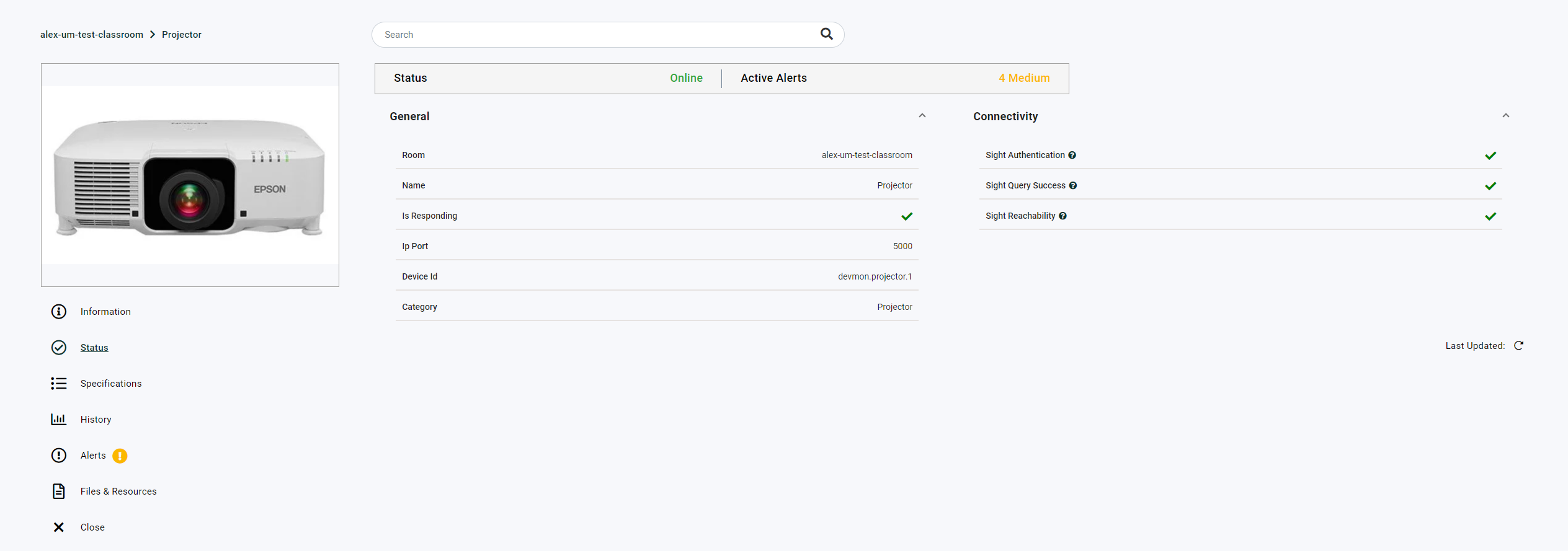 Example of Asset Information Status Page
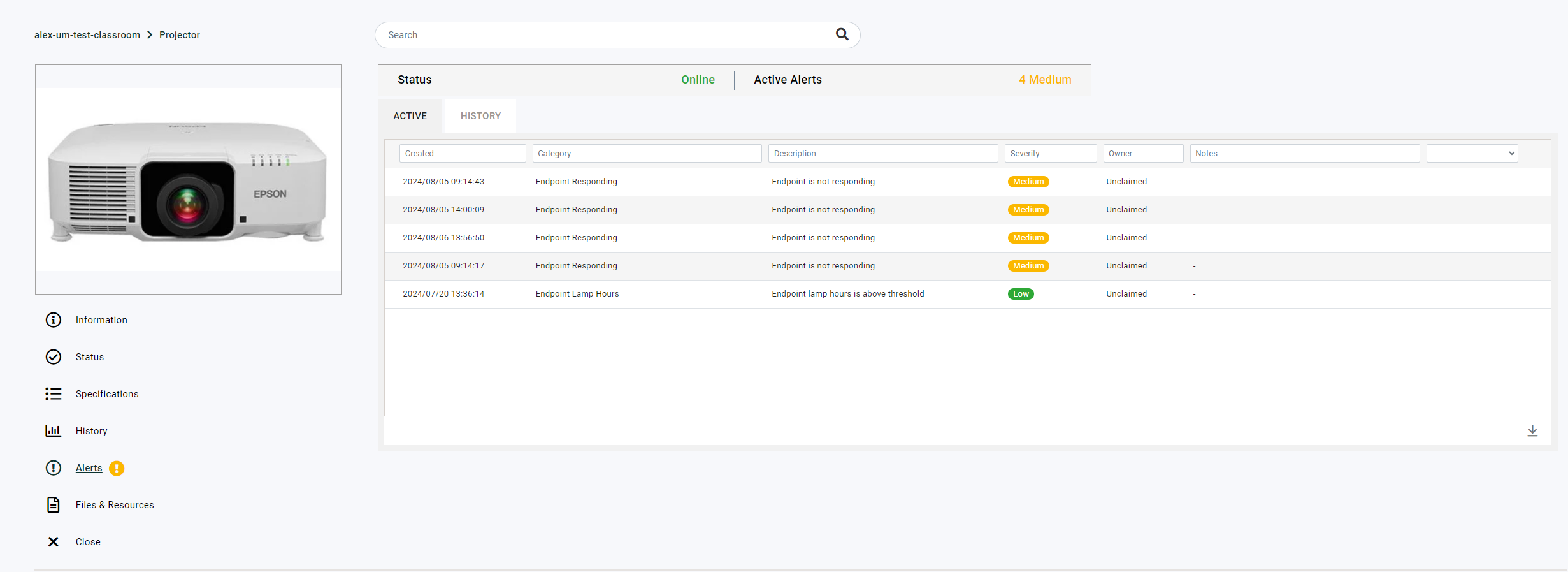 Example of Asset Alerts
Assets Administration
Space VC and Space CE Drivers
Administrators are now able to view all the available Space CE and Space VC drivers and define the default names and IDs assigned to the devices when they are onboarded in Room Manager. For Space VC, you can now also dictate the default IPIDs for different Crestron devices, making it easier to standardise IPIDs across rooms.
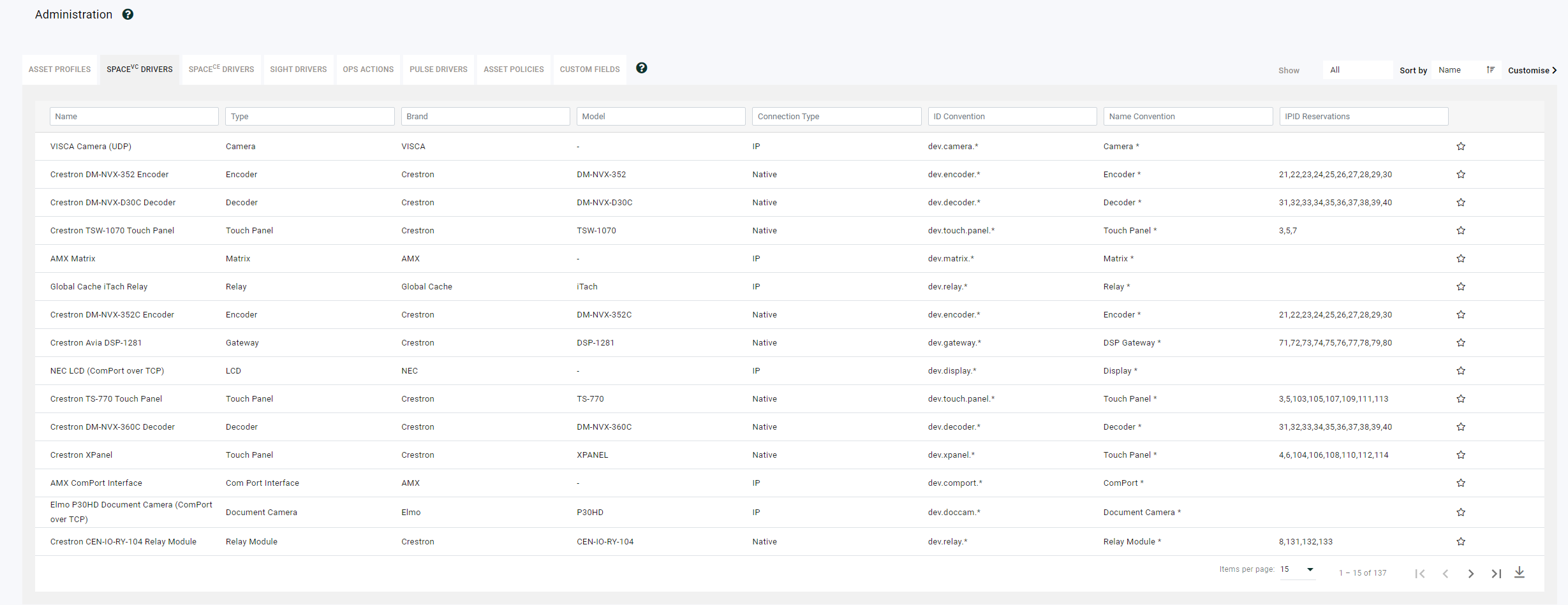 SpaceVC Driver List in Administration → Portal
Additional Enhancements
Room View — Active Alerts Per Room
The Rooms page now shows the number of active alerts per room. This further enhances the insights available in your environment’s overarching view of rooms. AV and support teams now have even more information at their fingertips, further increasing efficiency and streamlining processes.
Launch an XPanel — Innomesh Sight Rooms
You can now upload, manage and launch an XPanel for Innomesh Sight rooms. Innomesh users with a “Space” subscription have had the ability to launch an XPanel from within the Innomesh Portal for a while. Now Sight subscription customers can do the same.
Define an IP Port — Innomesh Pulse Room Devices
You can now define an IP port for all Innomesh Pulse devices. Innomesh Sight then leverages this to query devices on a non-standard port where needed.
Mass Updates on Asset Information
You can now perform mass updates on Asset Information. This further increases operational efficiency, allowing much faster updating across your environment, as you can now process in bulk.
Download a CSV — Innomesh Portal Rooms
You can now download a CSV when on the Innomesh Portal Rooms page. This is ideal for situations where a simple data export is required for reporting or information sharing.
Percentile Information in VNOC Pulse Device Response Time
The “VNOC Pulse Device Response Time” visualisation has been enhanced to include percentile information, providing an additional data point for increased observability and data-driven analytics.
Licencing Errors Relayed — Room Manager
In Innomesh Room Manager, Room Licensing errors are now relayed back to users rather than failing with a generic error. This provides AV teams with a clearer view of this specific issue, reduces resolution time, and enables a more accurate asset management overview.
New “Loading” Logo
The “loading” logo for all Innomesh dashboards has been uplifted.
Bug Fixes
- The security posture of the platform has been enhanced overall.
- In Room Manager, a “close” button has been added for Space VC’s “Update XPanel Settings” prompt.
- Various UX-related fixes have been applied to the mass asset operation workflow.
- “User-defined” overrides of the asset field no longer accept a ”|” character, which was previously causing platform loading issues.
- The ability to mass onboard UC rooms is now protected by a separate RBAC permission.
- A rendering issue when the Hotlist alert text is too long has been fixed.
- Various tenant-shared platform infrastructures have been optimised to mitigate “noisy neighbour” performance issues.
- When setting up Pulse drivers, the IP port is now validated as a non-negative integer.