Skip to content
Innomesh
Platform

v3.5.2

Innomesh v3.5.2

Released to production on 21/03/2025.

Innomesh Portal Highlights

Microsoft Teams Rooms Enhancements

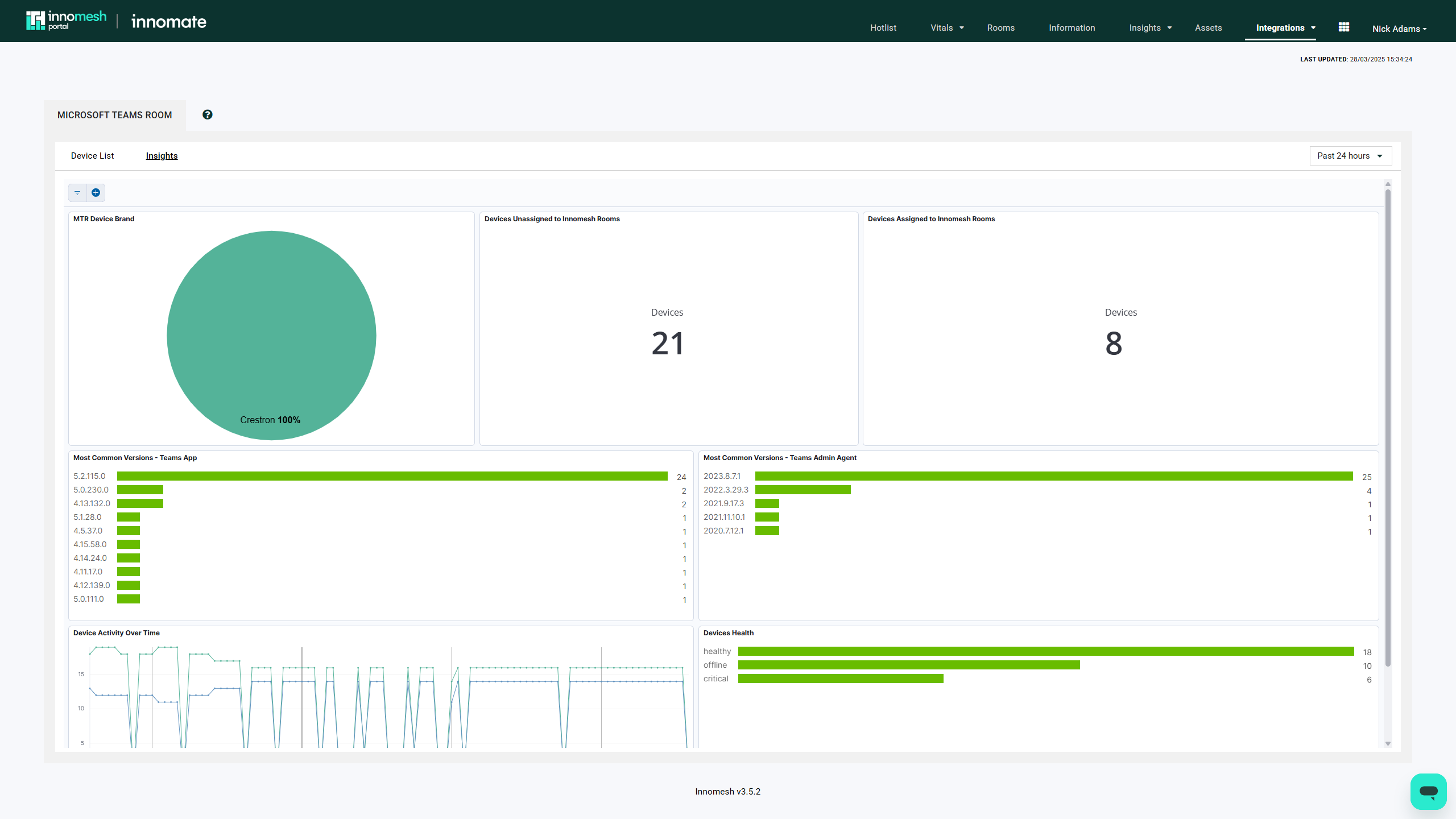
Microsoft Teams Rooms integration has been significantly refined with new device listings and insights dashboards. Users can now access MTR devices through the Integrations menu, featuring searchable tables and health/activity visualisations.
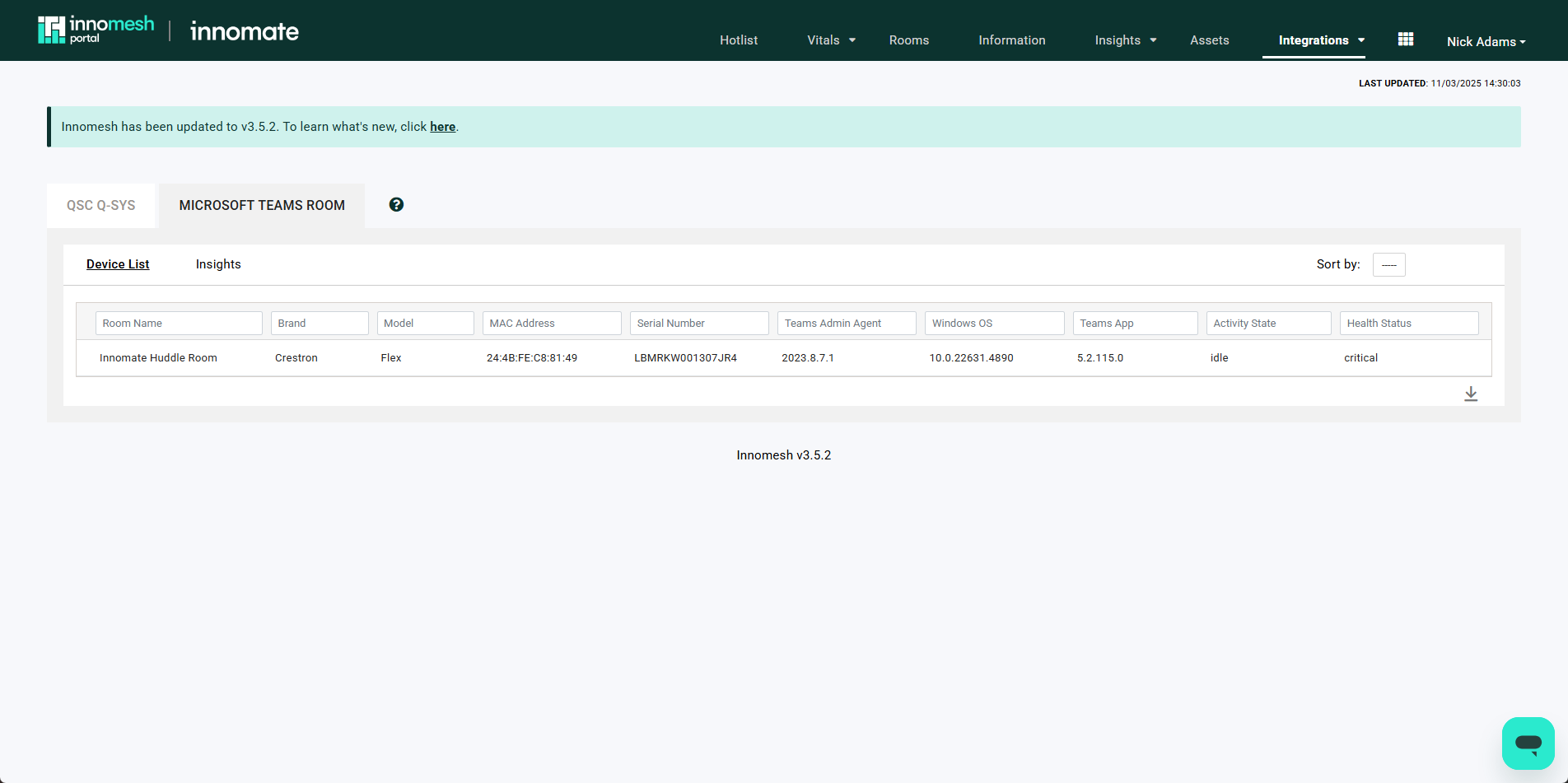
MTR devices page showing a searchable table of Teams Room devices with status columns and filter controls
MTR Devices List
MTR Insights dashboard with activity and health visualisations across the connected Teams Room fleet
MTR Insights

Mattermost Integration

Notifications from Innomesh can be sent in Mattermost channels alongside existing Slack and Microsoft Teams integrations. Alerts route to different channels based on criticality levels.
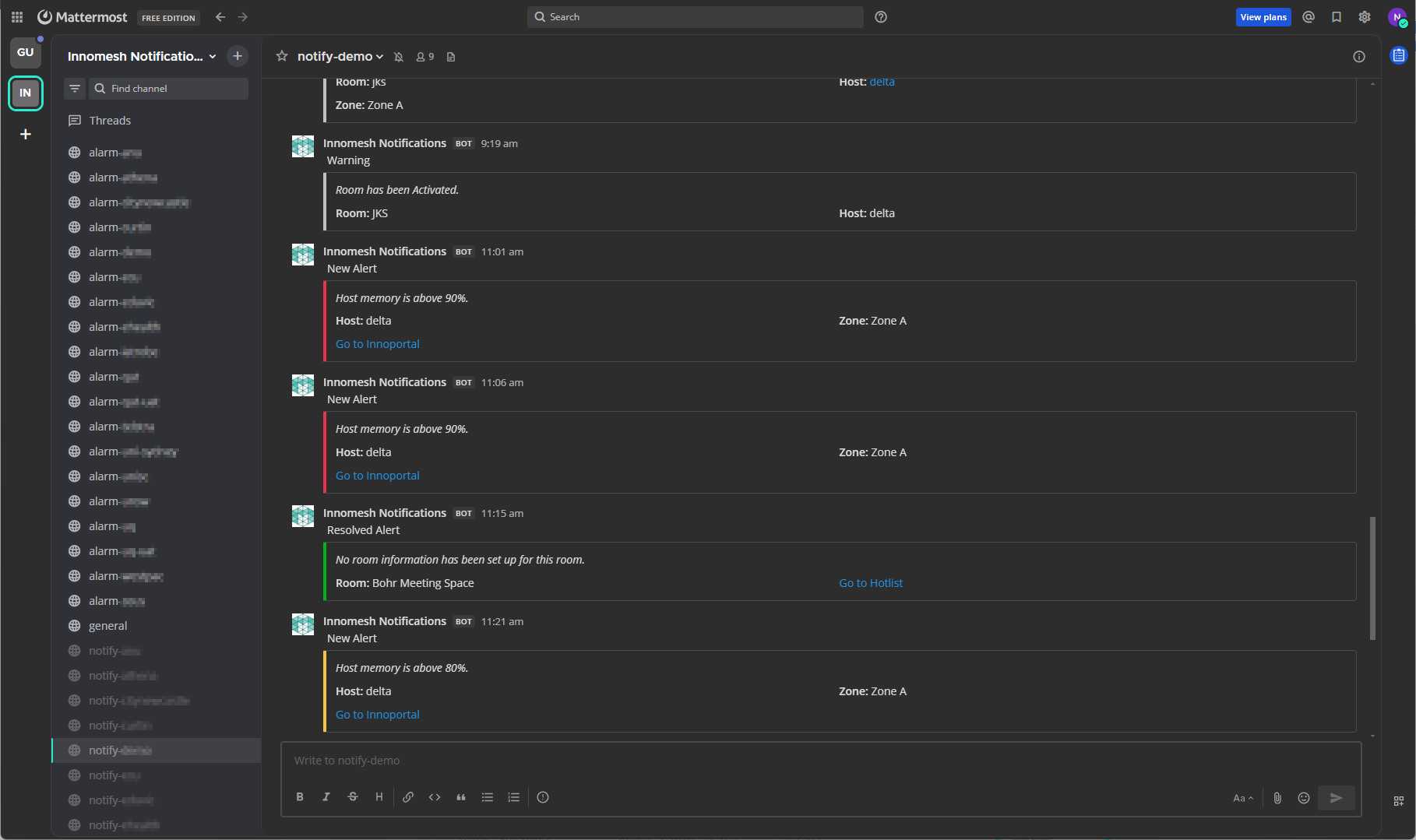
Mattermost channel showing Innomesh alert notifications posted as structured messages with severity indicators
Mattermost Integration Example

Integrated Asset Views

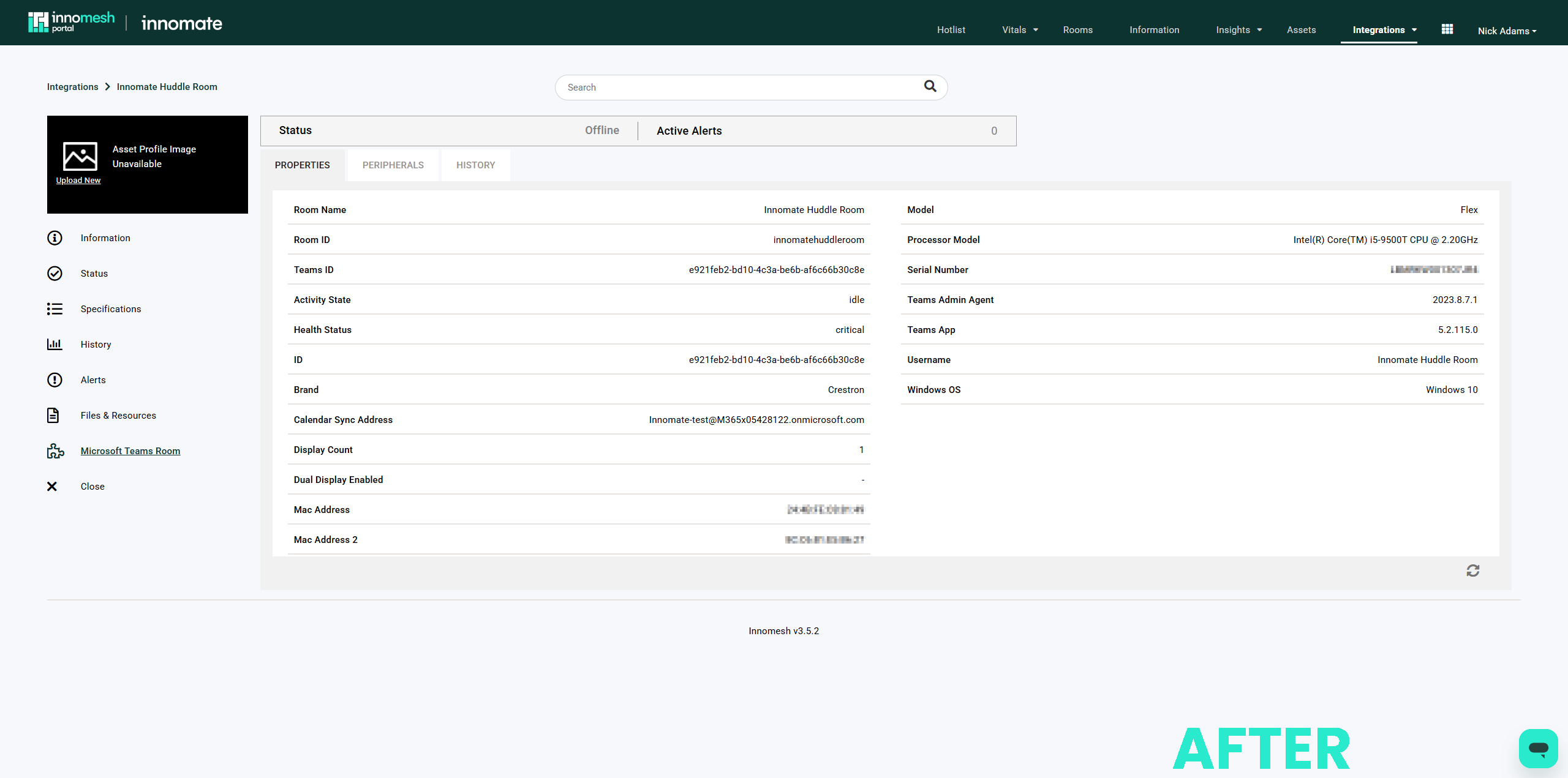
Microsoft Teams Rooms, Zoom Rooms, and Q-SYS devices now have unified asset views seamlessly integrated with the Asset Support View for improved navigation.
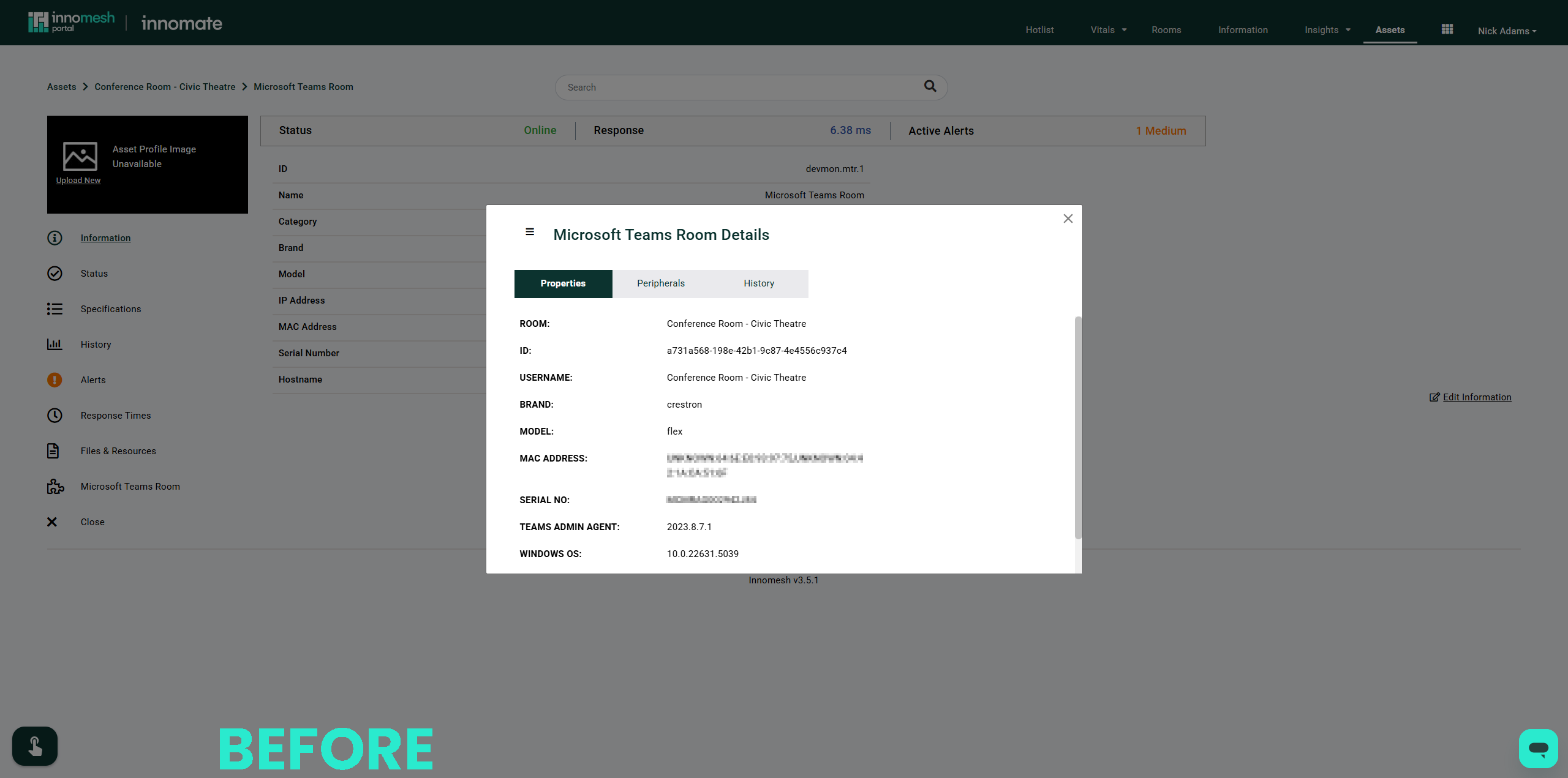
Asset view in v3.5.1 showing the pre-integration layout with separate panels for MTR, Zoom, and Q-SYS devices
Before: V3.5.1
Asset view in v3.5.2 showing MTR, Zoom, and Q-SYS devices unified into a single Asset Support View layout
After: V3.5.2

Smart Room Attribute Improvements

  • Data sources can now be segmented by Space or Sight/Pulse subscription tiers.
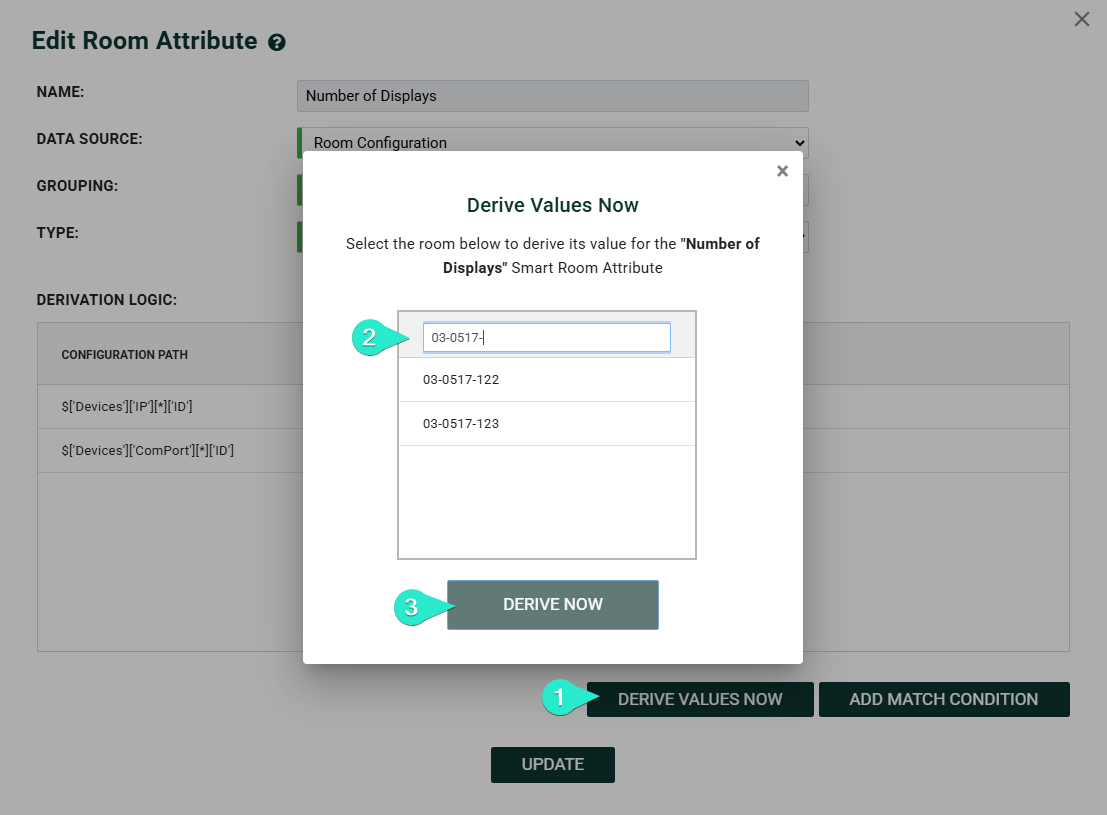
  • Attributes can be derived at creation time against selected rooms for immediate testing.
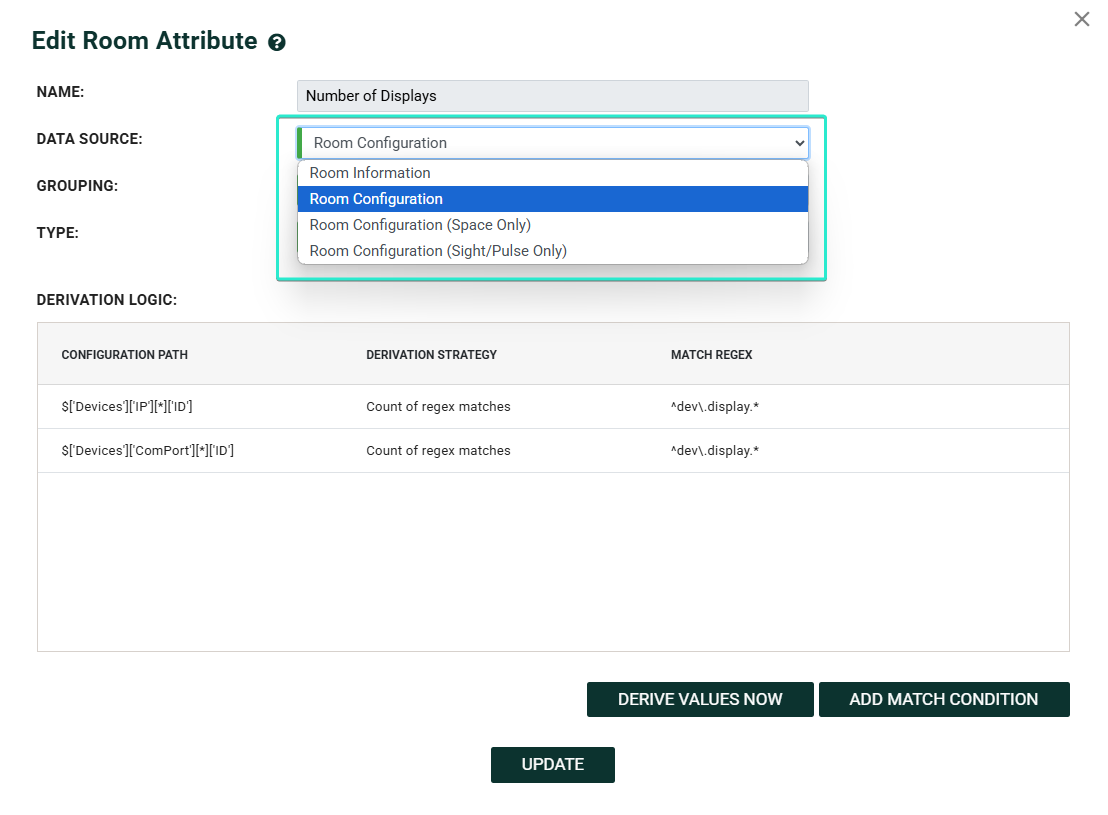
Smart Room Attribute creation dialog with a new grouping section that segments data sources by Space and Sight/Pulse tiers
Smart Room Attributes Grouping Options
Derive Values Now modal running a new Smart Room Attribute against a selected set of rooms to preview results
Deriving Smart Room Attribute Values

Alert Suppression Enhancements

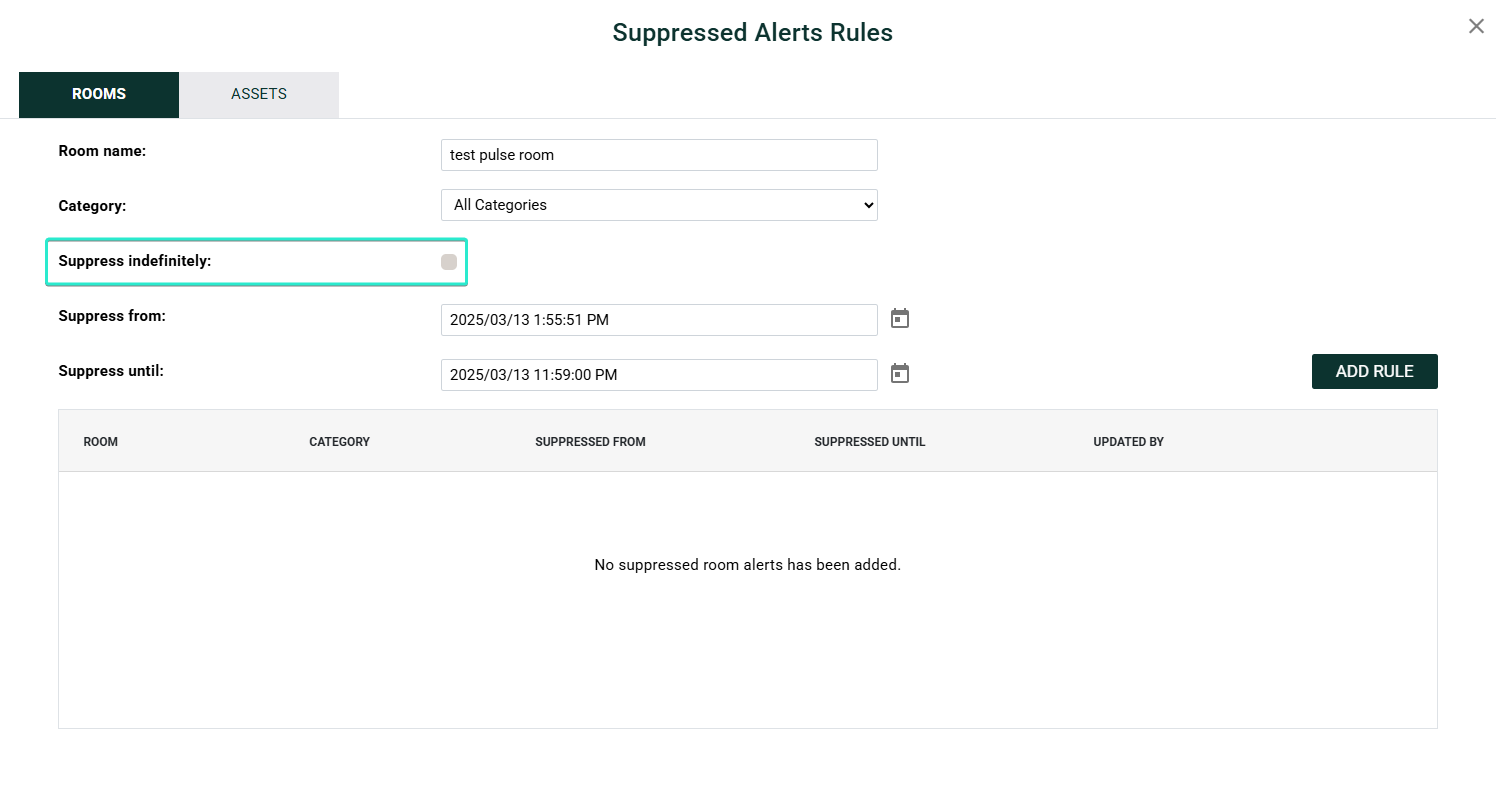
  • Alerts can now be suppressed indefinitely rather than requiring defined timeframes.
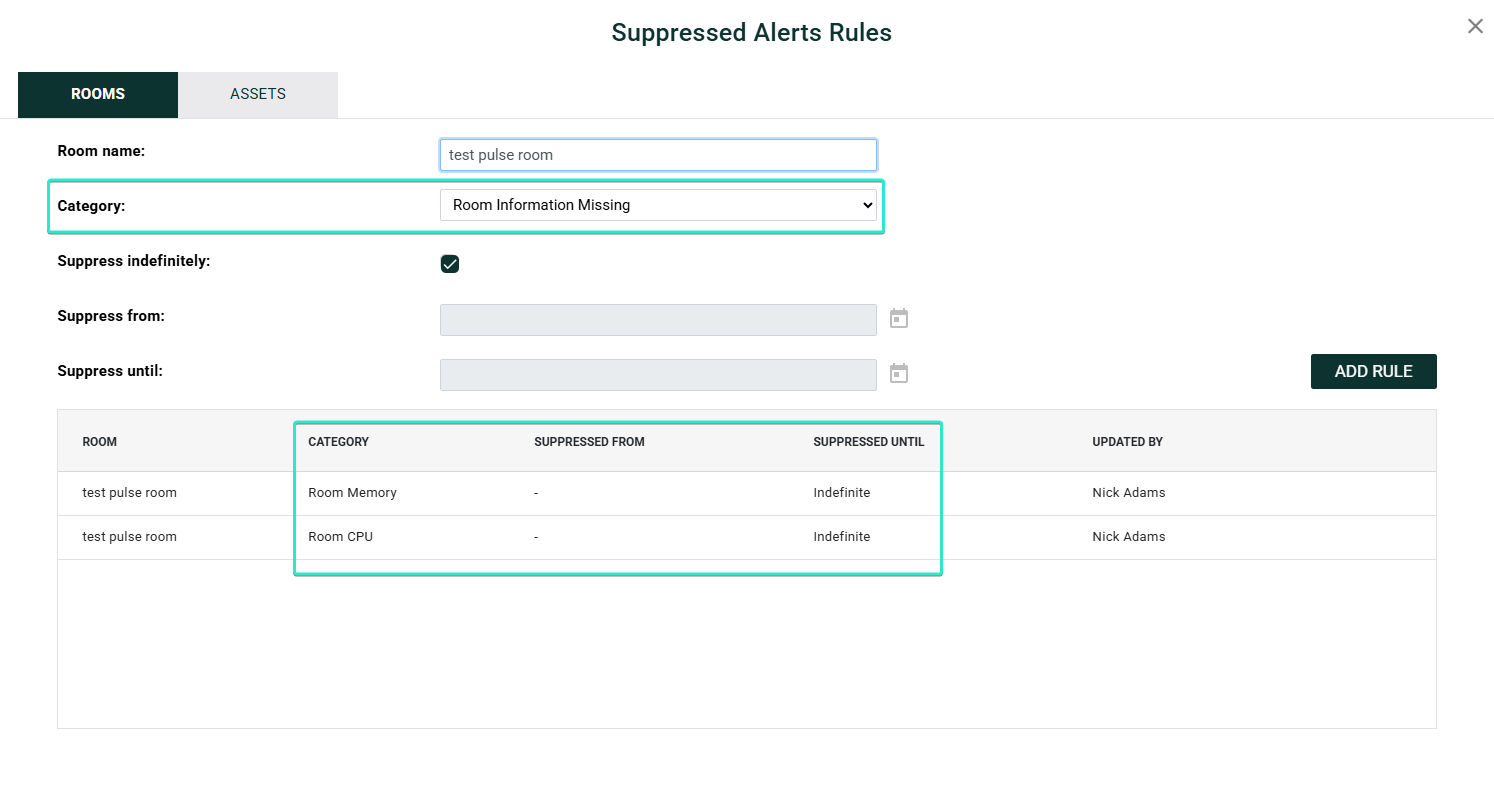
  • Category-specific suppression available on a per-room basis across the following alert categories:
    • All Categories
    • Device Set Health
    • Gateway Device Connection
    • Non-Standard Room Name
    • Room CPU
    • Room Has Undocked Microphones
    • Room Health
    • Room Information Anomaly
    • Room Information Missing
    • Room Memory
    • Room Stuck
    • User Interface Unhealthy
Alert suppression dialog with the new Suppress Indefinitely checkbox selected in place of a date-range picker
Suppress Indefinitely Checkbox
Per-room alert suppression panel listing selectable categories such as Room CPU, Room Health, and Non-Standard Room Name
Suppression Categories Example

Terms of Service

Users must accept Terms of Service and Privacy Policy once before accessing Innomesh Portal and Room Manager (ISO 27001 and SOC 2 Type 2 compliance).
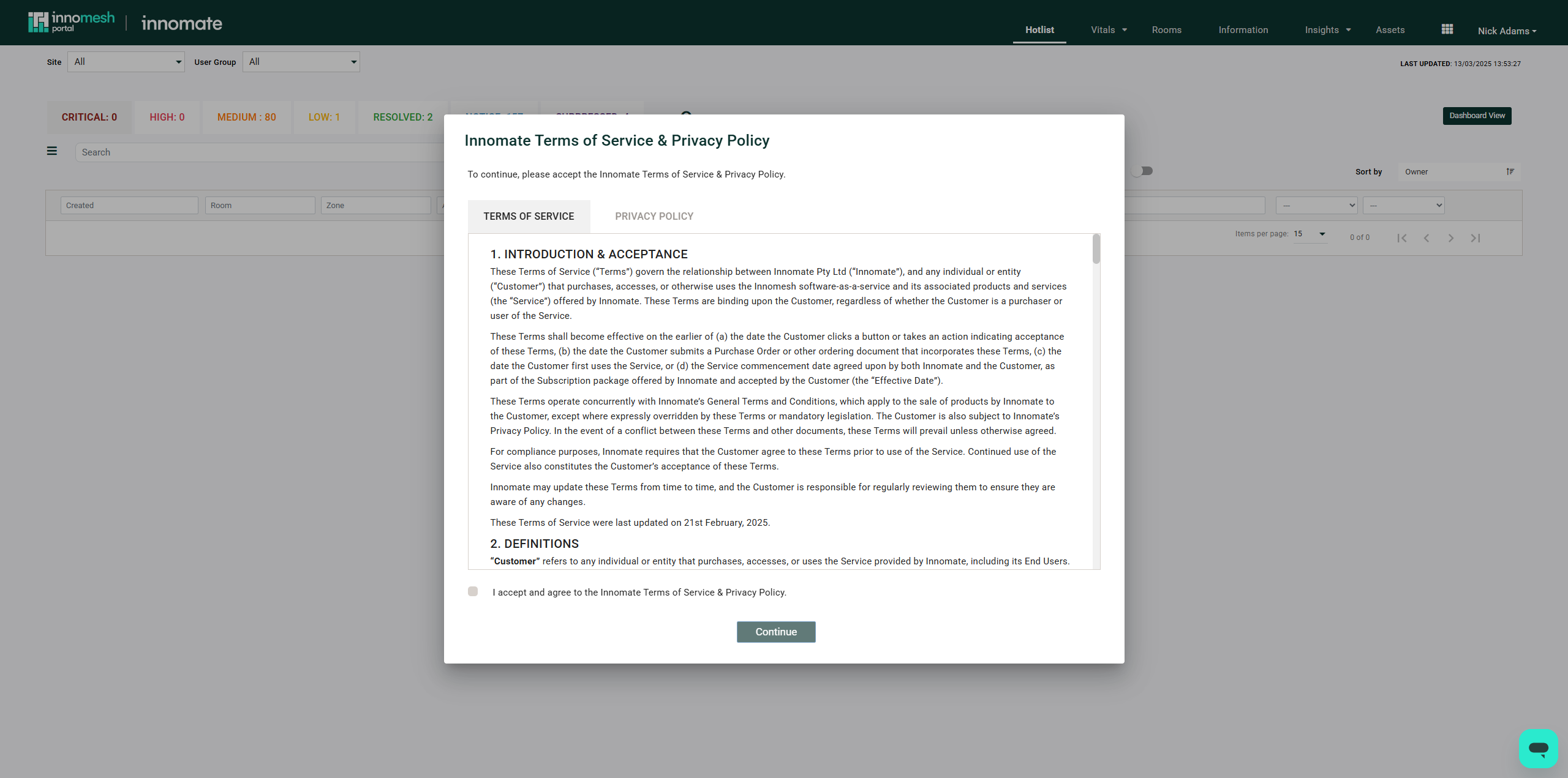
Terms of Service and Privacy Policy acceptance page shown on first login, with Accept and Decline buttons
Terms of Service Policy in Portal
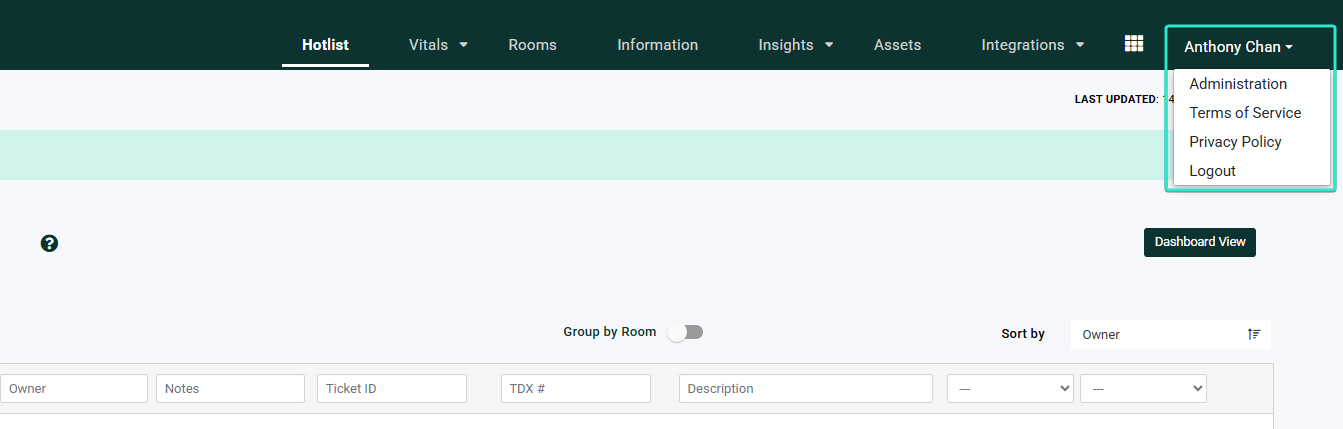
Profile menu entry linking back to the accepted Terms of Service and Privacy Policy for later review
How to read the Terms of Service after acceptance

Performance Improvements

Load time optimisation implemented for Room Information access.

Room Manager Enhancements

Deployment Workflow

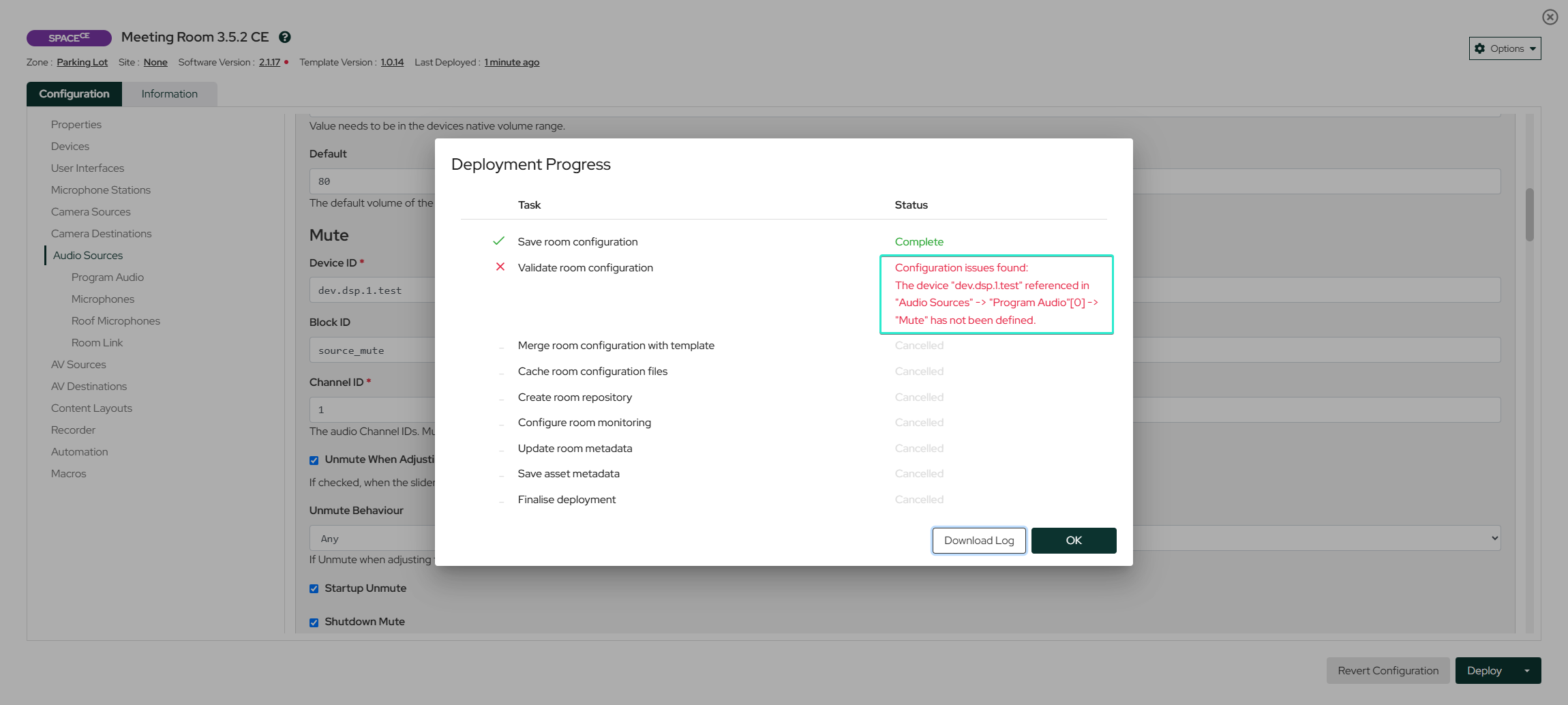
Real-time feedback during room deployment with background processing capability. Users can work on other rooms during deployment. Detailed error messages and cached configurations prevent progress loss.
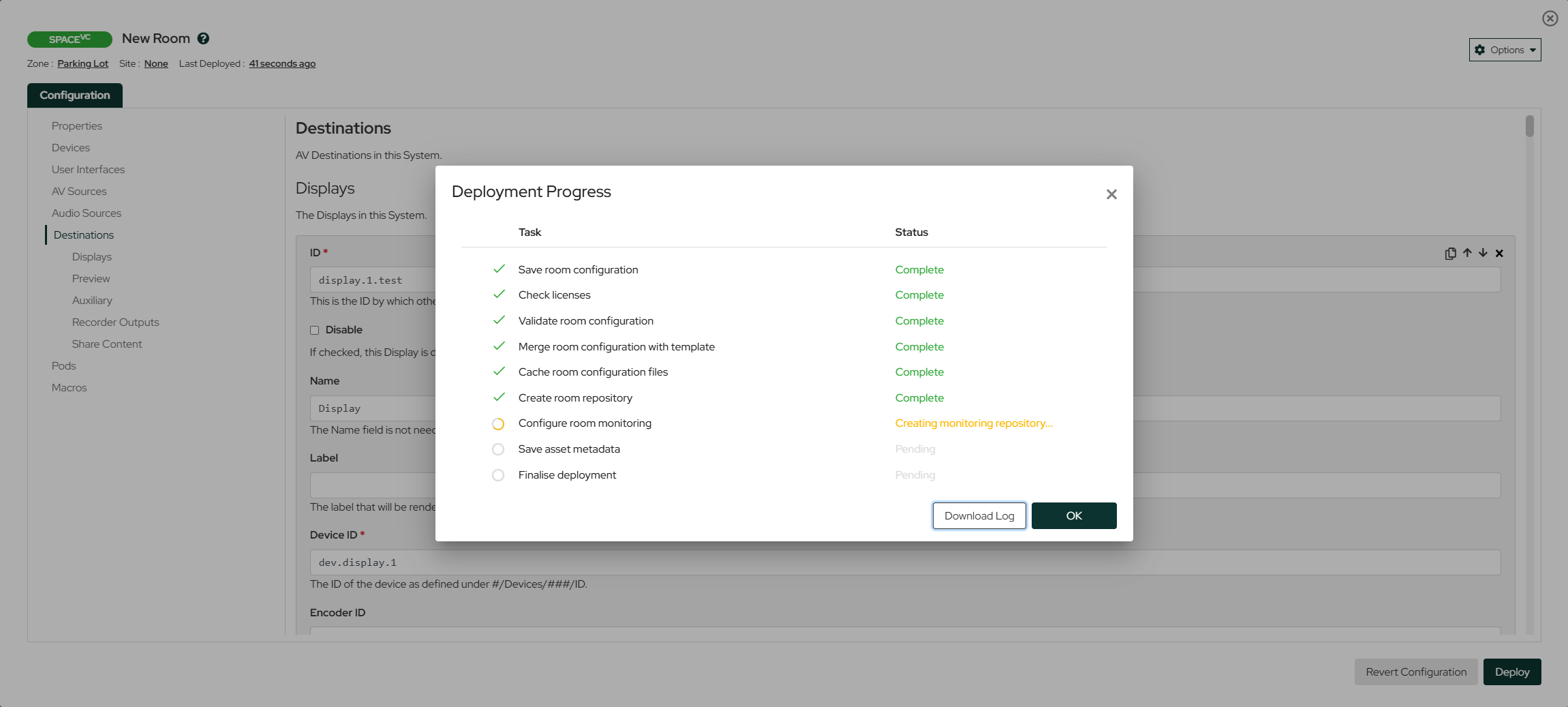
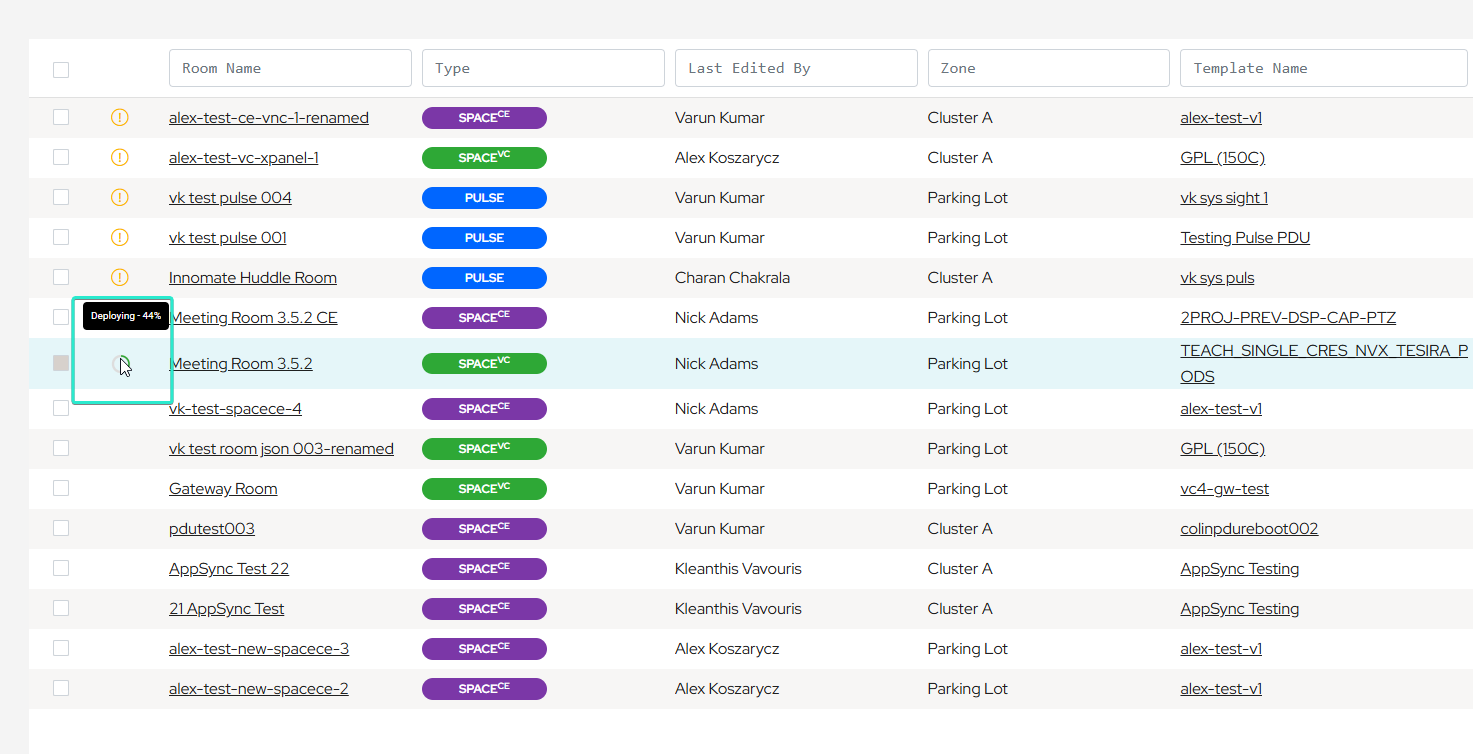
Room Manager deployment checklist panel listing per-device deployment steps with tick, pending, and error states
Room Manager Deployment Checklist
Room Manager rooms list showing in-progress deployments in a status column so users can continue working while rooms deploy in the background
Deployment Process in Room Manager Rooms List
Deployment error pane with a detailed failure message and the specific device that caused the configuration to fail
Failed Configuration with Detailed Error Message
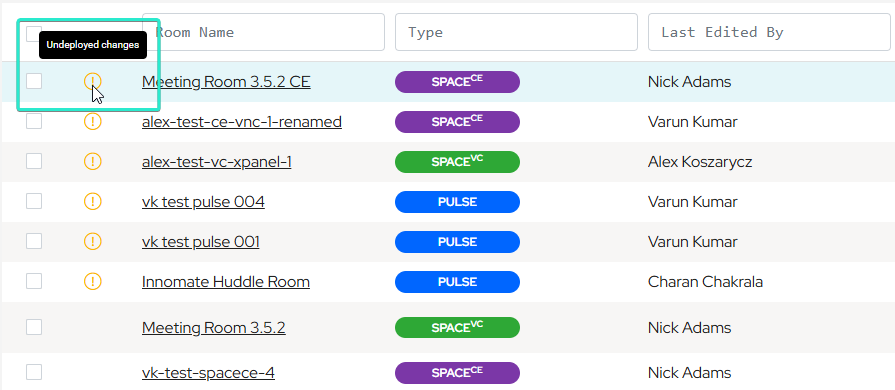
Warning banner prompting the user to deploy undeployed configuration changes before navigating away
Undeployed Changes Error

A room deletion workflow mirrors the deployment checklist, giving users the same step-by-step feedback when removing rooms. If a deletion fails, users can retry directly from the workflow.
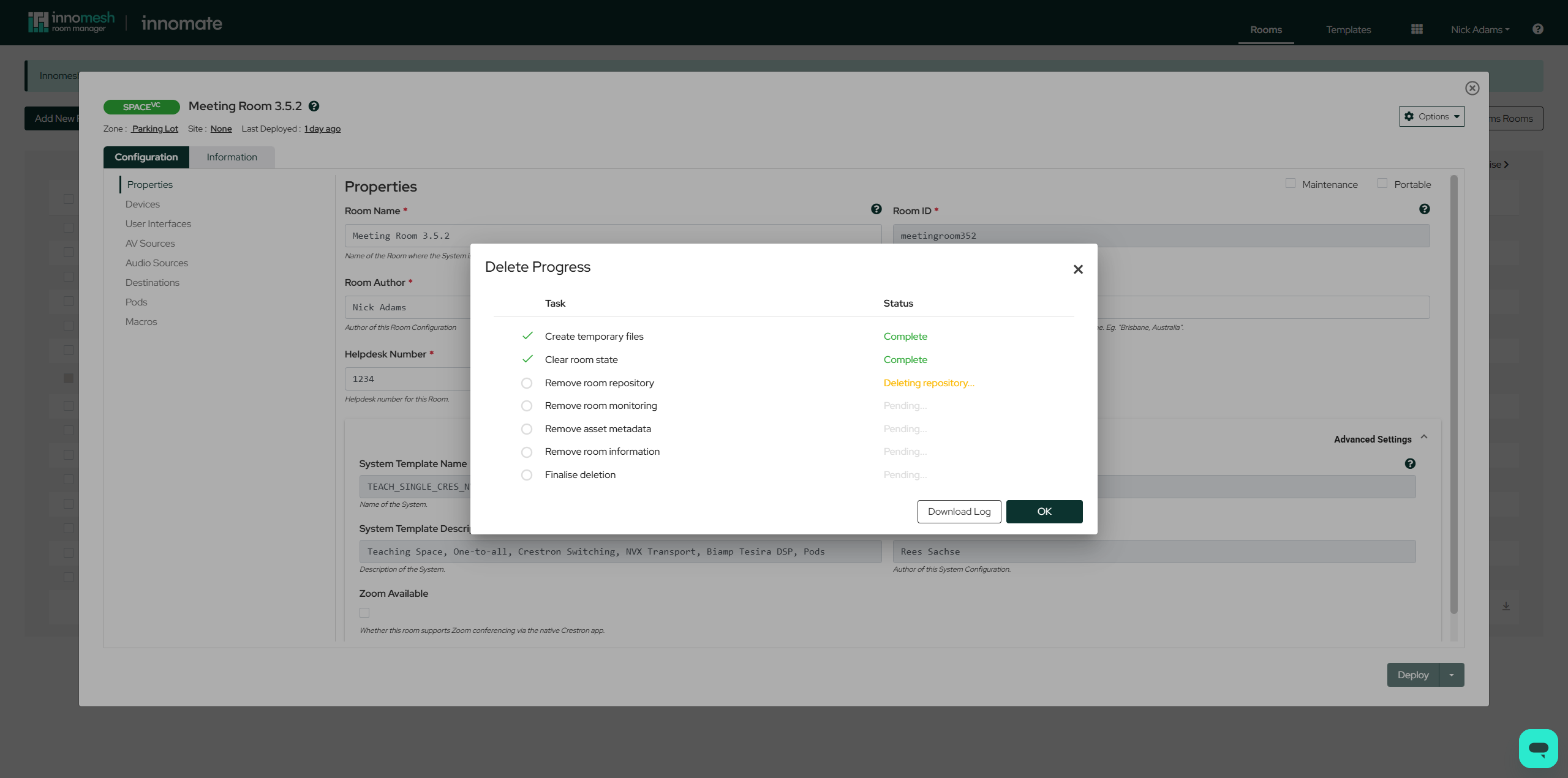
Room deletion checklist panel showing each teardown step with completion indicators and a retry option for failed steps
Room Deletion Checklist

Consolidated Room List

Multiple Innomesh tiers for the same room now display as single entries showing the highest subscription tier.
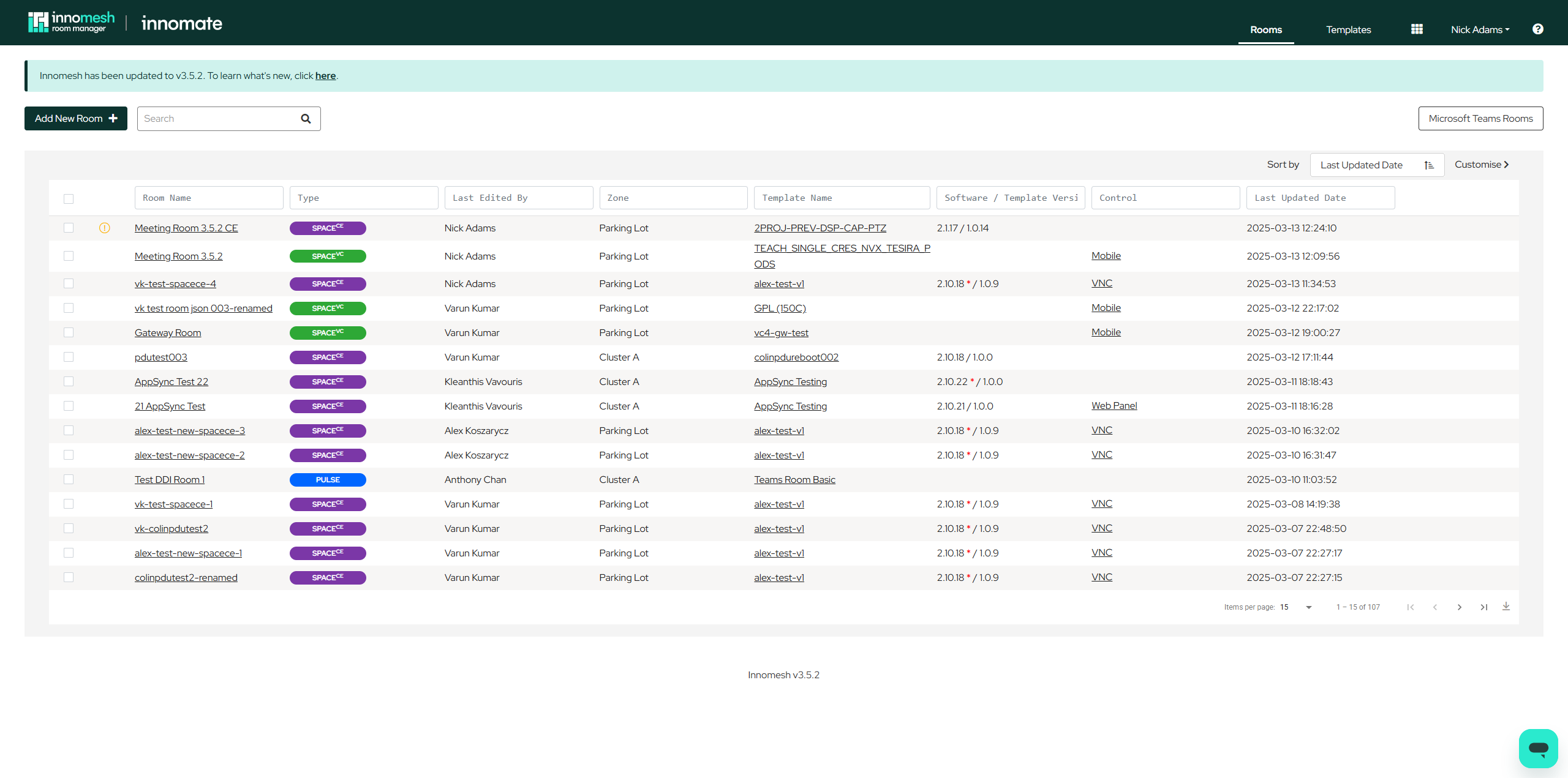
Room Manager rooms list with duplicate rows collapsed so each room appears once with its highest subscription tier
Consolidated Room List

Standard Room Names

Support for external room name databases with suggestions or enforcement. “Non-Standard Room Name Detected” alerts notify users of naming inconsistencies.
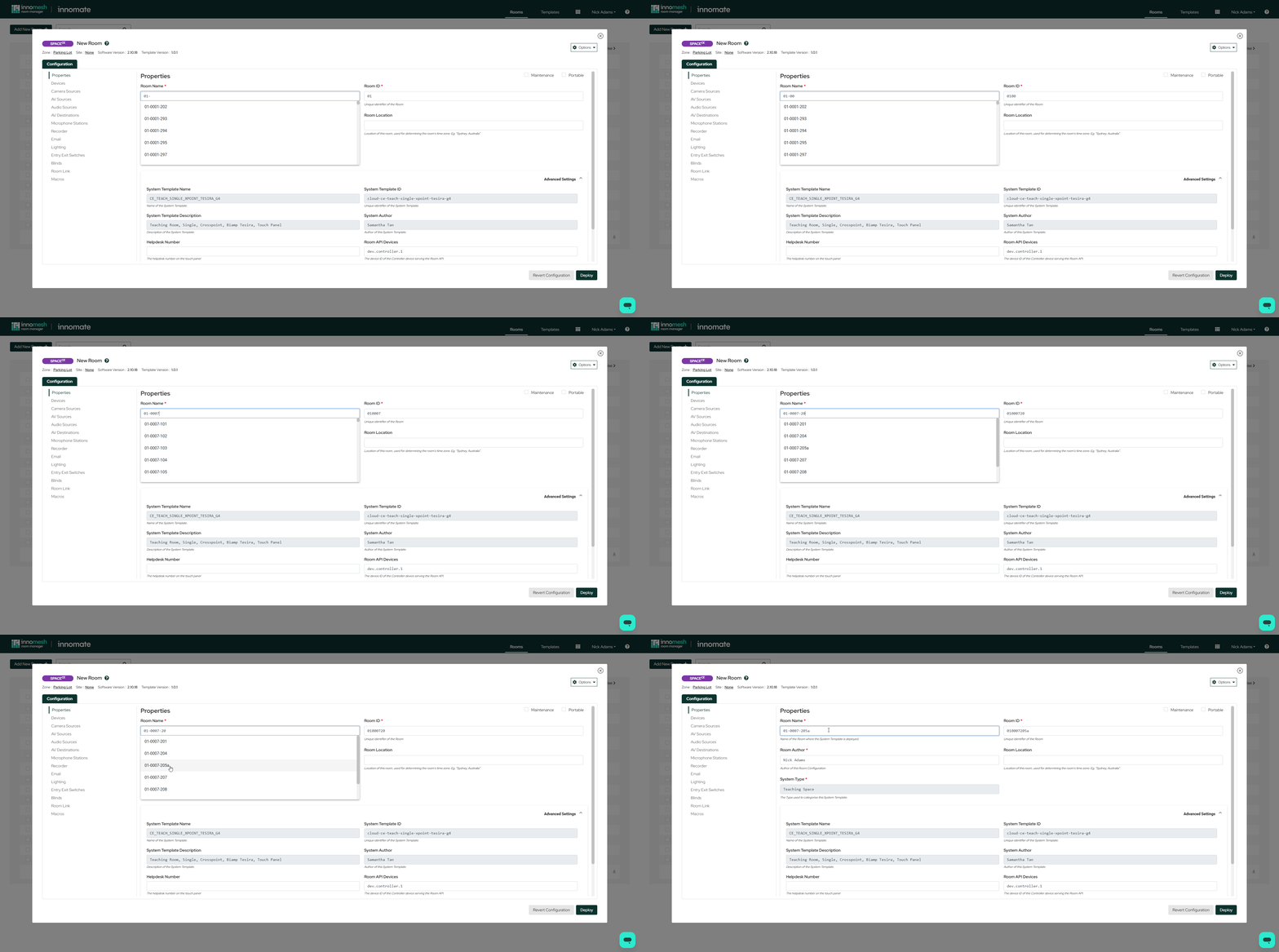
Room name field displaying autocomplete suggestions from the configured external naming database as the user types
Suggested room names based on the room name that is inputted

Configuration UI Improvements

  • Persistent top bar with subscription type, Zone, Site, and version information.
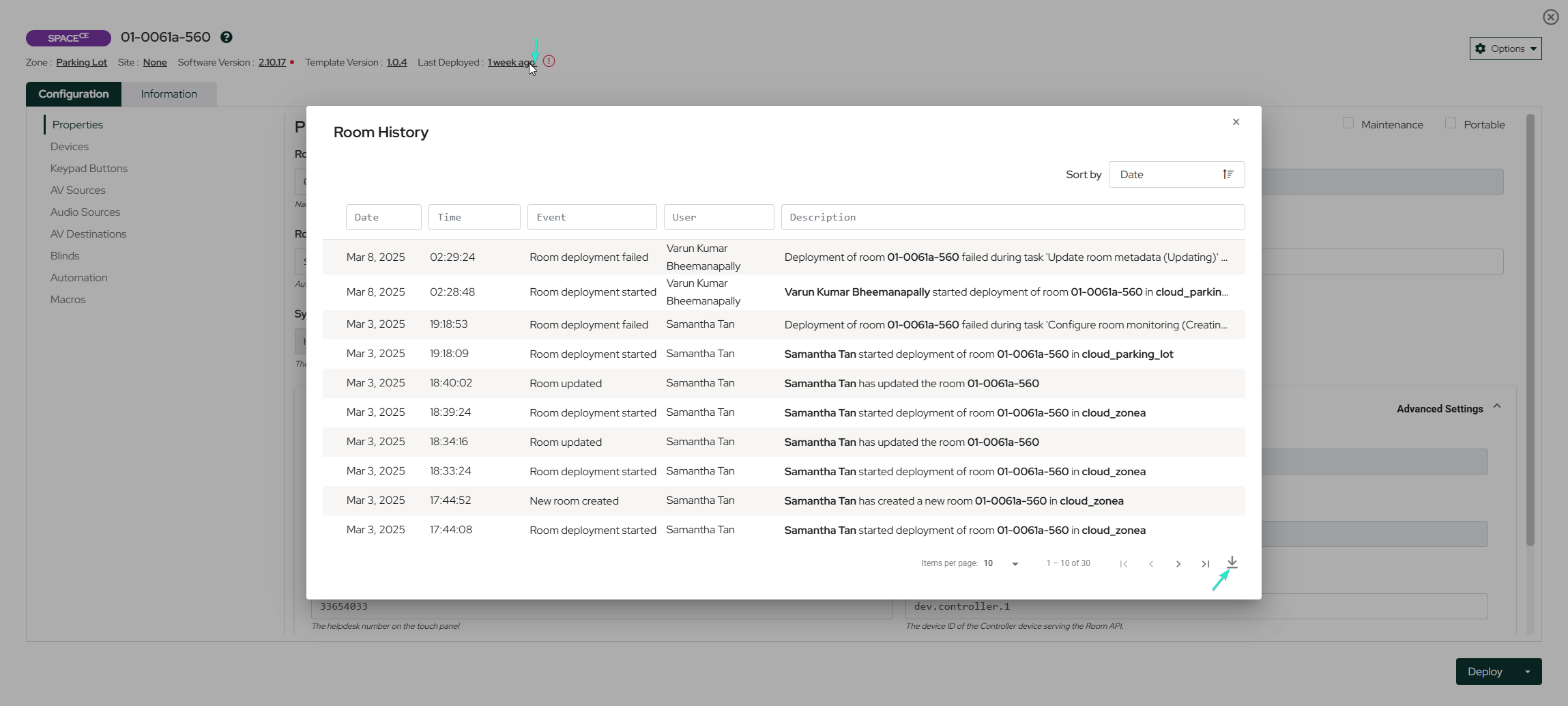
  • Deployment history with timestamps, user attribution, and searchable logs.
  • Consistent styling across configuration pages.
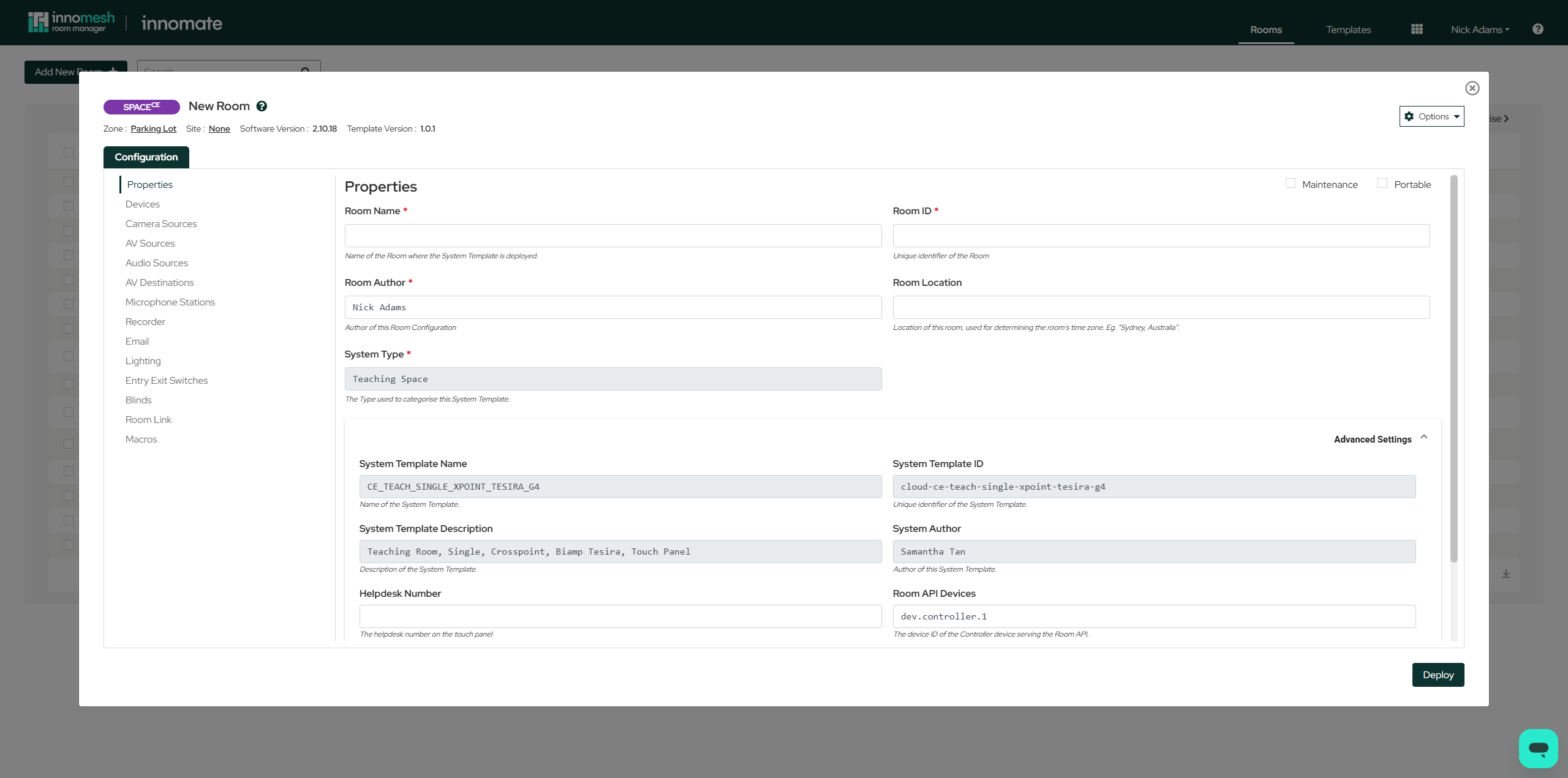
📝 Note
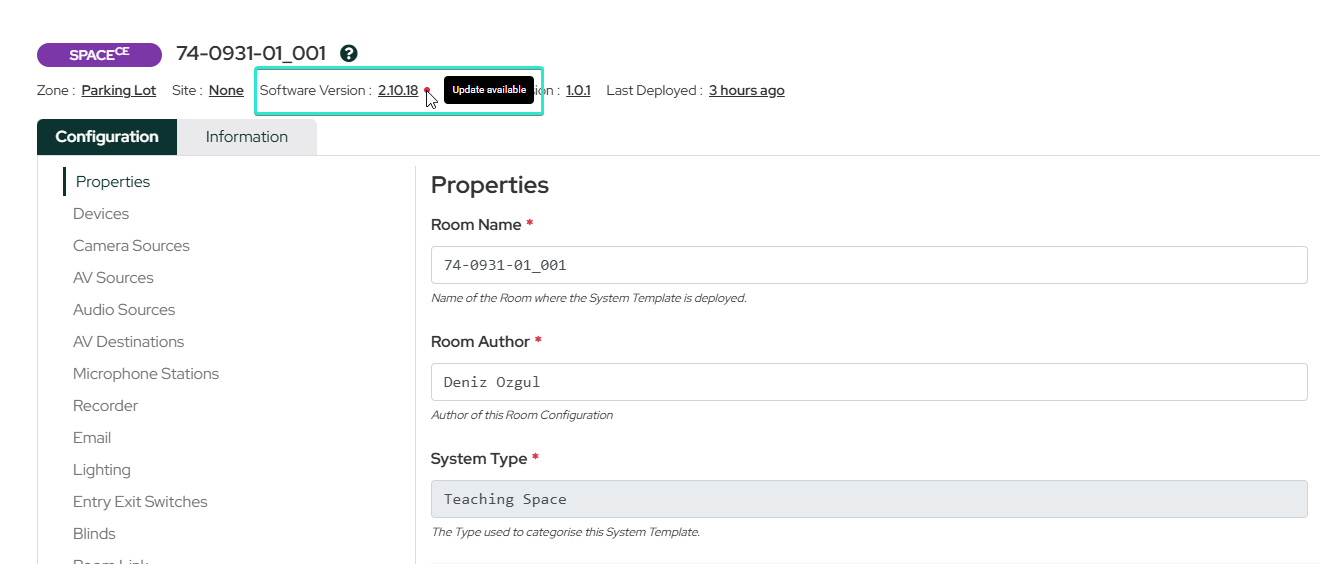
Changing Zone, Site, or selecting a new software version requires the user to press “Deploy” to apply the change.
Room Manager properties page showing the new persistent top bar with subscription tier, Zone, Site, and software version fields
Room Manager Properties Page
Software version field with an update-available indicator and the new version callout next to the current version
Software Version with an Update Available
Deployment history panel listing past deployments with timestamps, user attribution, and per-row log access
Room Deployment History

Microsoft Teams Rooms Configuration

MTR management now accessible directly from the Rooms Page with enhanced search and filtering capabilities.
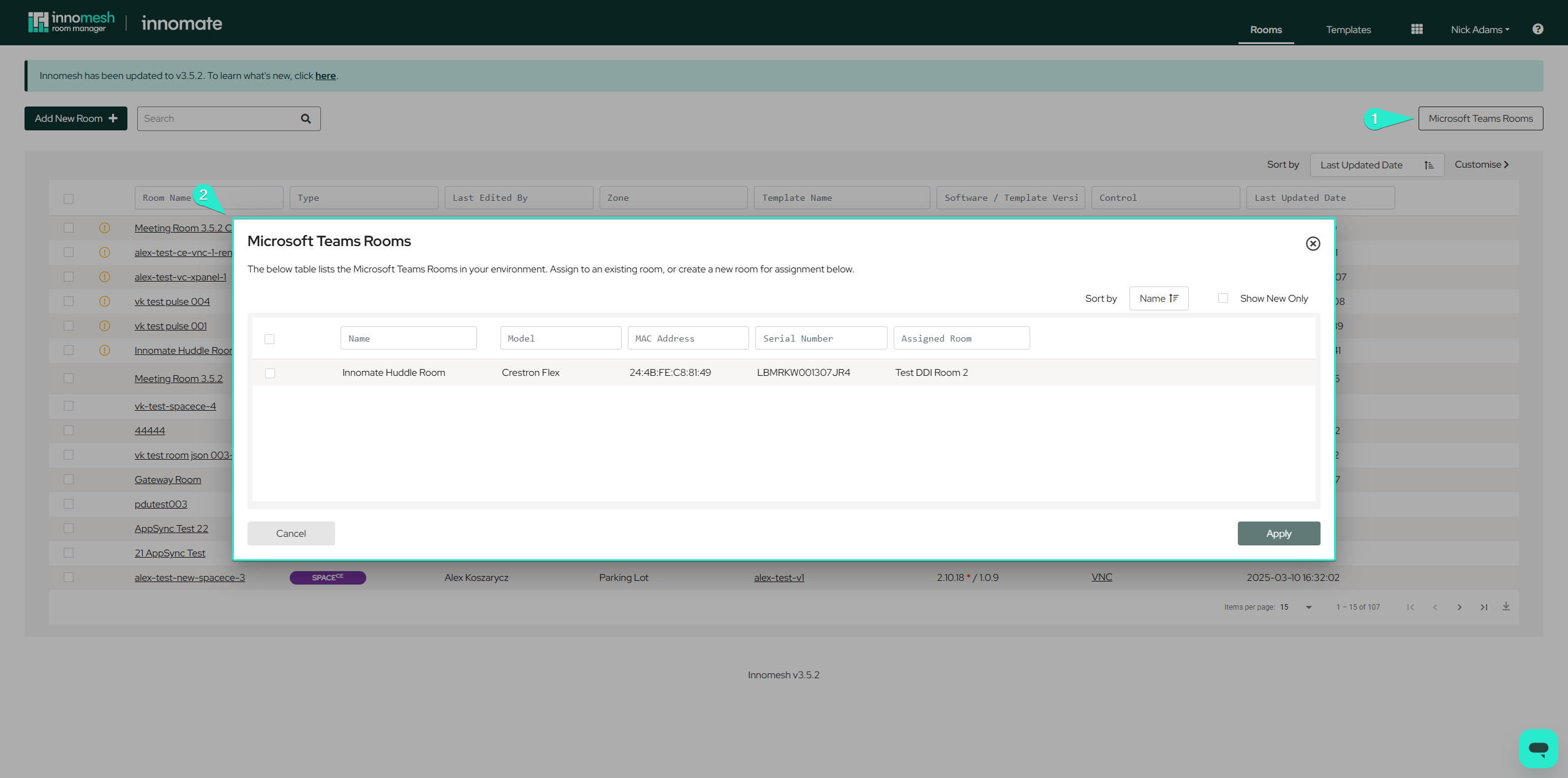
Room Manager rooms page with an MTR configuration entry point surfaced in the room actions menu
How to find MTR configuration in Room Manager

Asset PDU Association

Devices connected to Power Distribution Units can now be controlled directly from asset interfaces without separately managing the PDU.

Additional Features

  • Copy buttons in table views for Hotlist, Rooms, Information, and Assets pages.
  • Room occupancy visibility control when data is unavailable.
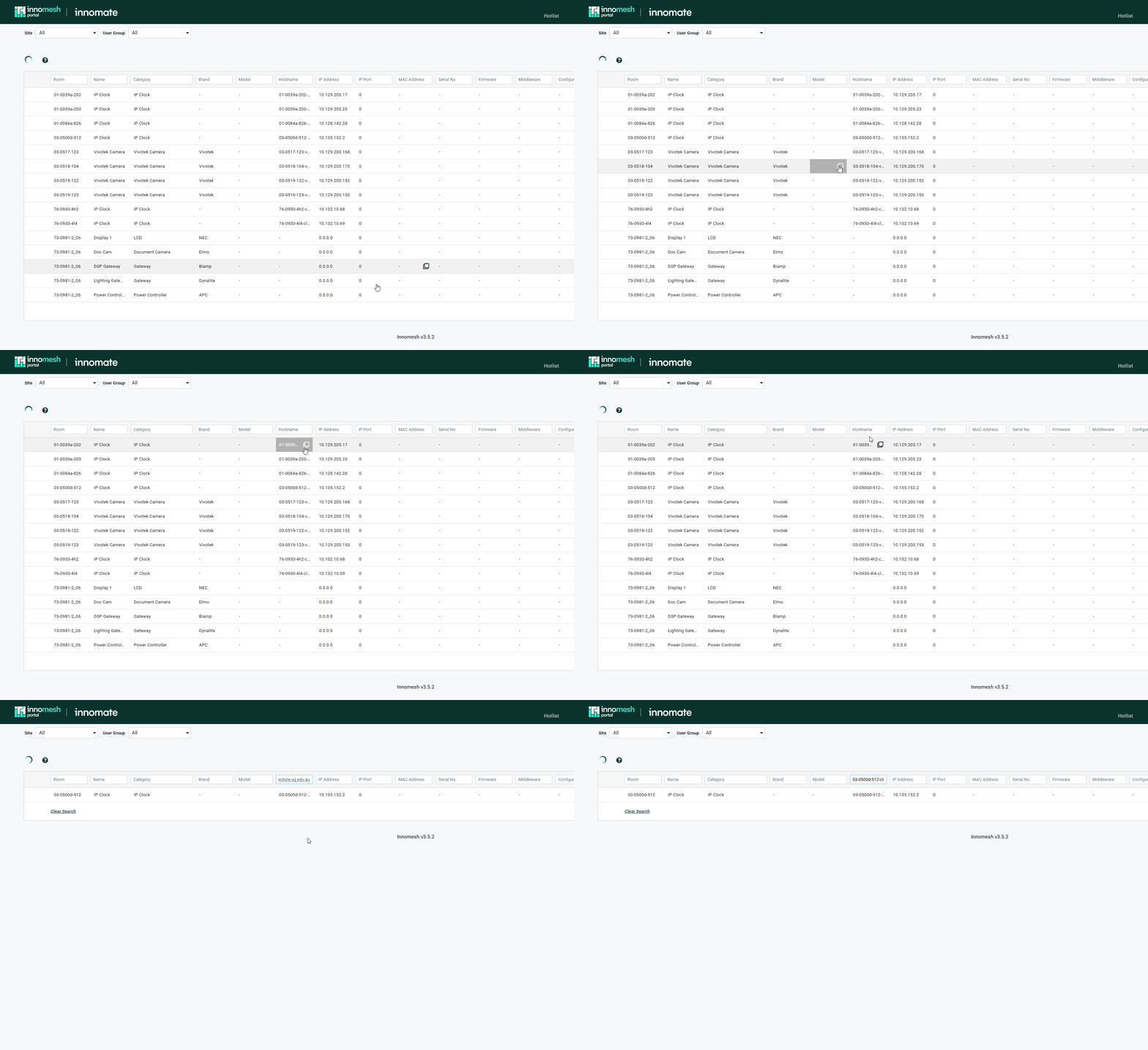
Assets page row with a copy-to-clipboard control on each cell value, pasted into an external form
Copy and Pasting values from the Assets Page

Bug Fixes

  • Fixed Information page loading issues with corrupt Smart Room Attributes.
  • Resolved API timeouts preventing room configuration loads.
  • Corrected Q-Sys information display in Asset Support View.
  • Fixed audit log operation recording for Smart Room Attributes.
On this page