Skip to content
Innomesh
Portal

Administration Settings

Overview

The Administration Settings page in Innomesh Portal provides tools for managing platform operations, user access, assets, and data synchronisation. The page is organised into the following sections: Settings, Data Import/Export, Room Attributes, Assets, Users, and Logs.

Settings

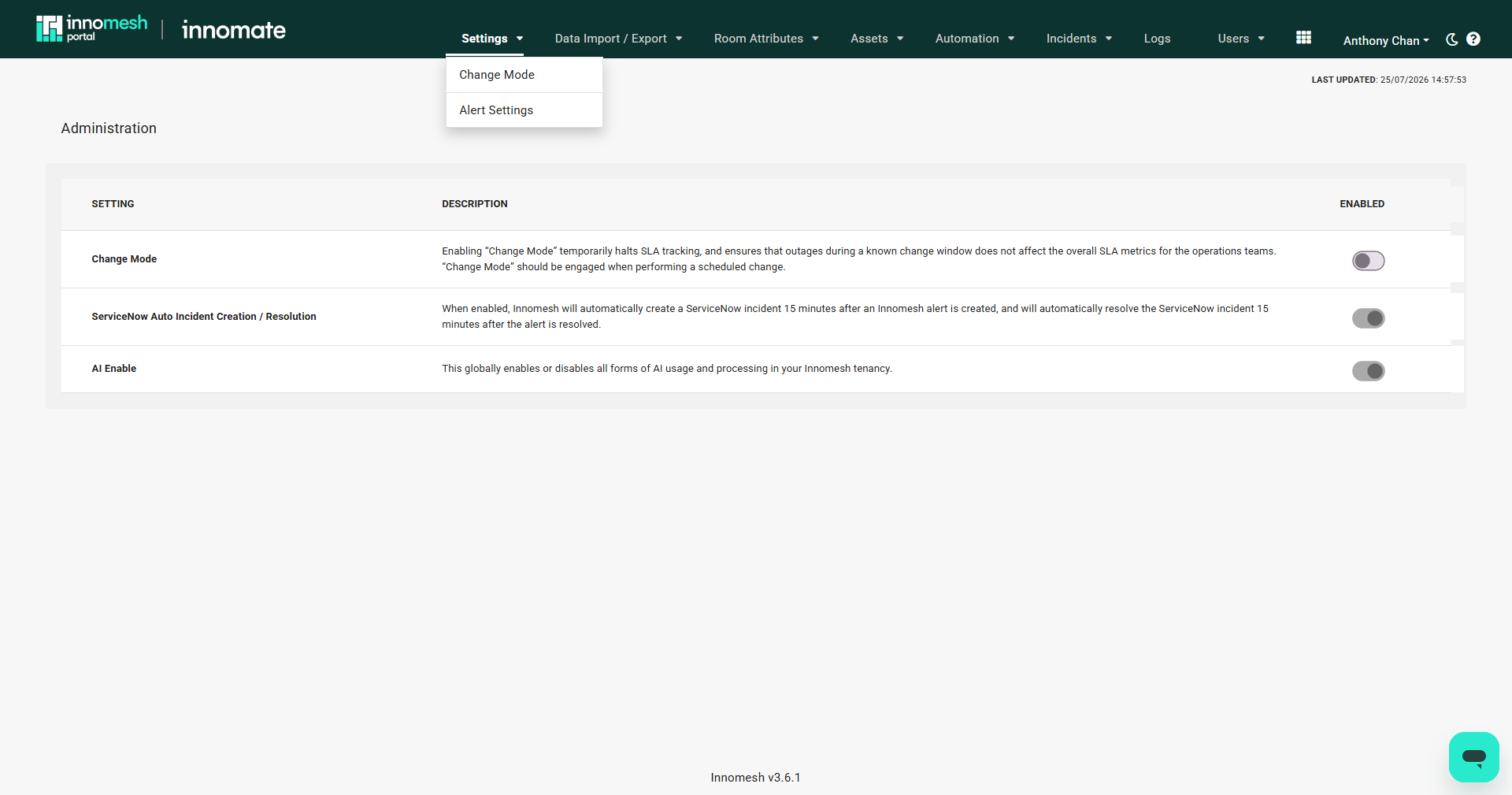
The Settings tab allows administrators to enable or disable platform-wide operational features.

Change Mode

Change Mode temporarily halts SLA tracking during scheduled maintenance windows. When enabled, outages that occur during the maintenance period do not affect SLA metrics. This is useful for planned network changes, firmware upgrades, or infrastructure work that may temporarily disrupt device connectivity.

ServiceNow Auto Incident Creation and Resolution

When enabled, this feature automatically creates a ServiceNow incident 15 minutes after an Innomesh alert is raised and resolves the incident 15 minutes after the alert is resolved. This provides a buffer to filter out transient issues while ensuring persistent problems are captured in the ITSM workflow.

Change Mode Confirmation

When toggling settings such as Change Mode, a confirmation popup appears to verify the user’s intent. Selecting YES, ENGAGE confirms the action and applies the setting to the Innomesh platform.

Administration Settings tab with Change Mode and ServiceNow Auto Incident Creation / Resolution rows and their enable toggles
Settings Tab

Data Import and Export

The Data Import/Export section provides highly configurable synchronisation with external data sources.

📝 Note
This highly configurable feature requires Innomate support to enable within your tenancy. Contact your Innomate representative to discuss options for setting it up.

Dynamic Data Import

Automatically syncs external database information with Innomesh on a scheduled basis. Import configurations define the data source, field mappings, and synchronisation frequency.

Dynamic Data Export

Sends Innomesh data to external systems for processing. Export configurations define which data is shared, the target system, and the export schedule.

Manual Import

Upload CSV or JSON files directly via the browser for one-off data imports. This is useful for bulk updates or initial data population without setting up automated synchronisation.

Both dynamic import and export features use a shared data repository for secure transit.

Create New Export Schedule modal with Name, Data to Export, Export Filename, Cron Schedule, File Format fields and Room Fields selector
Data Export Create Profile

Room Attributes

Smart Room Attributes

Smart Room Attributes allow administrators to define custom attributes that programmatically query room configurations. Rather than manually checking each room, these attributes automatically extract and display information such as display counts, microphone status, or any other device-level detail.

Creating Smart Room Attributes

To create a Smart Room Attribute, configure the following fields:

FieldDescription
NameAttribute label displayed in the room’s General tab
Data SourceOrigin of query information (e.g. “Room Configuration (Space Only)“)
GroupingSubsection location within the General tab
TypeFormat of results: Boolean, Number, or Text

Derivation Logic

Derivation logic defines how attributes navigate through the Innomesh data model to locate and extract information:

  • Configuration Path specifies which path to follow through the room configuration.
  • Derivation Strategy retrieves and displays the output value.
  • Match Regex defines search specificity for targeted extraction.
  • Multi-Condition Match Strategy allows OR/AND logic for combining multiple conditions.
Room Summary tab showing rooms listed against Smart Room Attribute columns such as Instructor PC, Laptop / BYOD Input, Number of displays, and Room speakers, with tick and cross indicators
Portal to Administration

Room Summary Views

📌 Since
Innomesh v3.5.1

Smart Room Attributes and existing room information can be sorted into named views using the Summary Views tab under Administration > Smart Room Attributes. Summary Views make it easy to compare, sort, and evaluate rooms directly from the Information page, with each view surfaced as a tab at the top of the Room Information table.

To create a summary view, navigate to Administration > Smart Room Attributes > Summary Views, click Create New, give the view a name, and select the fields to display on the Information page.

Room Summary tab showing rooms listed against Smart Room Attribute columns with tick and cross indicators
Summary Views tab | Innomesh Portal

Assets

Asset Profiles

Asset Profiles ensure consistency and normalisation of device information across the platform. Every device in Innomesh must have an asset profile and mapped driver before it can be selected in Room Manager.

Creating Asset Profiles

To create an asset profile, the following fields are required:

  • Name (display name for the profile)
  • Type (device category)
  • Brand (manufacturer)
  • Model (specific model number)

Include as much detail as possible when creating an asset profile. Optional fields can prove very valuable for troubleshooting and data gathering in the future.

Driver Mapping

Drivers determine device availability in Room Manager. A device with a Space VC driver but no Space CE driver will not appear when creating Space CE rooms. Ensure the correct drivers are mapped for each product type the device should support.

Profile Pictures

Users can add profile images to asset profiles through the context menu’s Update Profile Picture option using drag-and-drop upload.

Create Asset Profile modal with Name, Type, Brand, Model, Dimensions, LAN Support, Power Consumption, and Mounting fields and Cancel and Create buttons
Create Asset Profile form

Users and RBAC

Access Control

Navigate to Administration > Users to manage user permissions through Role-Based Access Control (RBAC).

User Groups

User Groups categorise users by organisation, department, or specialisation. Groups are organisational only and do not directly set permissions. The Roles tab handles access control.

Roles

Roles define how much access a user has into Innomesh Room Manager and Portal. Each role specifies fine-grained permissions across Room Manager and Portal sections, as well as which sites and User Groups’ rooms the user is allowed to access. Roles are enforced on the user the next time they log in.

🚨 Caution
Avoid deleting default Innomesh roles. These are essential for Innomate support access in your environment, and modifying them may impact associated staff.

Each section supports All, View Only, None, or Customised permission levels.

General

OptionDescription
User Group Resource AccessControls which User Group’s rooms this role can access. All grants access to every group’s rooms; Own User Group restricts access to rooms within the user’s own group; Custom lets you select specific user groups
Site AccessDetermines which sites this role can access. Can be set to All or Custom (returns an array of sites). Note: Vitals and Insights dashboards do not support site filtering at this time
Live Chat AccessToggles access to live chat support (Yes or No)

Room Manager Permissions

AreaFine-grained permissions
AdministrationAccess administration, view zones, rotate hosts, view host logs, view hosts, manage hosts
RoomsView rooms, create and delete rooms, edit room information, edit room configuration, edit third-party room configurations, create and delete third-party rooms, launch remote UI panel, expose all room options
TemplatesView templates, create and delete templates, edit template configuration, edit template room options, edit information template association, edit third-party template configurations, create and delete third-party templates

Portal Permissions

AreaFine-grained permissions
HotlistView Hotlist, view Low/Medium/High/Critical/Notice/Suppressed severity alerts, claim alerts, manage alerts
Vitals DashboardView Custom, Compliance, Network, Infrastructure, Pulse, VNOC, and Rooms dashboards
Room ManagementView rooms, manage rooms
Room InformationView room information, edit room information
Insights DashboardView Proactive Support, Consumption, Alerts, Rooms, Custom, and Usage dashboards
Asset ManagementView assets, perform asset operations, manage assets
Integrations ManagementView integrations, perform integrations operations, manage integrations
AdministrationAccess administration, user administration access, role administration access, view logs, manage assets and asset profiles, trigger Change Mode

For detailed RBAC configuration instructions, refer to the RBAC Authorisation Guide.

Administration Users page with Roles tab selected showing a list of default roles and a New Role button

Logs

The Logs page provides a detailed activity history with sortable columns and filters. It tracks user actions including logins, edits, asset interactions, room operations, and administrative changes.

Administration Logs page with Date, Time, Event, User, Room and Description columns and Time Zone, Log Type, and Sort by controls highlighted
Logs Tab Profile
On this page