

Innomesh v3.5.3
Released to production on 26/09/2025.
Hotfixes deployed during this release cycle are listed in v3.5.3 Hotfixes.
Here’s a summary of the new features, enhancements and bug fixes included in this release.
Room Manager Summary
- Infoblox DDI Integration — Added DDI (DNS, DHCP, IPAM) integration with Infoblox for device onboarding.
- XPanel Support — Enabled XPanel functionality for Space CE rooms using Crestron middleware for touch panel control.
- Beta Software Releases — Beta software is now supported for Space CE.
Portal Summary
- Advanced Filters — Introduced advanced filtering for main table views, with support for saving and recalling filter presets.
- Asset Actions — Now available in the Room Support View’s assets pane within Innomesh Portal.
- Filtered CSV Downloads — The “Download CSV” function on the Information page now exports only the rooms currently filtered in.
- Site Filter — Now supports filtering multiple sites at once within Innomesh Portal.
- Asset Profile Images — Optimised for faster load times.
- Hotlist Alert Tooltips — Added to display full alert descriptions when truncated.
- Mattermost Notifications — Notification formatting has been refined so that messages can be found more reliably via search.
Room Manager — The Details
Infoblox DDI Integration
DDI stands for DNS, DHCP, and IP Address Management (IPAM).
Infoblox manages how devices are identified, addressed, and connected across the network. Through its integration with Infoblox, Innomesh is now able to automate the process of DNS record creation, IP address assignment, and template configuration to streamline device onboarding at scale. This capability automates and ensures consistency in IP allocations and DNS management, positioning Innomesh as a complete, end-to-end platform for network-enabled device provisioning and lifecycle management.
The following section provides an overview of the Infoblox integration:
Automated Device Onboarding
When adding a new device, a simple “Auto IP” option is now available. Innomesh will then communicate with your Infoblox system to automatically reserve the next available IP address from a designated subnet, create the corresponding DNS entry using the device’s hostname, and apply the configuration. This transforms a traditionally multi-step manual process into a single click.
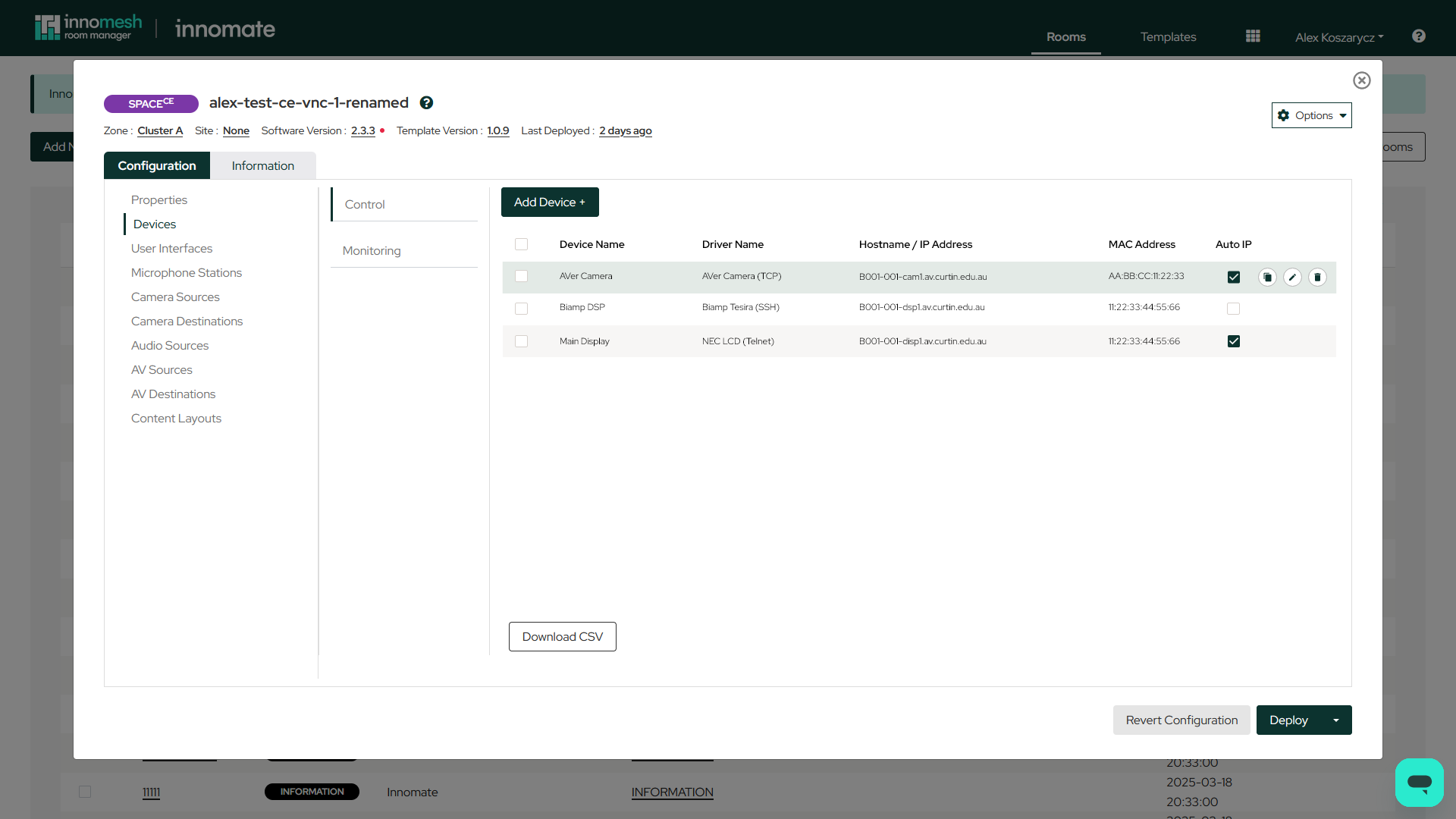 Auto IP
Simplified Management of Complex Hardware
The integration seamlessly handles devices with multiple network interface cards (NICs). You can easily define reservations for each MAC address on a device, and the DDI service will automatically create the necessary IP reservations and DNS entries for all of them, ensuring AV equipment with more complex networking needs is configured correctly and efficiently.
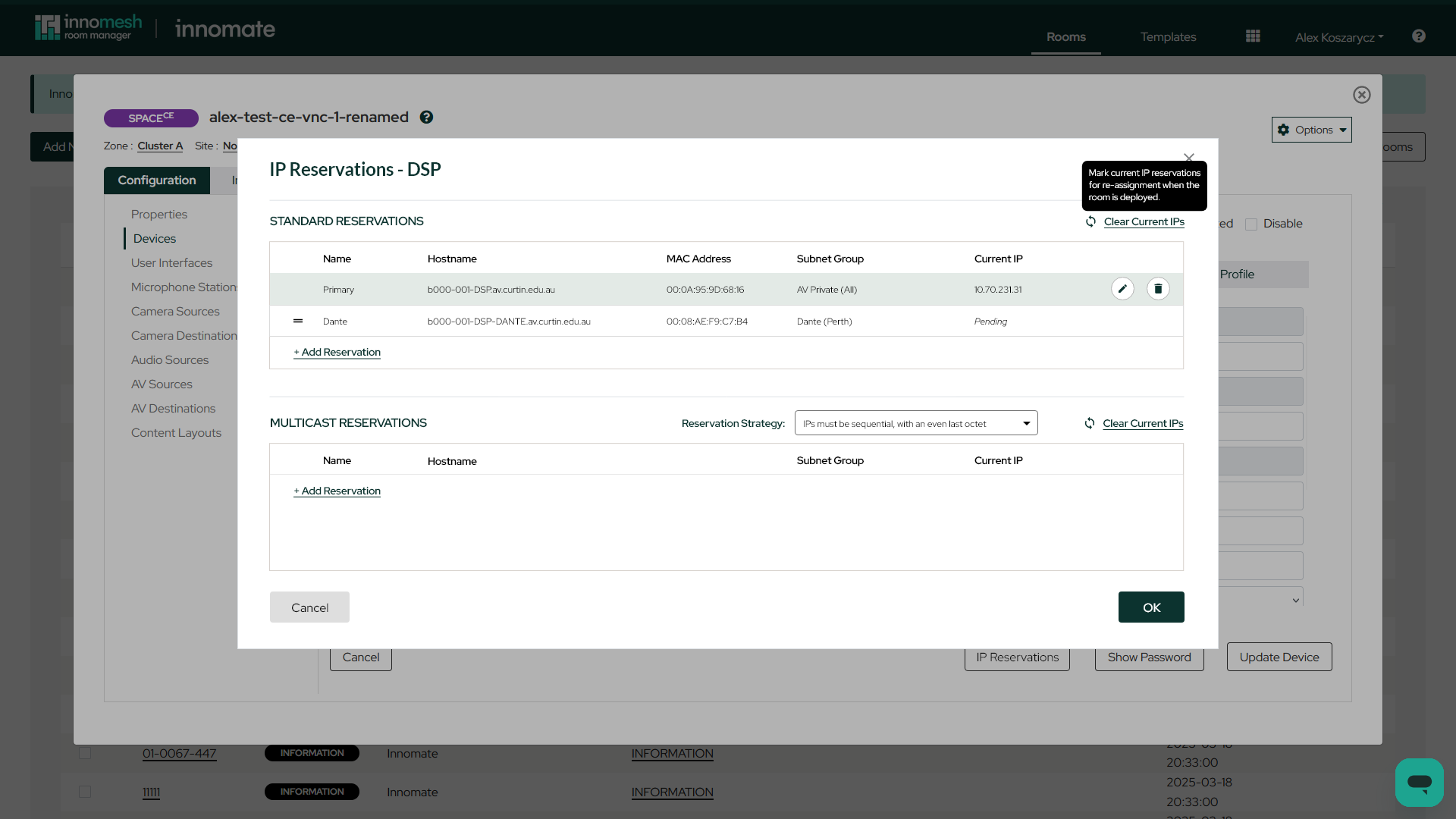 Multi NIC device
Advanced Network Control
Clients can now manage multicast reservations directly within the Innomesh platform. You can define specific reservation strategies to control how multicast addresses are assigned, providing granular control over AV-over-IP streams and other network-intensive traffic.
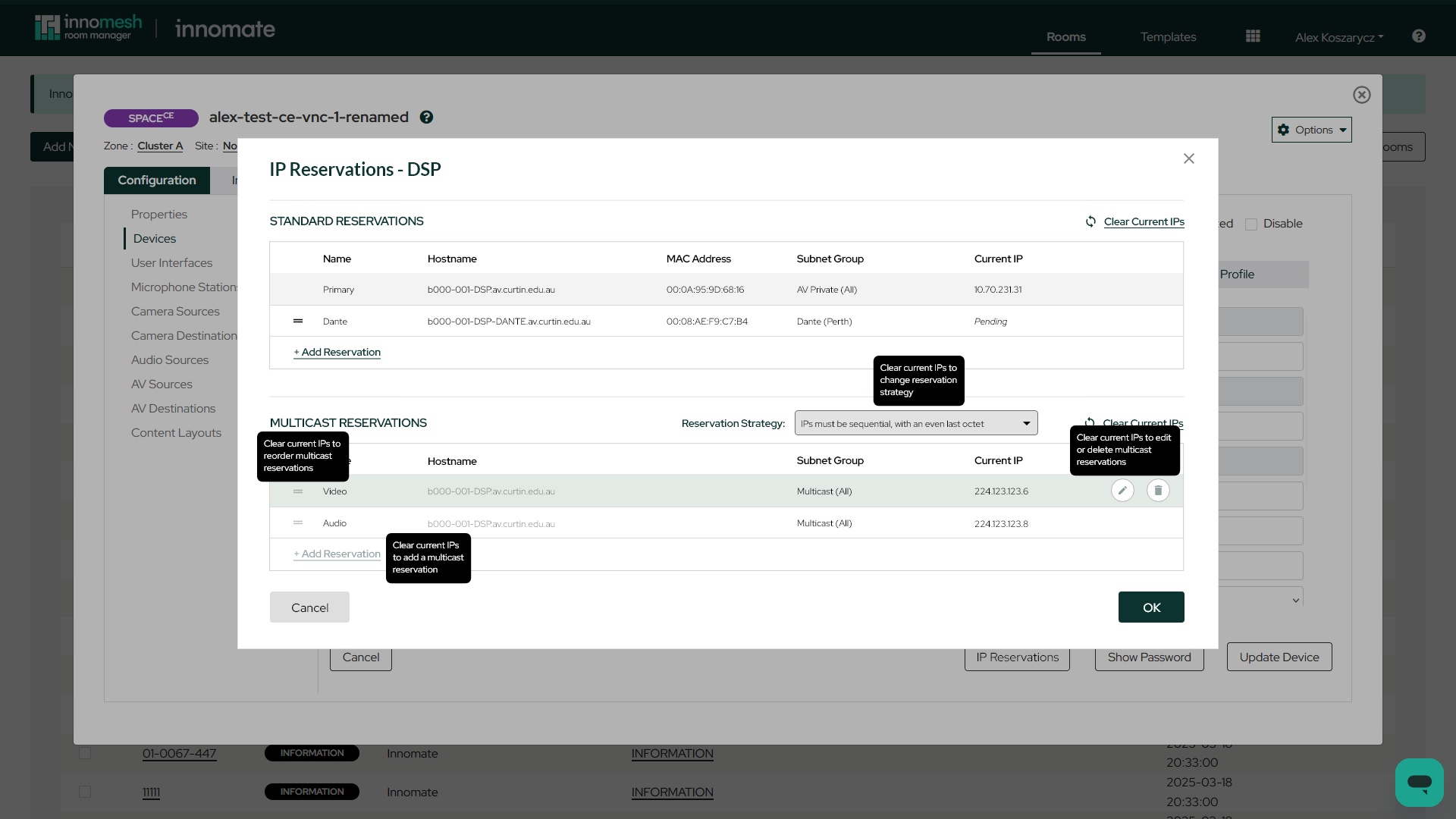 Multicast Address Support
Scalable Automation with Templates
DDI functionality is fully integrated into room templates. By using JSONata notation, hostnames can be dynamically generated based on room-specific data during creation. This powerful feature further automates device and network setup, making large-scale deployments faster and more consistent than ever before.
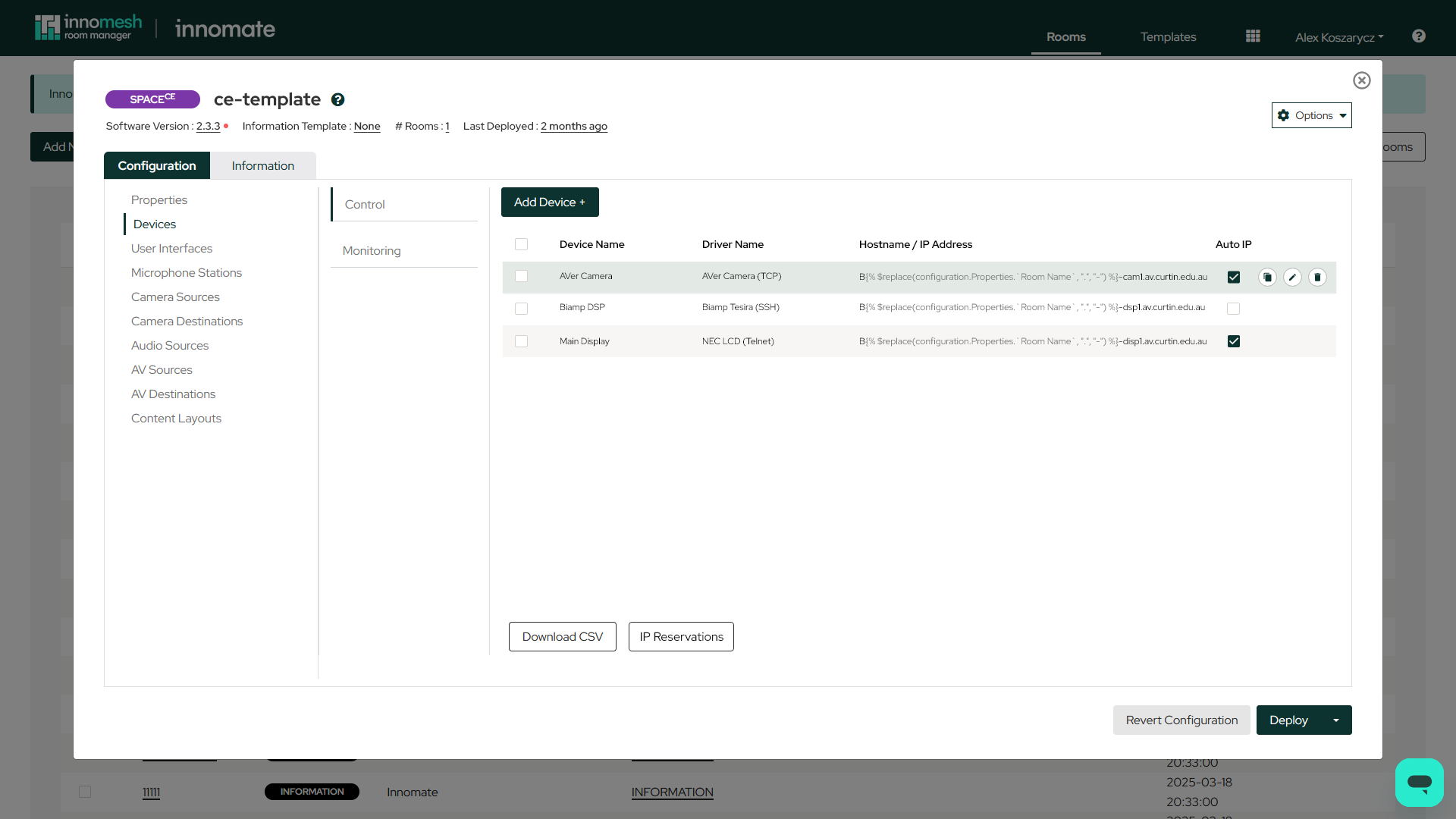 Template automation with regex
Centralised Administration, Staging Capabilities, and Standards Enforcement
The DDI Administration page provides global configuration options, including the ability to enforce strict hostname conventions using regex patterns to maintain network integrity and to ensure all device hostnames adhere to your organisation’s naming standards. Also available is the ability to set devices up for “staging” before migrating them to production, whereupon hostnames are automatically migrated from a “staging” to a “production” convention.
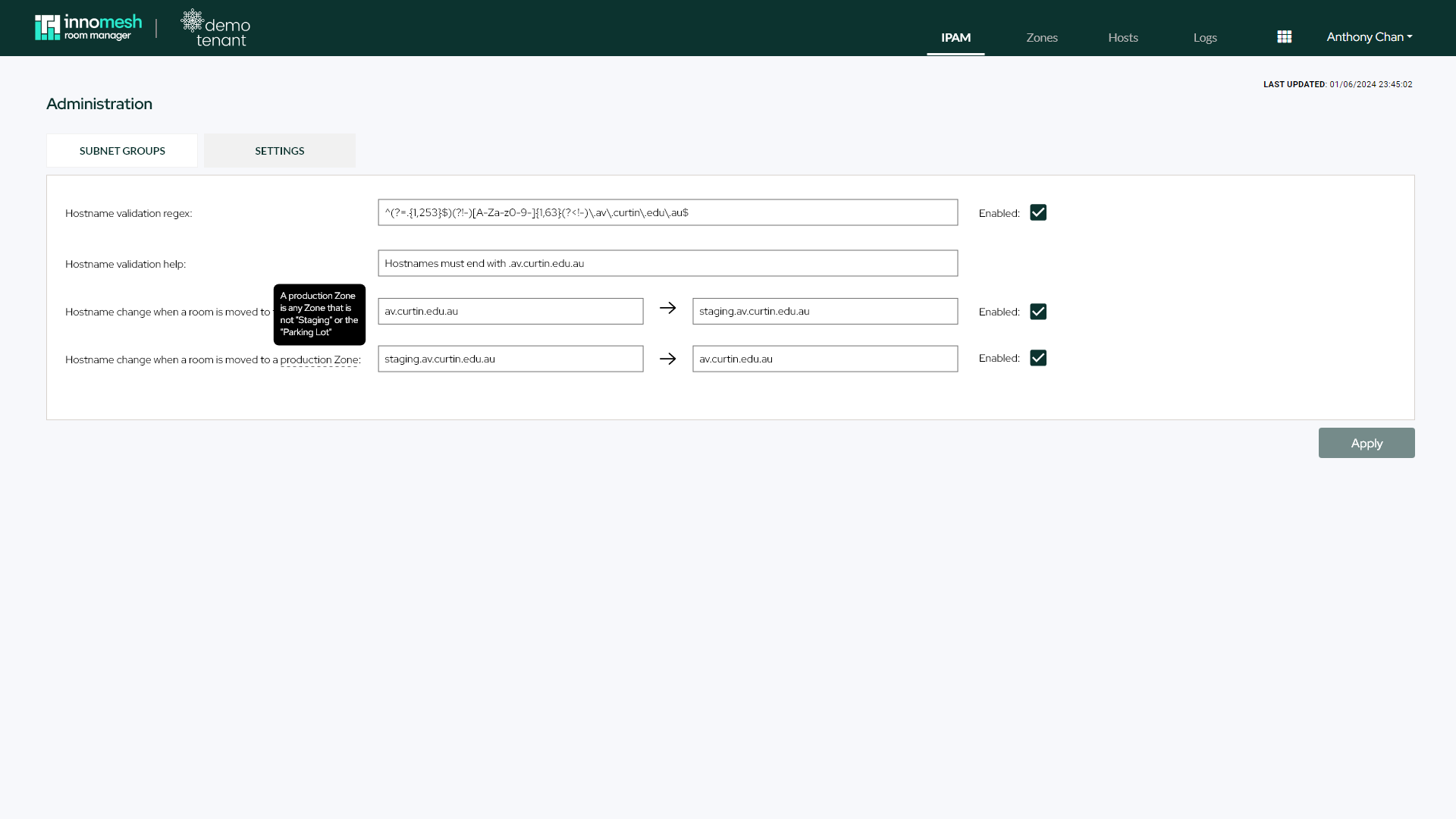 Administration page
XPanel Support
In this release, XPanels can now be added to Space CE rooms that are utilising Space CE with Crestron middleware. This allows users to remotely control the touch panels of these rooms using Crestron’s native XPanel program.
Beta Software Releases
Innomesh now has the ability to show beta software releases for Space CE versions. The beta software releases can be restricted to certain users to ensure that the beta version is not accidentally applied to rooms that it may not be compatible with.
Portal — The Details
Advanced Filters
Innomesh Portal’s filters have been uplifted to allow for much more flexibility in searching across the tables in the platform. The filters now support conditions, which allow users to filter devices, rooms and alerts using expressions that were not previously possible.
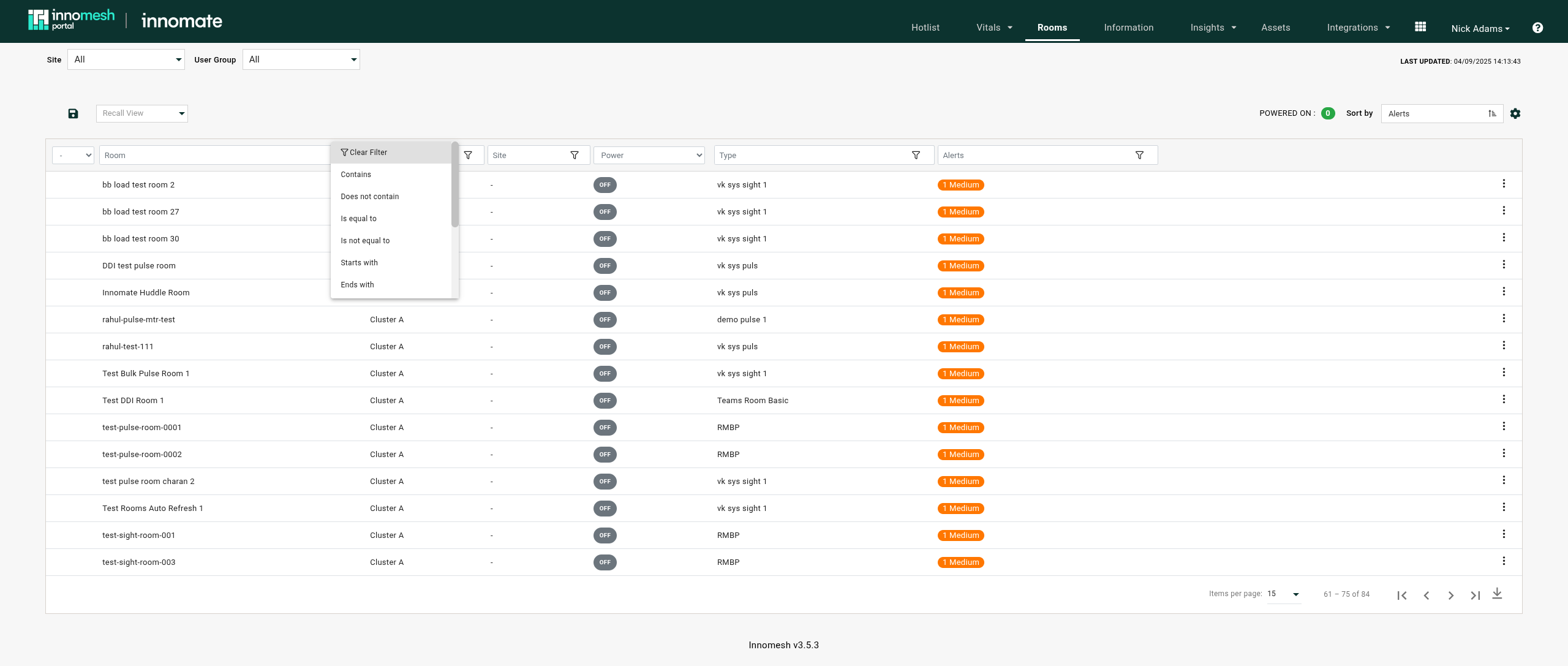 Selecting a filter condition for the Room Name in the Room List
The new filters are available across the following tables in the Innomesh Portal:
- Hotlist
- Rooms
- Information
- Assets
- Integration — Microsoft Teams Room
- Integration — Zoom Room
- Administration — Audit Logs
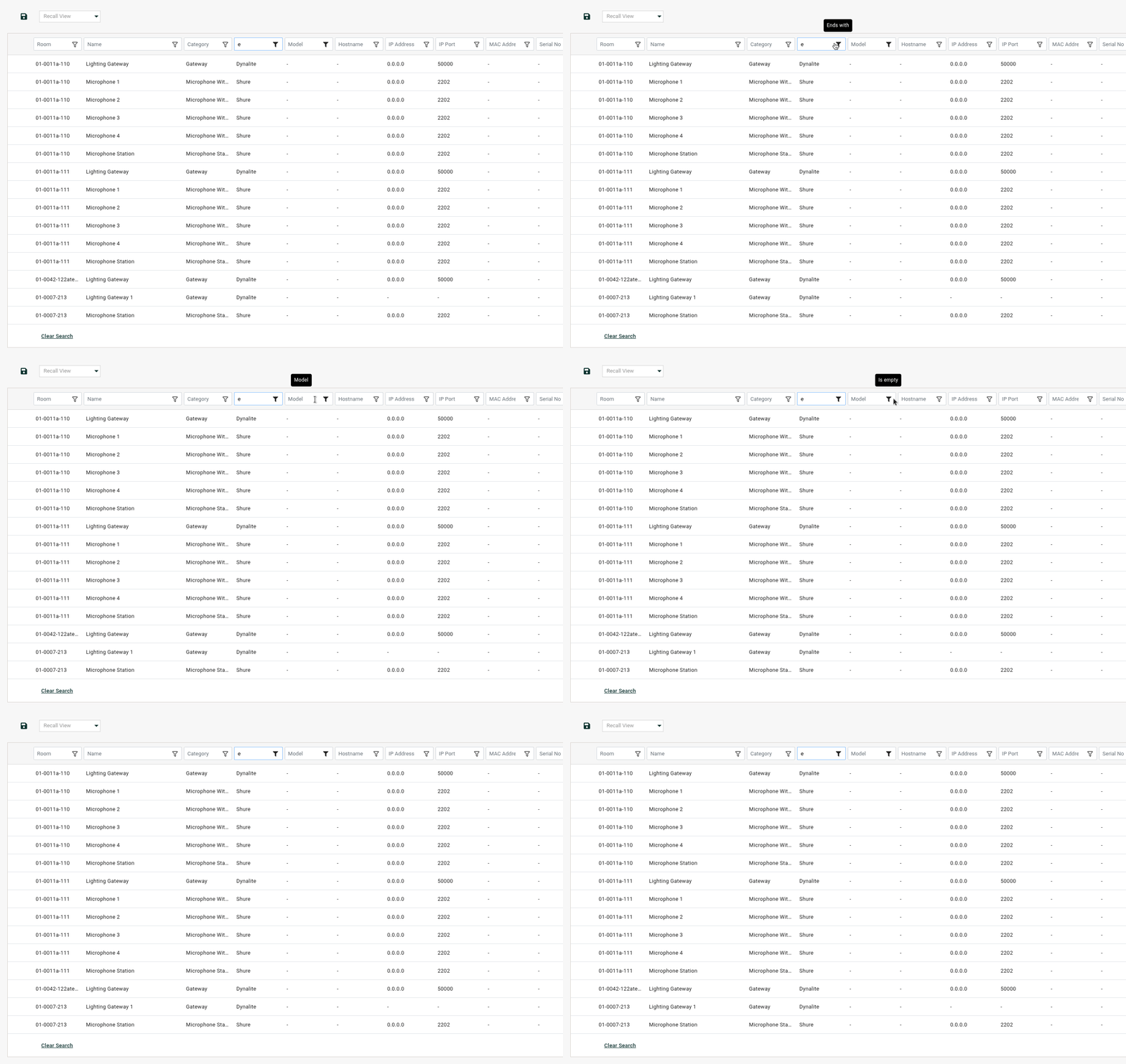 Devices filter by Brands ending with e and no Model
Right-clicking on any value in any of the tables will now provide an option to “Filter for value” or “Filter out value,” providing quick access to find or exclude a value that is already present on your screen and avoid copying and pasting it.
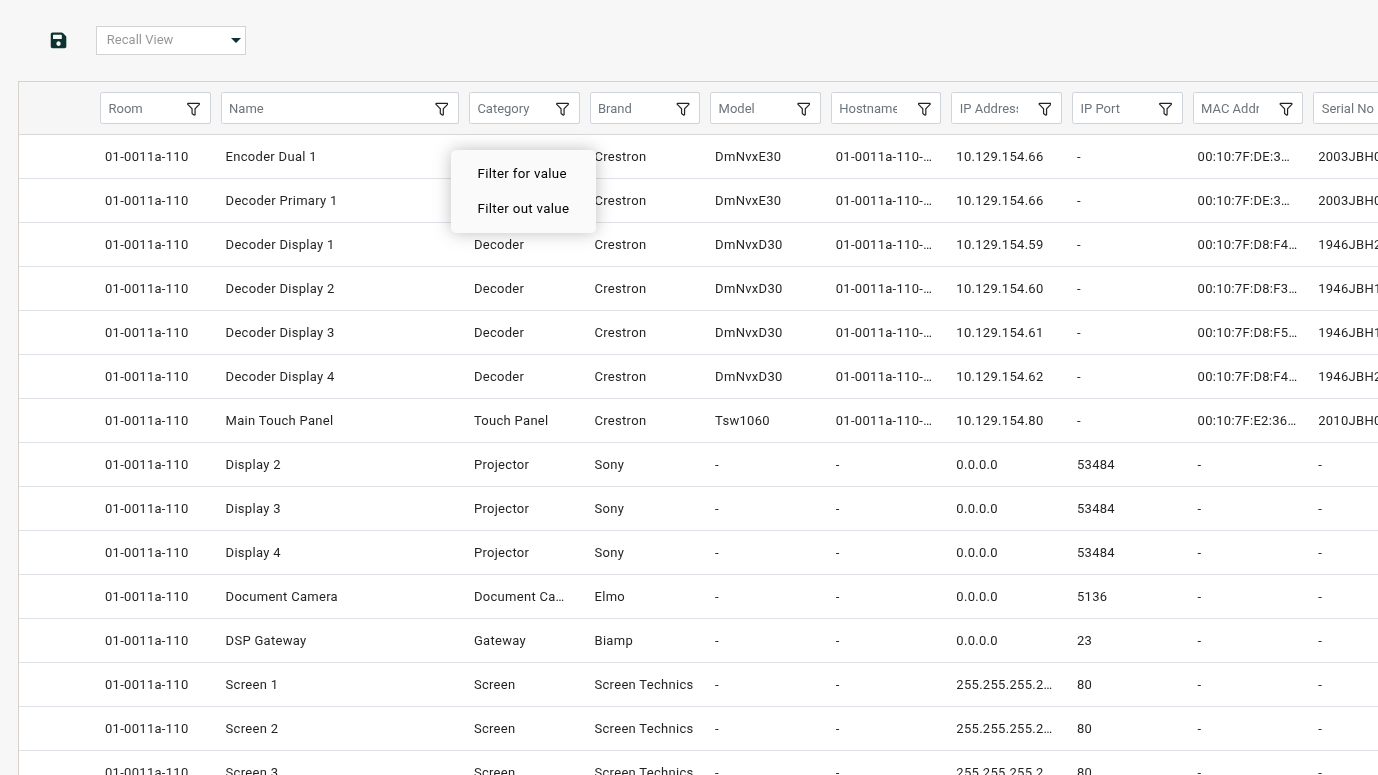 Quick filtering by right clicking
A list of the conditions now available includes:
- “Contains” — this is existing, and will remain the default
- “Does not contain”
- “Is empty”
- “Is not empty”
- “Starts with”
- “Ends with”
- “Is equal to”
- “Is not equal to”
- “Greater than or equal to” (number or date values only)
- “Less than or equal to” (number or date values only)
- “Greater than” (number or date values only)
- “Less than” (number or date values only)
In addition, the filters can be saved as a “filtered view” so that they can be recalled by all users at a later time. Once you have applied a set of filters that need to be recalled, hover over the floppy disk icon and select “Save View As”. Once the view is named and saved, it can then be recalled by selecting it from the list in the recall view drop-down.
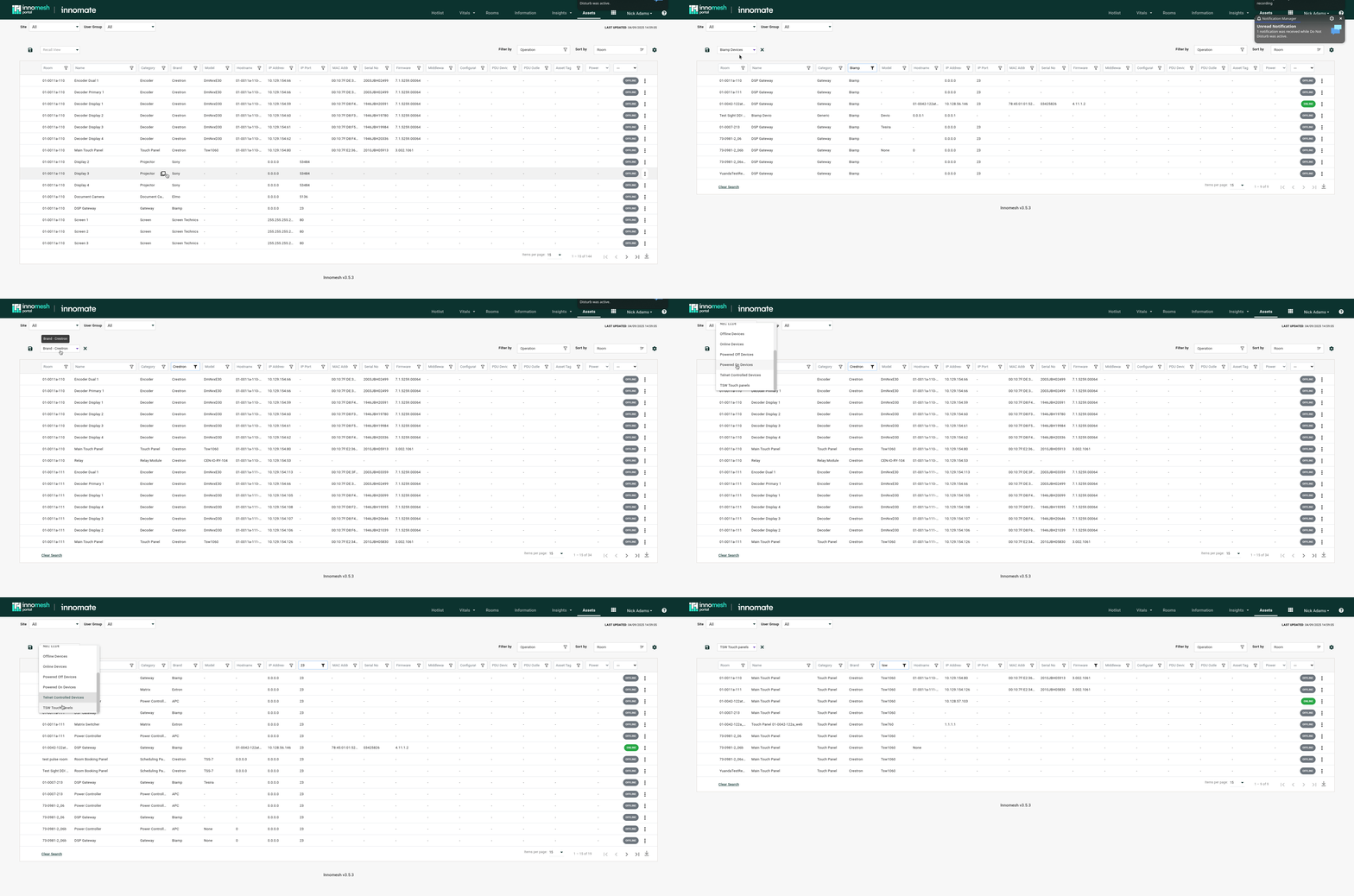 Quickly switching between saved filter views
Filtered CSV Downloads
Table CSVs downloaded from the platform using the “Export CSV” button now consistently download only the filtered items list, not the full list.
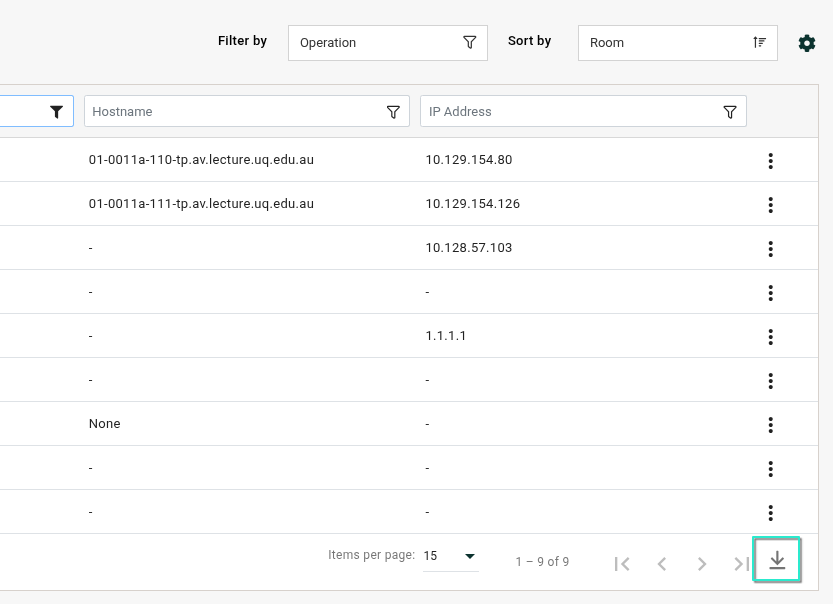 Download Icon present on all Innomesh Portal tables
Once the table is filtered, press the Download icon in the bottom right of the table, and a CSV will be downloaded in your browser. When opened, this CSV will contain ONLY the values that are in the filtered table.
Asset Actions in Room Support View
Asset actions are now available in the Room Support View. Previously, to initialise an action (for example, reboot, source select, volume select) in the Room Support View, the user would have had to click on the asset and enter the Asset Support View. This would have taken them away from the Room Support View and added more time to the process, especially while troubleshooting an issue with the room.
Site Filter
The Site filter has been updated to support multiple selections. To use it, click the filter at the top of the Innomesh Portal as you normally would. You will now see checkboxes next to each site. Select the specific sites you wish to view, or check “Select All” to include every site.
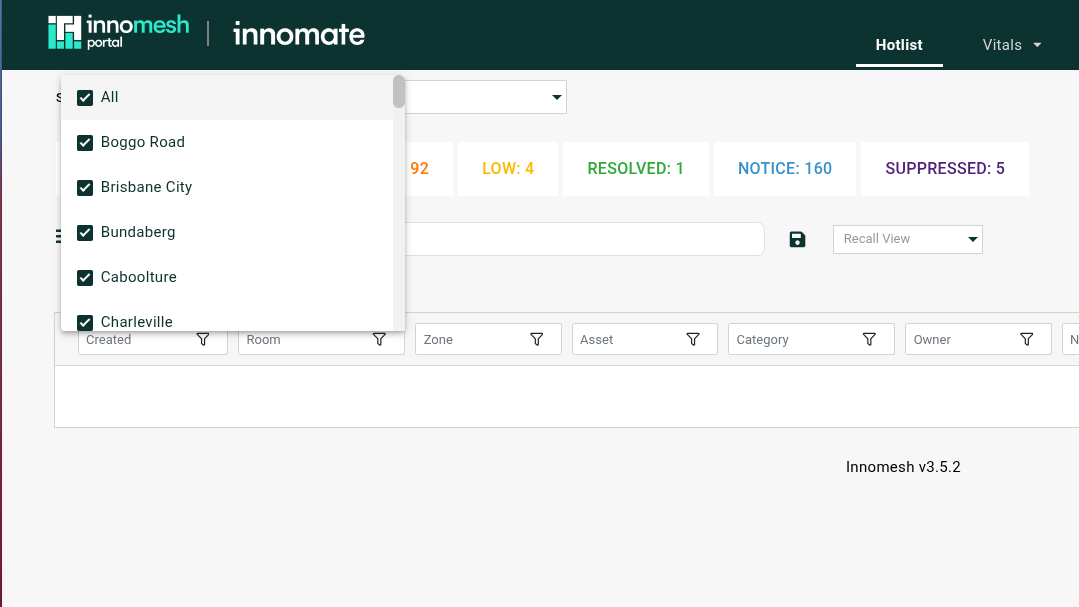 Site filter selection
Additional Enhancements
Hotlist Alert Tooltips
Longer hotlist alert names may get trimmed when being shown in the table on the hotlist. The hotlist alert tooltip will now appear above the hotlist alerts when hovering over them to show the full text from the alert.
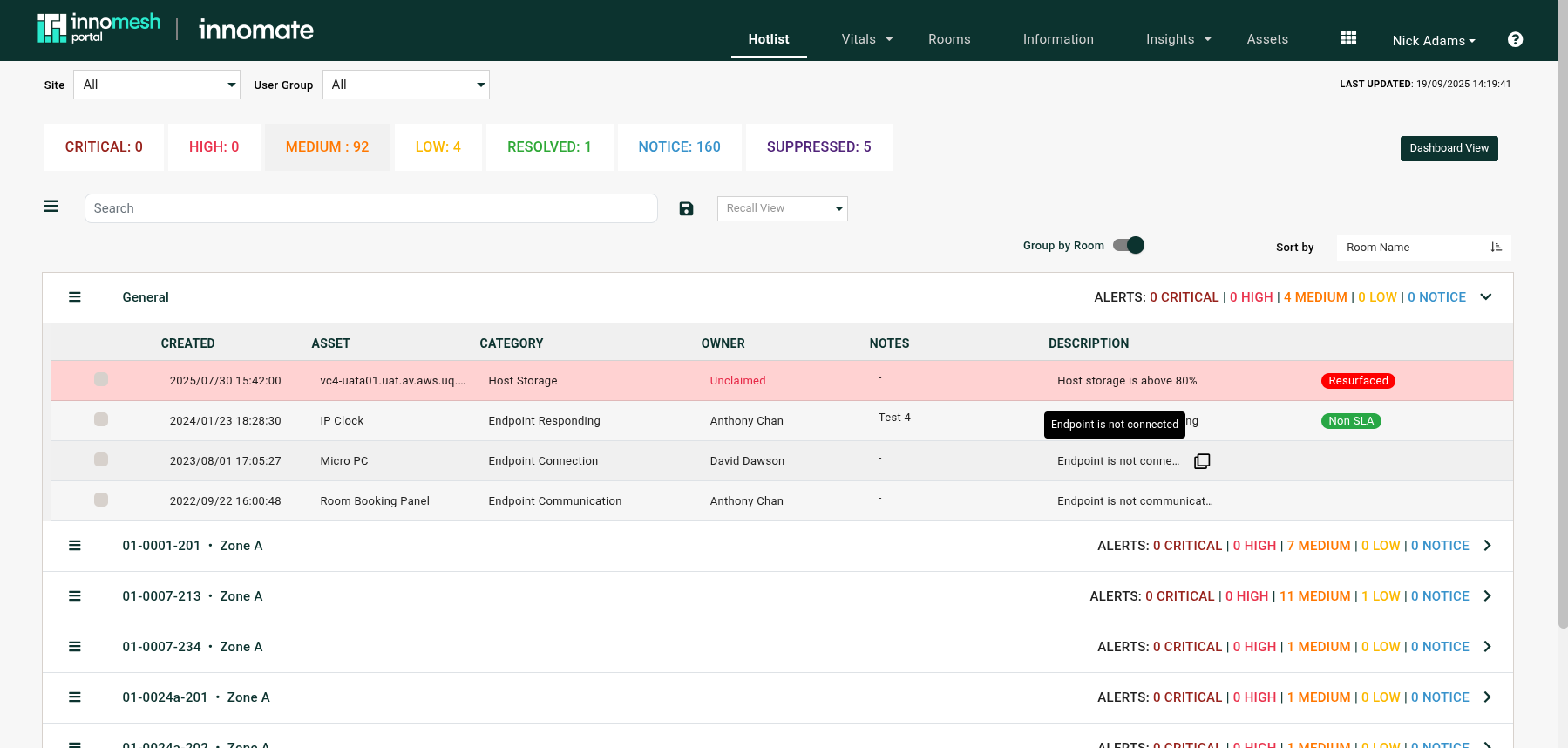 Hotlist tooltip on description
Asset Profile Images
Asset profile images have been optimised to load faster.
Mattermost Notifications
Mattermost notifications have been reformatted to allow for Mattermost to index the notifications, facilitating better searchability.
Help Icon Placement
The help icon for each main page has been moved to the top right for consistency between pages.
Bug Fixes
Room Manager:
- Resolved mass room deployment failures caused by backend repository throttling.
- Room configuration form now updates to reflect the new software version after a Space CE version change.
- Fixed rooms with large configurations failing to create or update.
- Remediated VC-4 Gateway room update failures.
- Fixed the prompt to select an information template not being cancellable when navigating to the Information section.
- Removed the redundant Information → Assets section of the Room Edit form.
- Fixed updating only room information updating the room’s “last updated date” but not “last updated by”.
Portal:
- Upload window for room profile images is now restricted to valid image file types.
- Added a flag in Room Information to force PDFs to load at full resolution.
- Fixed asset profile duplications failing.
- Fixed “0” being incorrectly rendered as “X” on the Information page.
- Fixed Microsoft Teams Room information not displaying when the MTR device resides on a VC-4 Gateway.
- Fixed duplicate “Presenting: Source” status tags appearing in Room Support View for complex Space CE setups.
- Rooms that do not report a power state no longer show “OFF”.
- Retired the superscript notation for Space VC and Space CE across the platform.
Q-SYS Central Logging:
- Fixed design files failing to back up on Cores with a
.gzdesign file archive. - Added a health check to detect and recover from Q-SYS worker service failures.
- Resolved potential mismatches in fault and warning count calculations.