

This guide explains how to restart a Crestron VC-4 room. A restart may be necessary when native and third-party devices fail to connect, or when rooms experience high memory usage.
Accessing the Crestron VC-4 Web Interface
Step 1: Navigate to Administration
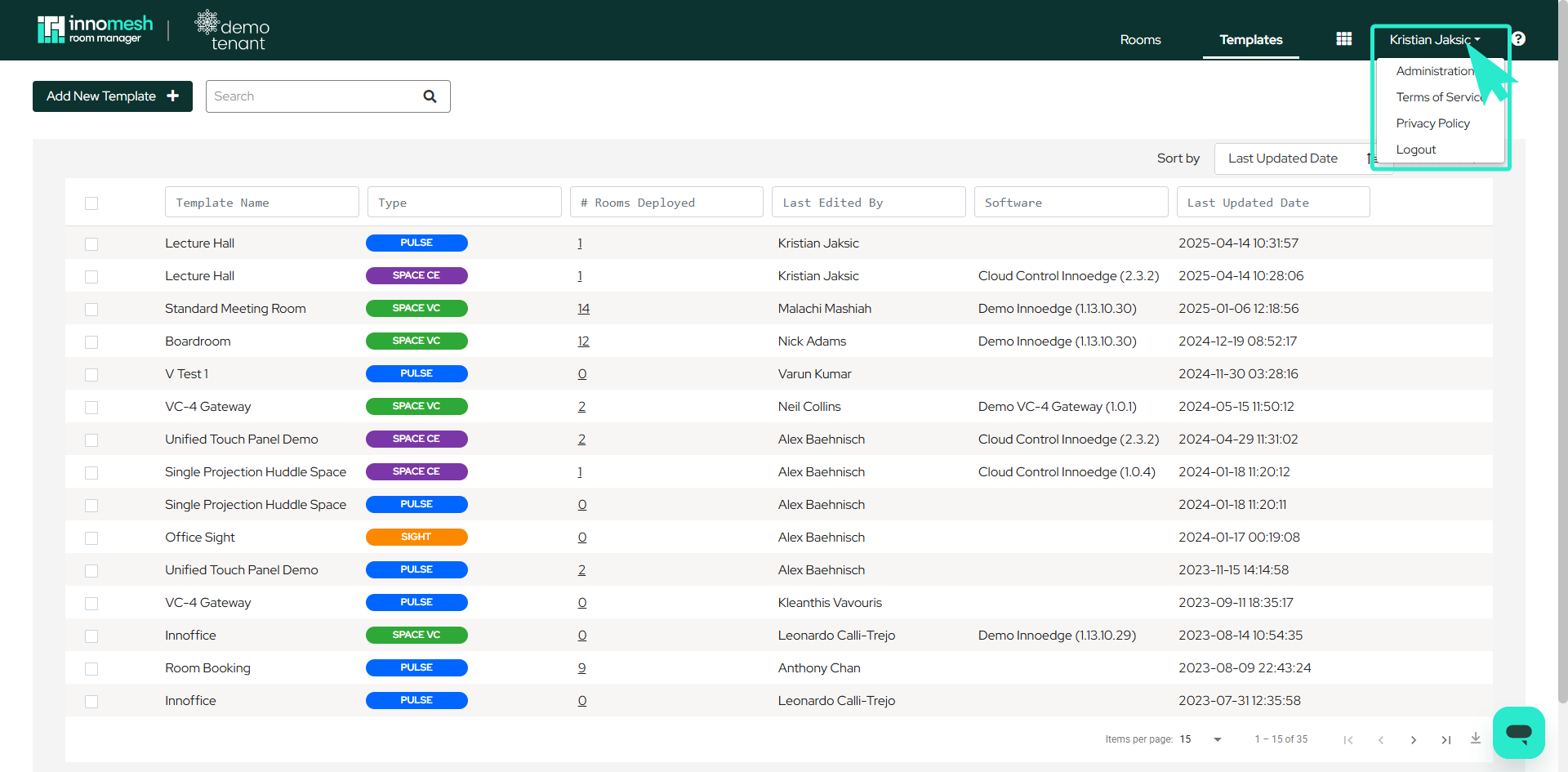
Open Innomesh Room Manager. Hover over your name in the top right corner and select Administration from the dropdown.
Step 2: Access the Hosts Tab
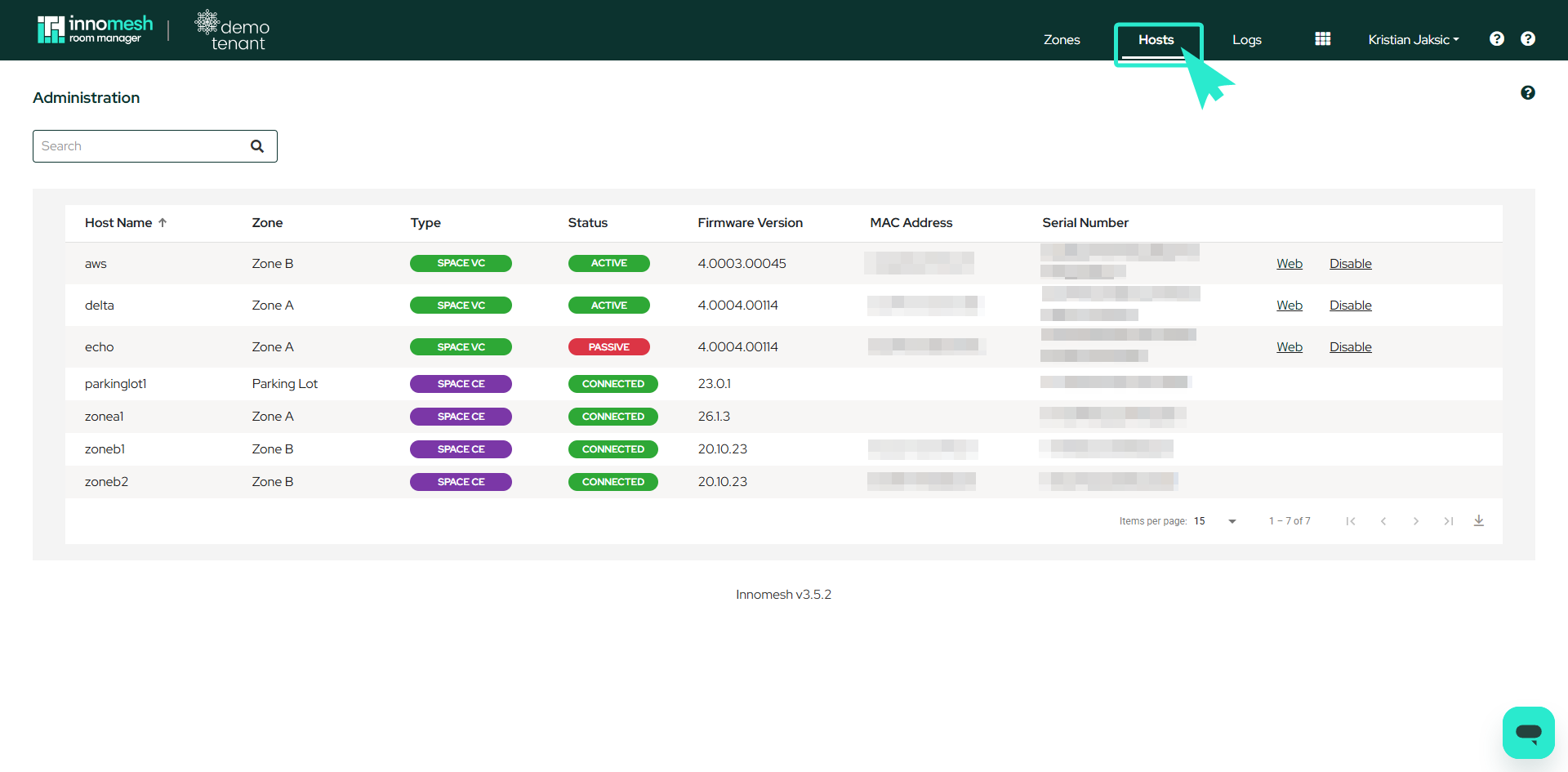
In Administration mode, navigate to the Hosts tab. Locate your dedicated Crestron VC-4 servers. There will typically be a passive and an active server.
Step 3: Connect to the Server
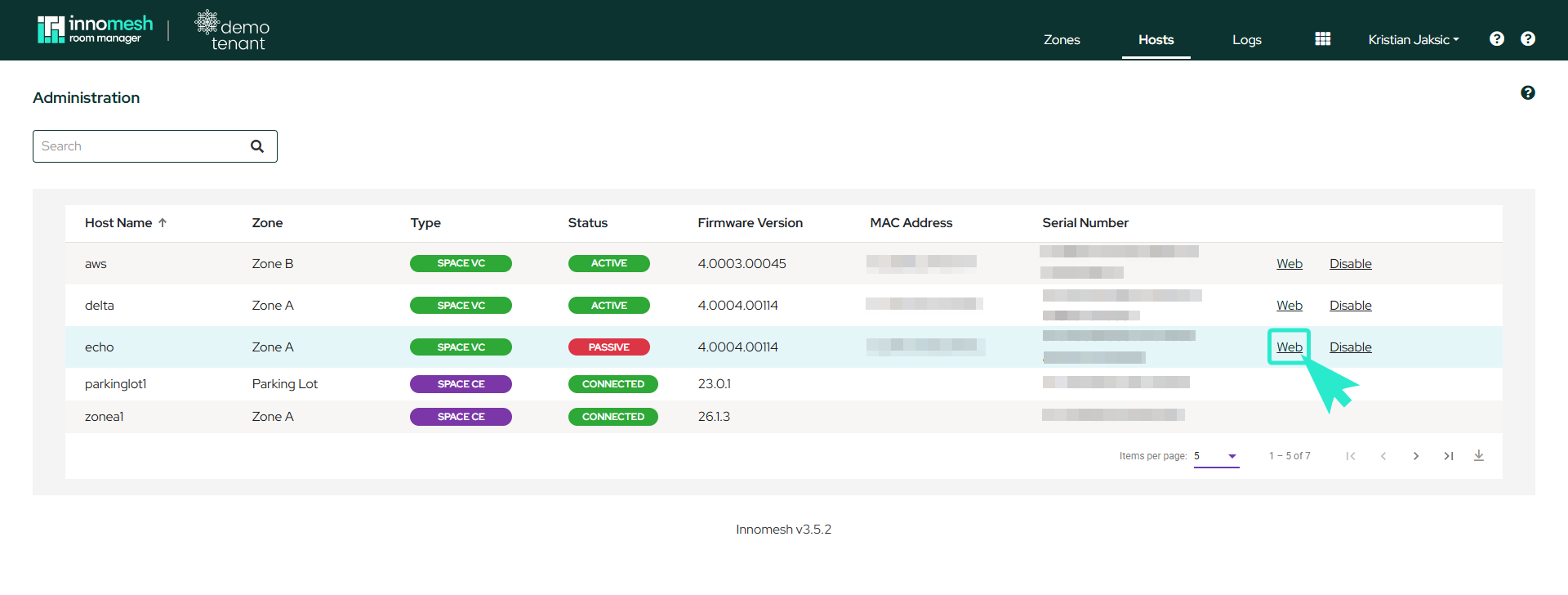
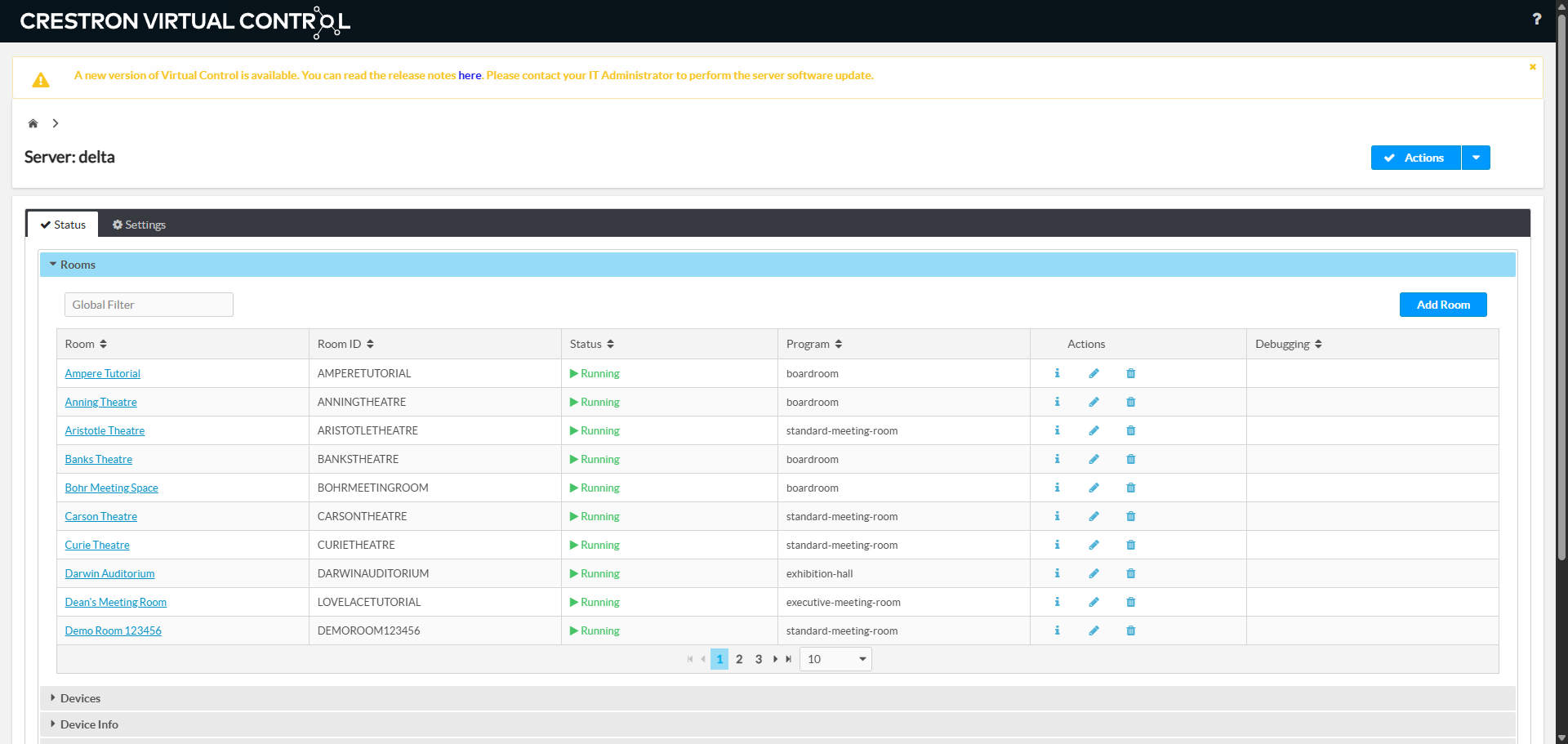
Click the Web link on the right side of either server to open the VC-4 web interface. Be aware that active servers host live rooms, so exercise caution with any changes there. You may need VPN access for remote connections.
Step 4: Log In
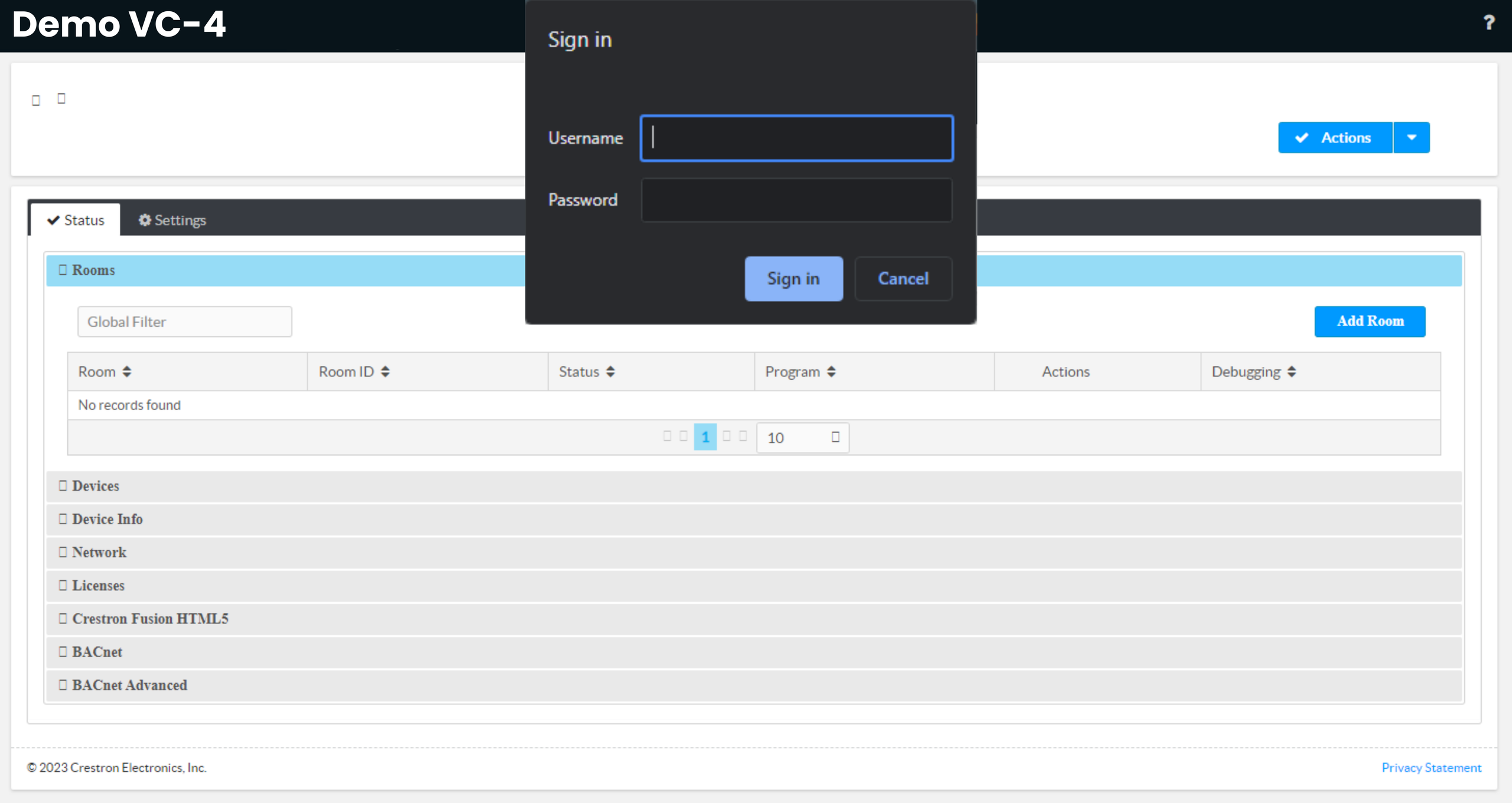
Enter your Crestron VC-4 credentials when prompted to access the server’s web interface.
Restarting the Room
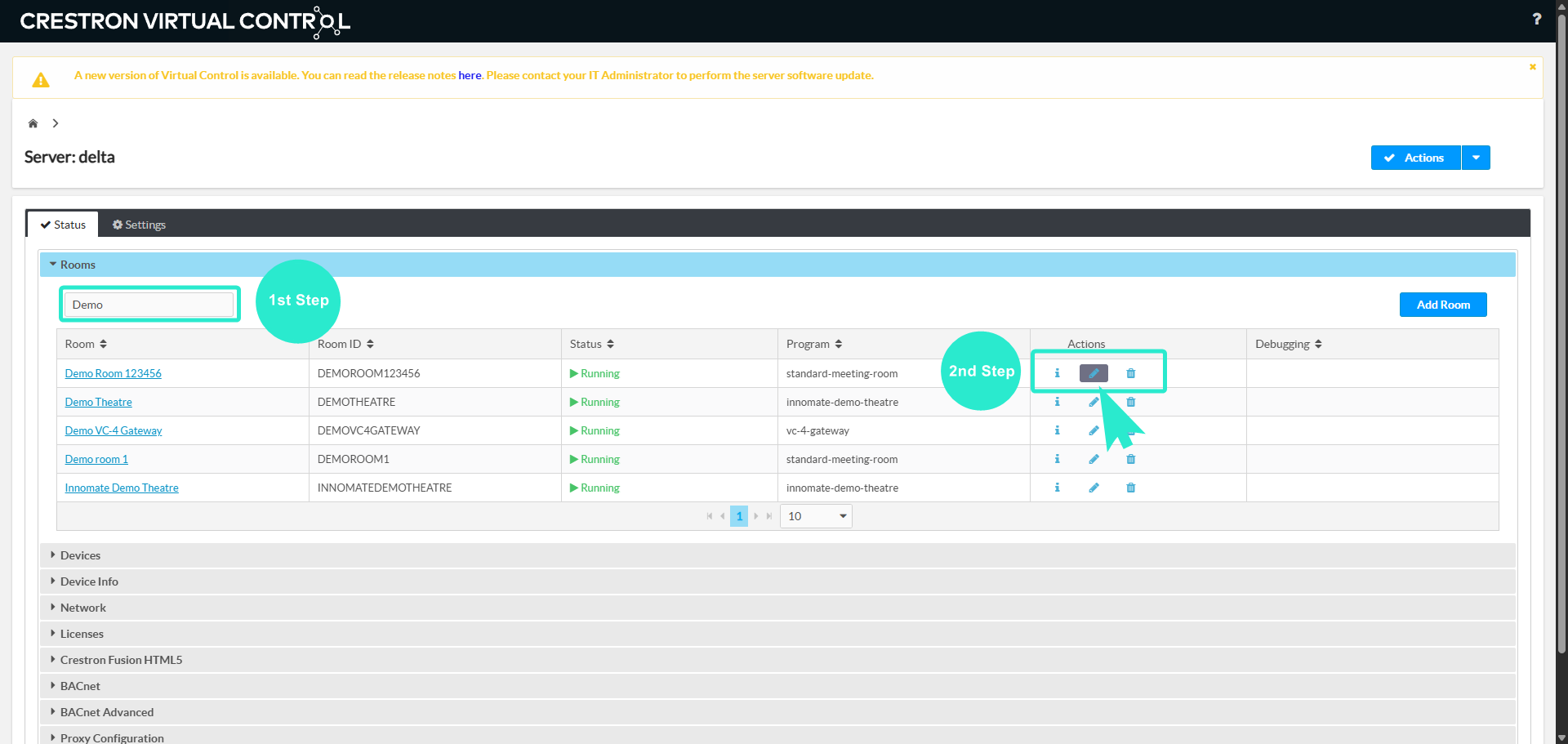
Step 1: Find the Room
Search for the specific room on the server. Click the pencil icon to access the room’s dedicated tab.
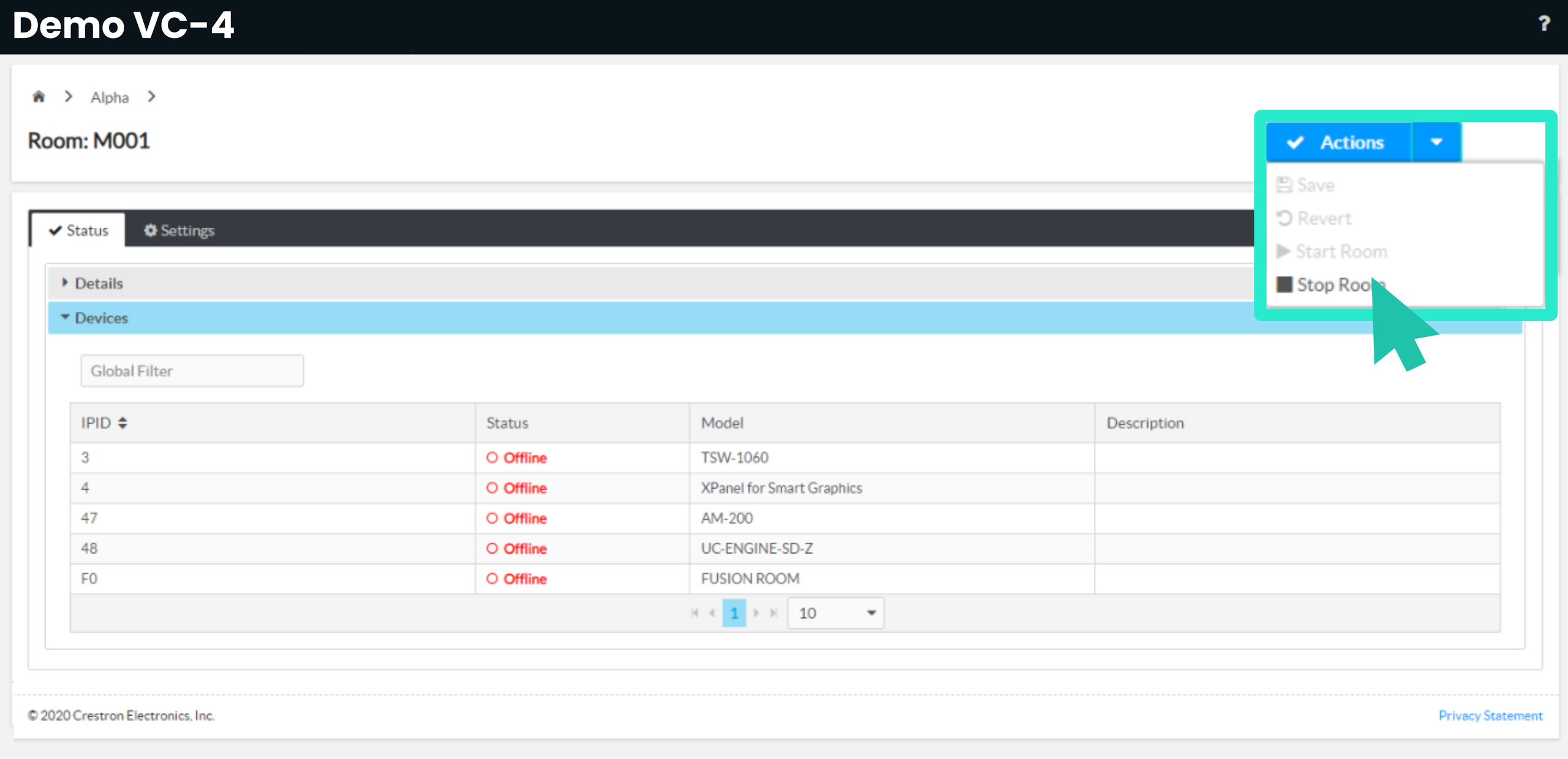
Step 2: Stop the Room
Locate the Actions dropdown menu and select Stop Room to turn off the room.
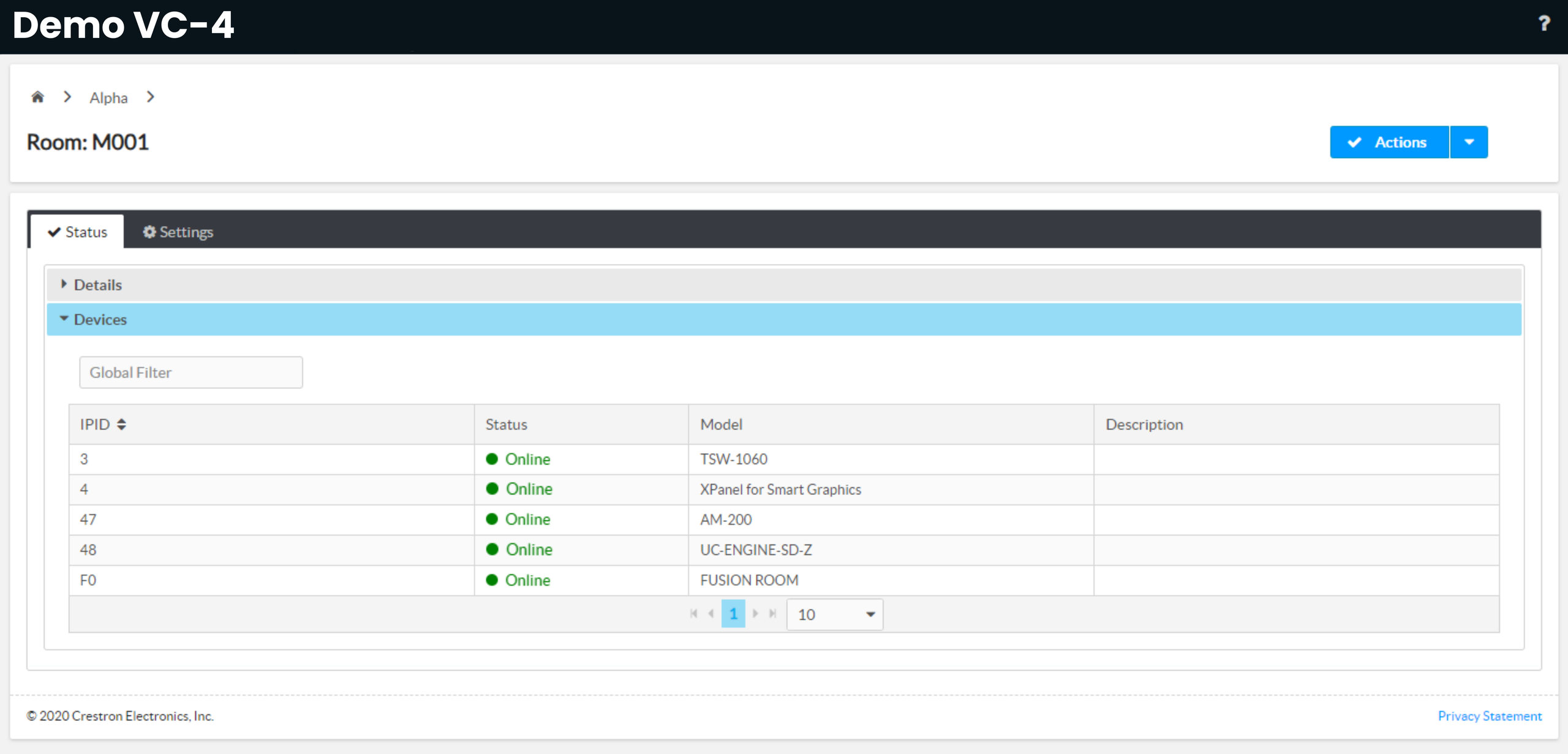
Step 3: Verify the Restart
Wait 5 to 10 seconds for Innomesh to automatically restart the room. Confirm the operation was successful by:
- Launching the XPanel for the room.
- Checking for a “Connected” prompt on the Touch Panel.
- Verifying that native devices appear online.
If issues persist after the restart, contact Innomesh support for further assistance.