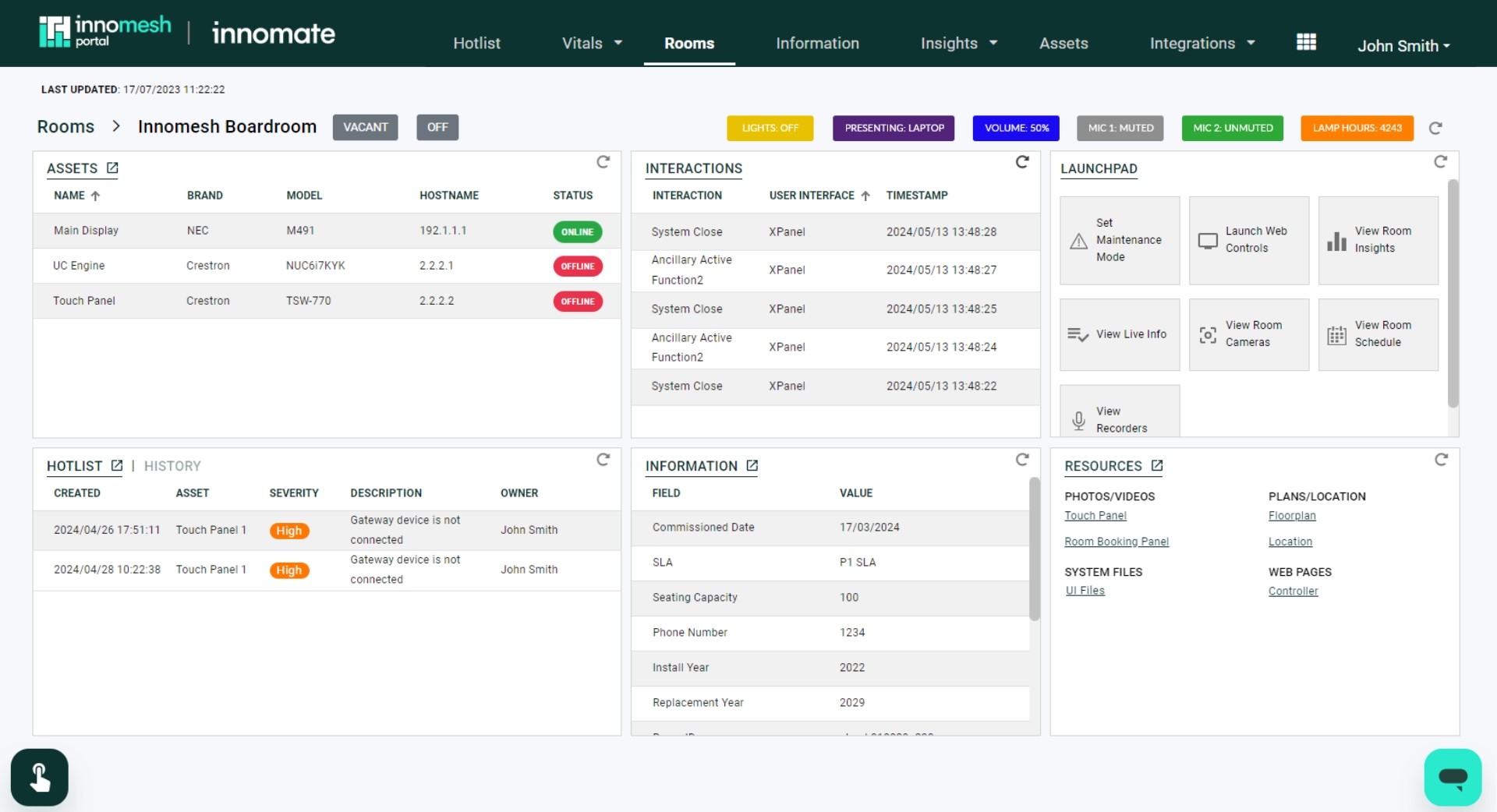
The Room Support View is a unified dashboard that consolidates alerts, assets, resources, and room details into a single screen. It is designed to give support teams everything they need to diagnose and resolve issues without switching between multiple pages.
Accessing the Room Support View
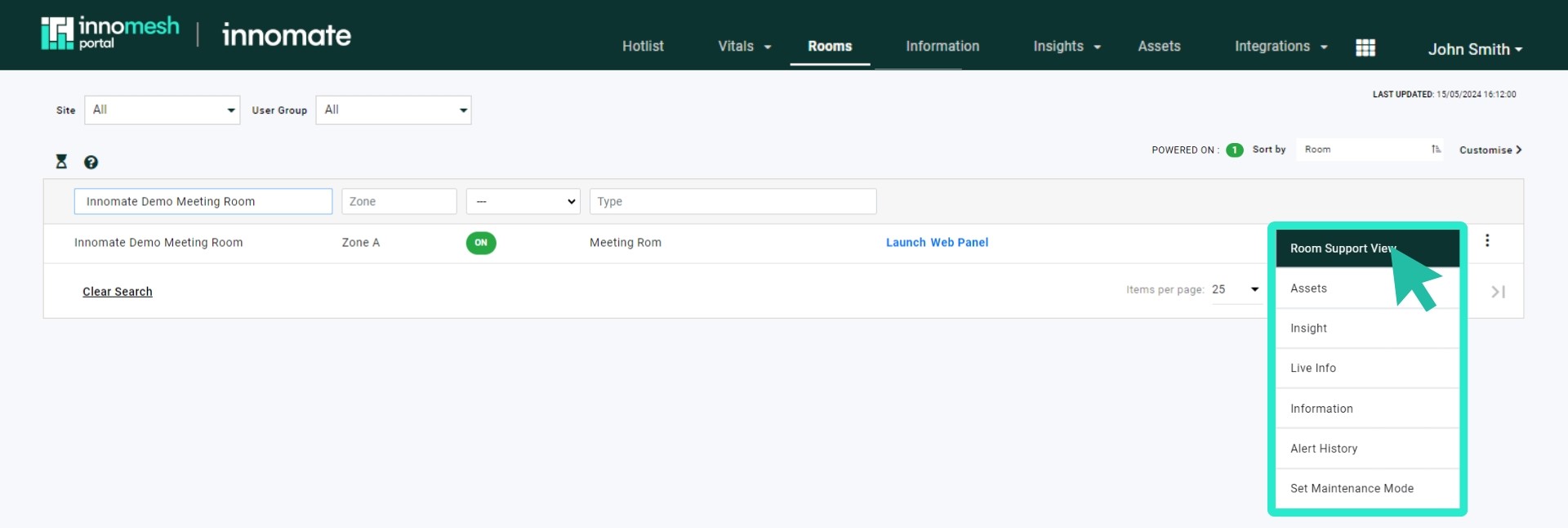
There are two ways to open the Room Support View:
- Click any room row on the Rooms page.
- Hover over a room row, click the ellipsis menu, and select Room Support View.
Sections
Assets
Displays all devices configured for the room. Each asset shows its current status and can be clicked for further detail.
Interactions
Shows a complete record of user interactions captured via the room’s touch panels or keypads, including source selections, volume adjustments, and other control events.
Launchpad
Provides quick-access shortcuts for common room functions:
- Maintenance Mode toggle
- View Room Insights
- View Live Info
- View Room Camera (when available)
- View Room Schedule (when available)
- Launch Web Controls (Web Panel or XPanel, where applicable)
Hotlist and History
Presents current active alerts for the room alongside historical alert data. This allows you to see both what is happening now and what has occurred in the past.
Information
Displays the static information associated with the room, as configured through Room Manager or the Information page.
Resources
Shows files and hyperlinks from the room’s static information repository, such as schematics, floor plans, and user guides.
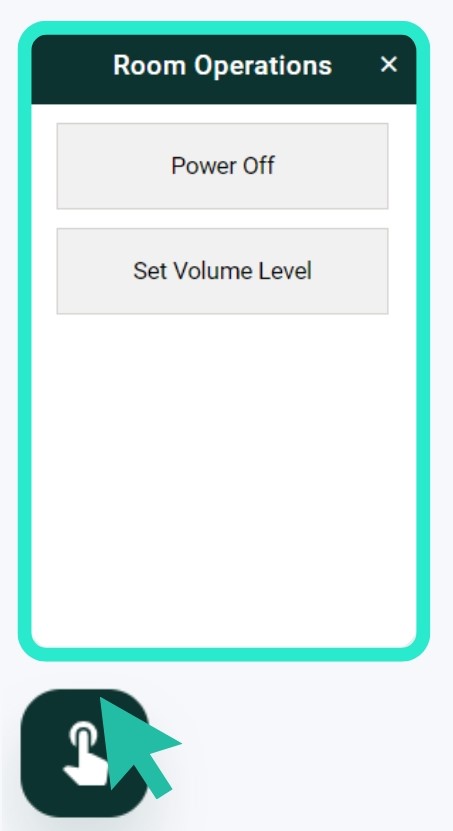
Room Operations
Room Operations is a sub-feature that enables support staff to trigger available Ops actions for the room. Access it via the icon in the bottom-left corner of the Room Support View.