

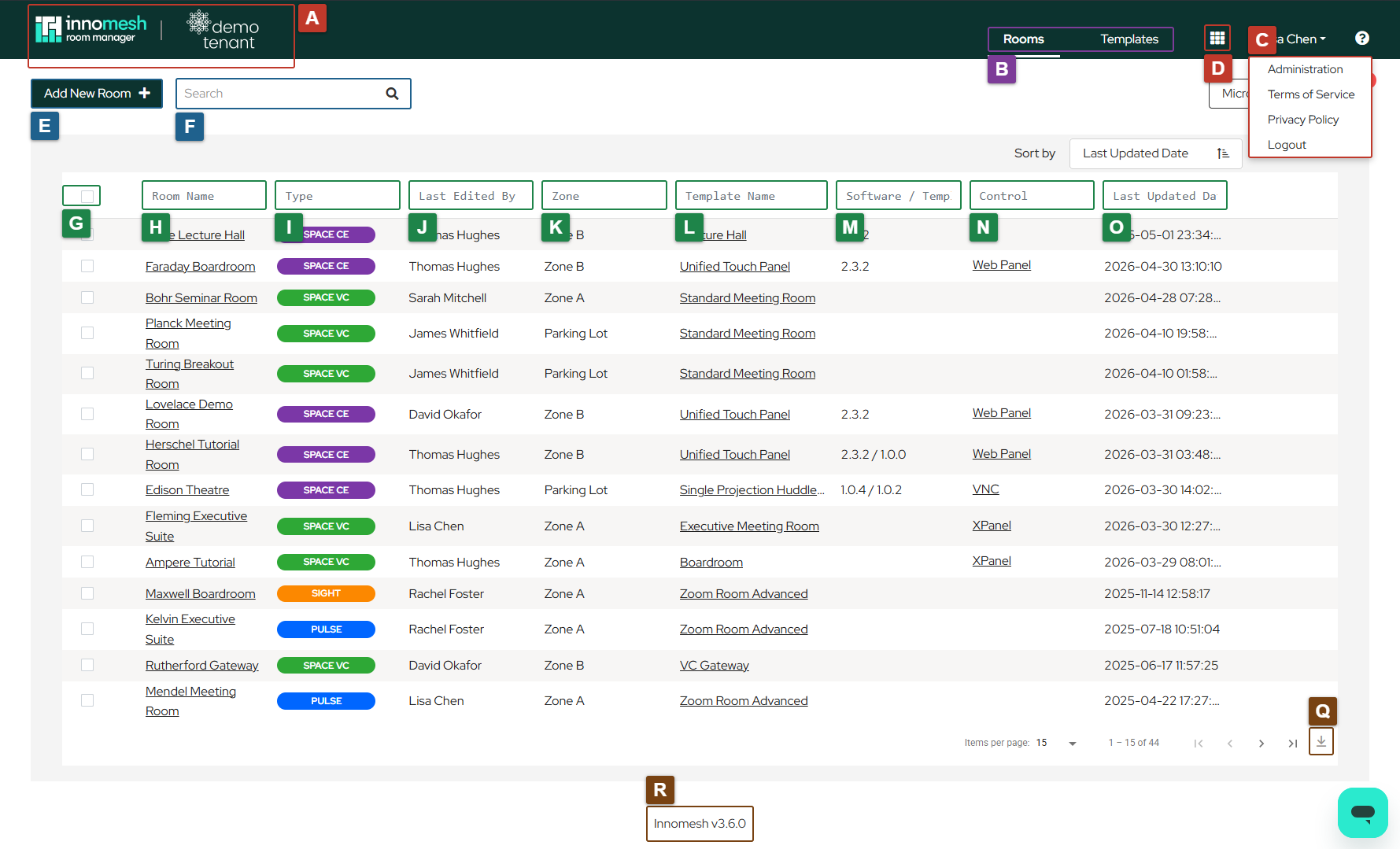
The Rooms page is the primary landing area after logging in to Innomesh Room Manager. This guide covers every interface element on the page, labelled A through R in the screenshot below.
A. Logo
The Innomesh and client logos are displayed in the top-left corner. Clicking either logo navigates you back to the home Rooms page.
B. Rooms / Template Navigation
These buttons toggle between the Rooms and Templates sections. The Templates section is restricted to administrator accounts only.
C. Logout / Administration Menu
A dropdown menu providing access to logout, the administration panel, and links to the Terms of Service and Privacy Policy.
D. Platform Navigation Menu
The nine-dot grid icon opens a menu for navigating between Innomesh products, including Room Manager, Portal, and Documentation.
E. Add New Room
Clicking this button opens a popup window where you can create a new room by selecting a template and entering room-specific details.
F. Search Bar
The search bar filters the room list by Room Name, Type, Last Edited By, Zone, Template Name, Software/Template Version, Control, and Last Updated Date.
G. Delete Selected Rooms
This tool enables bulk or individual deletion of rooms. Please note that this action is irreversible. Regular backups of room configurations are recommended.
H. Room Name
Displays the name assigned to each room during creation. A separate Room Friendly Name field (available from Innomesh v3.6.1) holds an optional human-readable name shown alongside the room name across Room Manager and Portal.
I. Room Type
Shows the product type for each room, such as Space VC, Space CE, Sight, or Pulse.
J. Last Edited By
Indicates the user who most recently modified the room configuration.
K. Zone
Displays the virtual storage zone where the room’s configuration resides. Zones help organise rooms logically. Common uses include a parking lot zone for inactive rooms and PSUP/UAT zones for rooms being commissioned.
L. Template Name
Shows which template was used to create the room.
M. Software / Template Version
Displays the current software or template configuration version running on the room.
N. Control
Provides launch links for control interfaces. For Space CE rooms, this opens a web panel. For Crestron-based rooms, this opens an XPanel. For AMX-based rooms, this opens a VNC session to the AMX touch panel.
O. Last Updated Date
Shows the date and time the room was last modified, displayed in your local timezone.
P. Edit / Delete Room
Hovering over a room row reveals two icons: a pencil icon to edit the room configuration and a trash icon to delete the room.
Q. Download as CSV
Exports the current room list as a CSV file for reporting or record-keeping purposes.
R. Innomesh Version
Displays the currently running version of Innomesh in the bottom corner of the interface. Clicking on the version number opens the release notes for that version.